46
9.Then click “Add” .
10.Click “Apply” , and “OK” .
Alarm Message Triggering
Alarm Message may show additional information at the time of detecting
the alarm condition. Follow the instructions below to set the Alarm Message.
1.Click the “Alarm” Tab first.
2.Select the “Camera”, “Din” ,“Disk full”. “Disk failure”, or “No
Signal” .
3.Select a “Trigger Period”.
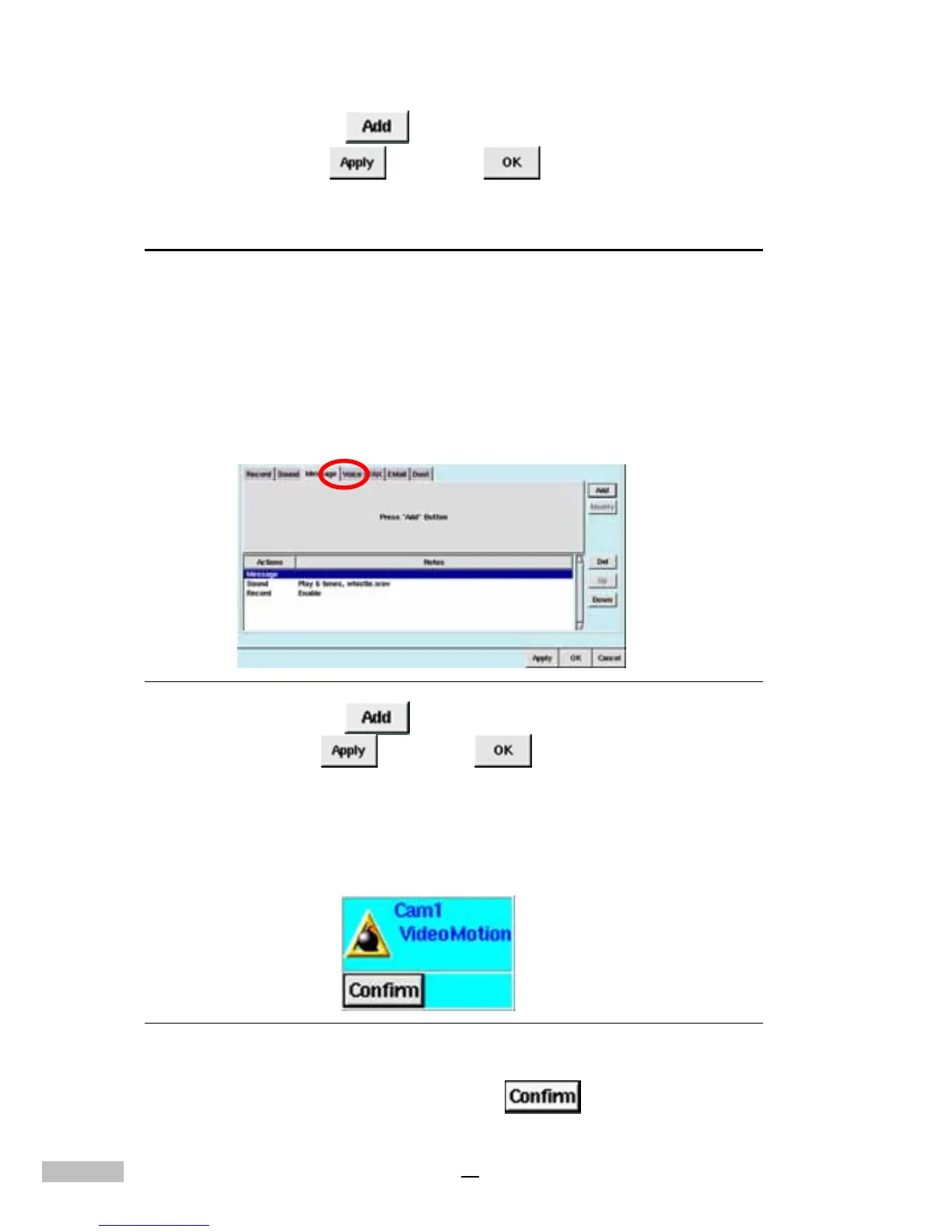
4.Click the “Message” Tab.
Figure 8-5: Message Tab
5.Then click “Add” , the window below will show “Message”
6.Click “Apply” , and “OK” .
Once this function is enabled and users have enabled Motion Detection on
that particular camera, a pop-up screen will appear (as below) to warn
users that the DVR has detected motion.
Figure 8-6: Message Pop-up Warning
7.Then users may click the “Confirm” button.



 To Next Page