Printing to the DiscPainter Printer
15
3 Select the DiscPainter printer. (If you don’t see a list or menu used to select printers, see the
documentation included with the program for instructions on selecting printers.)
4 Select Printer Features from the menu below the Presets menu.
5 Select the desired features from the Printer Features menus. See "Controlling Printer
Features" on page 9 for details about the printer features.
6 Click Print.
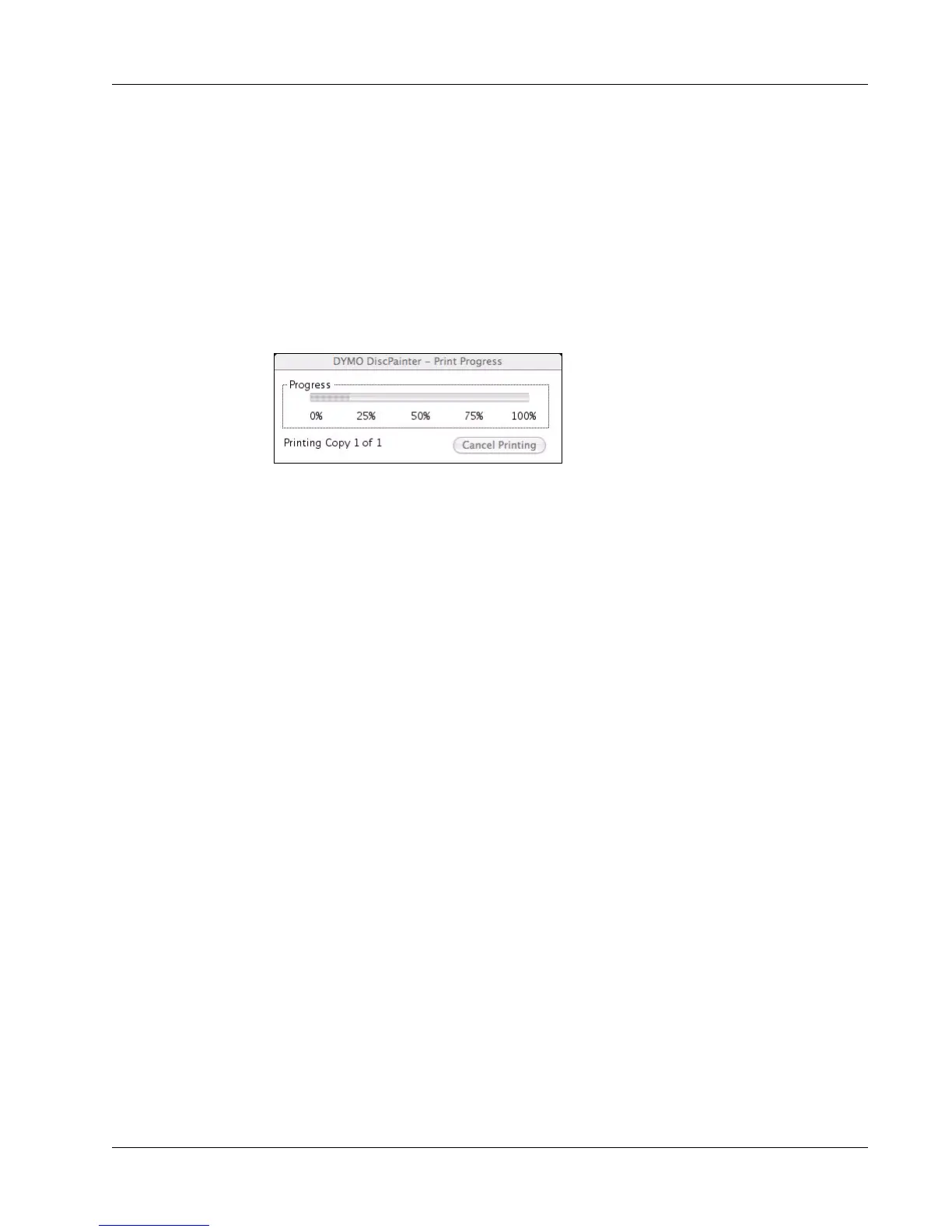
During printing, the Print Progress dialog box is displayed. This dialog box shows the progress of
the current print job (percentage completed, from 0% to 100%), the copy currently being printed,
and the total number of copies (“Printing copy 1 of 2,” for example).
To cancel the current print job
♦ Click Cancel Printing in the Print Progress dialog box. Printing stops at the point the printer
receives the cancel printing instruction. The disc tray moves back to the home position.



 To Next Page