Printing to a Shared Printer from Windows
35
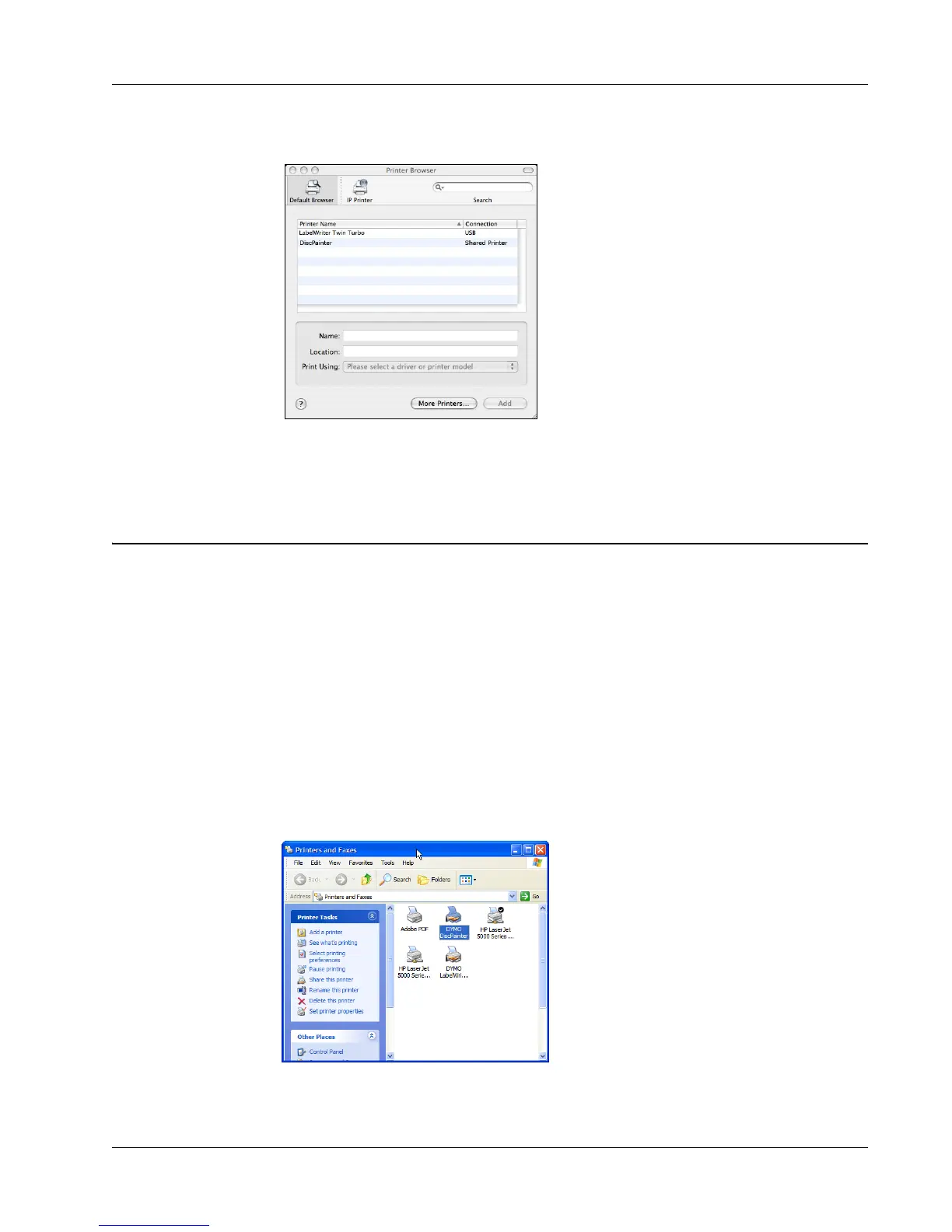
3 Click Add. The Printer Browser dialog box is displayed.
4 Select the printer and then click Add.
The shared printer is added to the Printer List dialog box.
5 Close the Printer List dialog box.
Printing to a Shared Printer from Windows
This section describes how to print to a shared DiscPainter printer in a Windows XP workgroup.
For information on printing to a shared printer under Windows Server or other versions of
Windows, see your Windows documentation or contact your System Administrator.
Sharing a Printer on a Network
These instructions assume that you have already installed DiscPainter printer software on the local
computer. See the printer’s Quick Start Guide for information.
Before printing to a shared printer from Windows, you first need to share the printer on the local
computer.
To share the printer
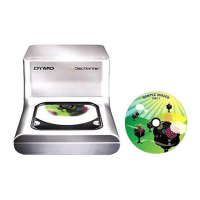
1 Click Start and select Printers and Faxes.
The Printers and Faxes control panel is displayed.
2 Right-click the printer you want to share and select Sharing.



 To Next Page