Please refer to the following sheet for log parameter information.
Click Device search button, you can view the searched device
information on the list. It includes device IP address, port, device
name, manufacturer and type.
Select a device in the list and then click Add button, system can
connect the device automatically and add it to the Added device list.
Or you can double click one item in the list to add a device.
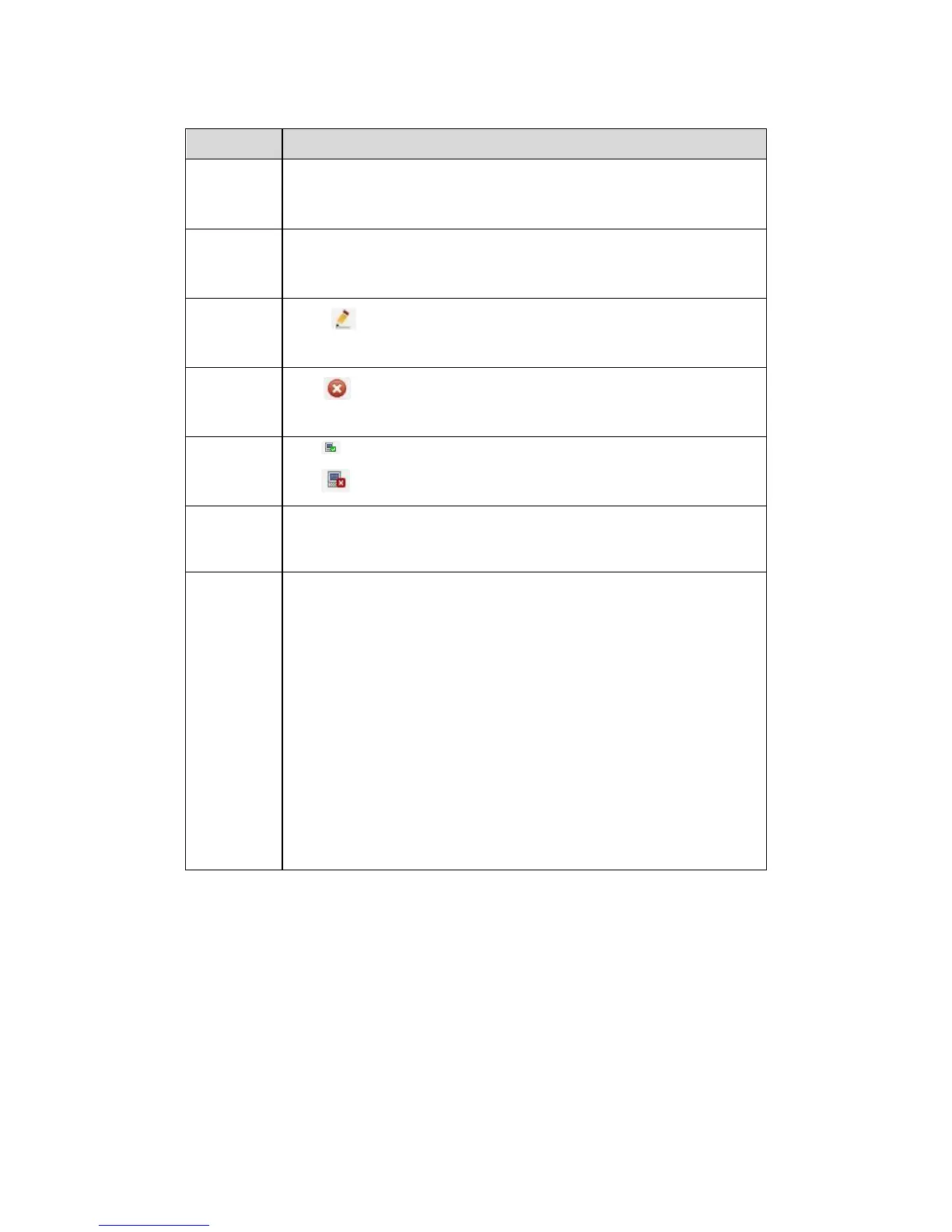
Click or any device in the Added device list, you can change the
corresponding channel setup.
Click , you can delete the remote connection of the corresponding
channel.
: Connection succeeded.
: Connection failed.
Select a device in the Added device list and then click Delete button,
system can disconnect the device and remove it from the Added
device list.
Click it, the interface is shown as in Figure 5-16. Here you can add
network camera manually.
You can select a channel from the dropdown list (Here only shows
disconnection channel.)
Note:
System supports manufactures such as Panasonic, Sony,
Dynacolor, Samsung, AXIS, Arecont, and Onvif standard
protocol.
If you do not input IP address here. System uses default IP
192.168.0.0 and system does not connect to this IP.
Can not add two devices at the same time. Click OK button here,
system only connect to the corresponding device of current
channel.
5.8.1.2 Conditions
Here you can view device property information. The setups become valid immediately
after you set.
The analog channel is shown as in Figure 5-17.


 To Next Page