15/52
DCBS User Manual / Ref. MAN_DCBS_GM_EN_V1.0
Initial Setup 6/8
UPDATE ////////
REMOTE UPDATE
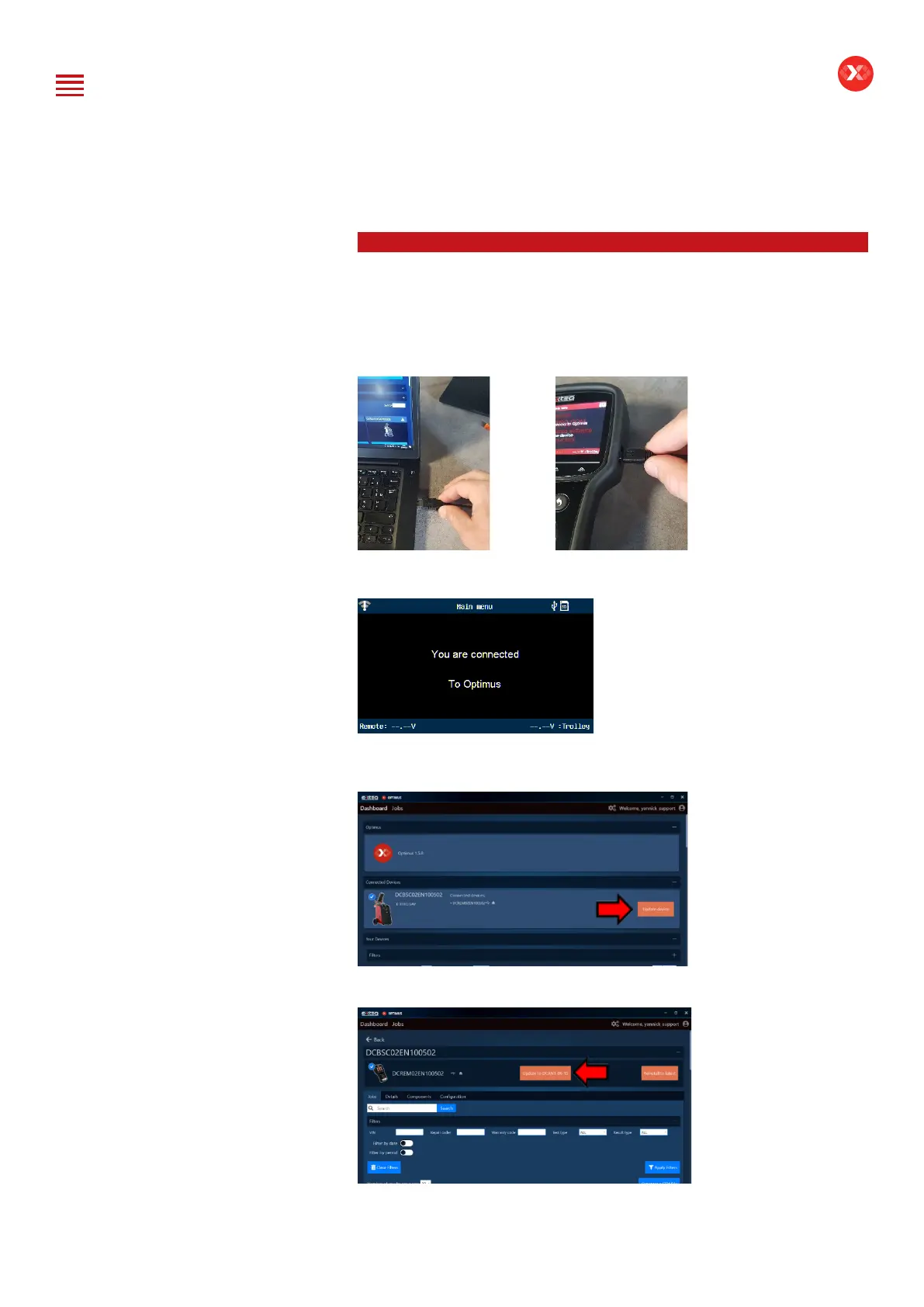
To update the remote, please connect to Optimus (see Optimus installation Quick
guide). When connecting your remote to Optimus (for job download) a new software
update will be proposed if available.
The following message will then appear.
On OPTIMUS software:
On your dashboard the
device will appear.
You can make the update
by clicking on “Update
Device”
When clicking on the
image of the product you
will have access to its own
dashboard.
On the device dashboard
You can also make the
update by clicking on
(Update to DCAG*-**-**).
Table of Content
Introduction
Safety Guidelines
Maintenance and Storage
Before Use
Usage Precautions
Disassembly/Damage/Removal
Cleaning the Product
Getting Started
Safety Reminders
Appearance and Dimensions
Trolley LED’s
Remote Presentation
Remote Job Storage
Accessories
Initial Setup
Installation
Battery Cable Clamps Connection
Power Cable Connection and Power On
Dealer Id. N°
Wi-Fi Connection (Remote to Trolley)
Physical Connection (Remote to Trolley)
Update
Settings
Preferences
Other Settings
Diagnostic and Charge
Remote handheld diagnostic tester
-Manual Selection of Battery
-Vehicle Selection from Database
-Start Diagnostic & Results
Trolley Diagnostic
-Complete Diagnostic & Results
-Pre Delivery Inspection Test (PDI) & Results
-Charge & Results
-Load Test & Results
-Enhanced Diagnostic Mode (EDM) & Results
-Reserve Capacity Test & Results
History (Results Storage)
Optimus
-Optimus Installation
-Using Optimus
Support Information
-Batteries
-Error Messages
Warranty


 To Next Page