19/52
DCBS User Manual / Ref. MAN_DCBS_GM_EN_V1.0
Settings 2/2
OTHER SETTINGS ////////
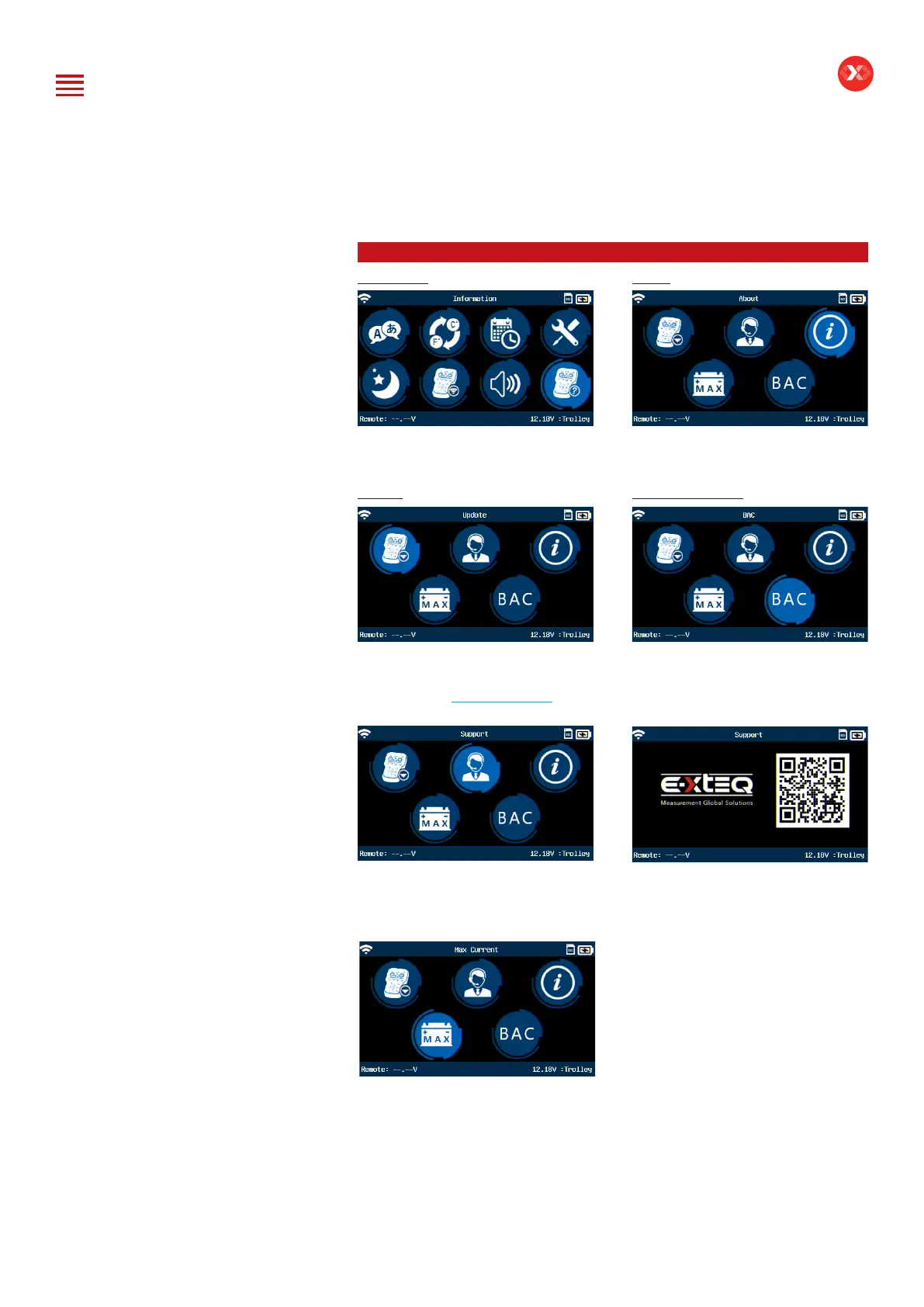
Information About
The Information Menu will give access
to different extra settings and data
about the tool.
“About” icon gives information
regarding the Remote including serial
number, software version, and more.
Update Dealer ID Number
Update icon gives information about
how to update the device. Updating
application (OPTIMUS) can be
downloaded at www.e-xteq.com
Select “BAC” (Business Association
Code) Icon to enter the Dealer ID
number manually or by using the Bar-
code Scanner.
“Support” icon takes you to the next
screen with the support informaiton.
“Max Current” icon gives the
possibility to choose between 100A
and 80A for maximum charging
current. 100A limit for charging current
required a 20A Electrical Circuit.
“Support” QR code gives information
about how to contact technical support
for assistance.
Table of Content
Introduction
Safety Guidelines
Maintenance and Storage
Before Use
Usage Precautions
Disassembly/Damage/Removal
Cleaning the Product
Getting Started
Safety Reminders
Appearance and Dimensions
Trolley LED’s
Remote Presentation
Remote Job Storage
Accessories
Initial Setup
Installation
Battery Cable Clamps Connection
Power Cable Connection and Power On
Dealer Id. N°
Wi-Fi Connection (Remote to Trolley)
Physical Connection (Remote to Trolley)
Update
Settings
Preferences
Other Settings
Diagnostic and Charge
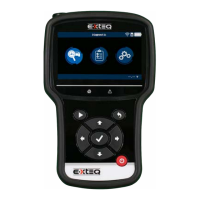
Remote handheld diagnostic tester
-Manual Selection of Battery
-Vehicle Selection from Database
-Start Diagnostic & Results
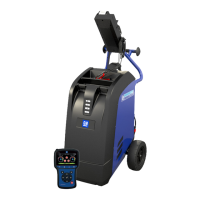
Trolley Diagnostic
-Complete Diagnostic & Results
-Pre Delivery Inspection Test (PDI) & Results
-Charge & Results
-Load Test & Results
-Enhanced Diagnostic Mode (EDM) & Results
-Reserve Capacity Test & Results
History (Results Storage)
Optimus
-Optimus Installation
-Using Optimus
Support Information
-Batteries
-Error Messages
Warranty


 To Next Page