60
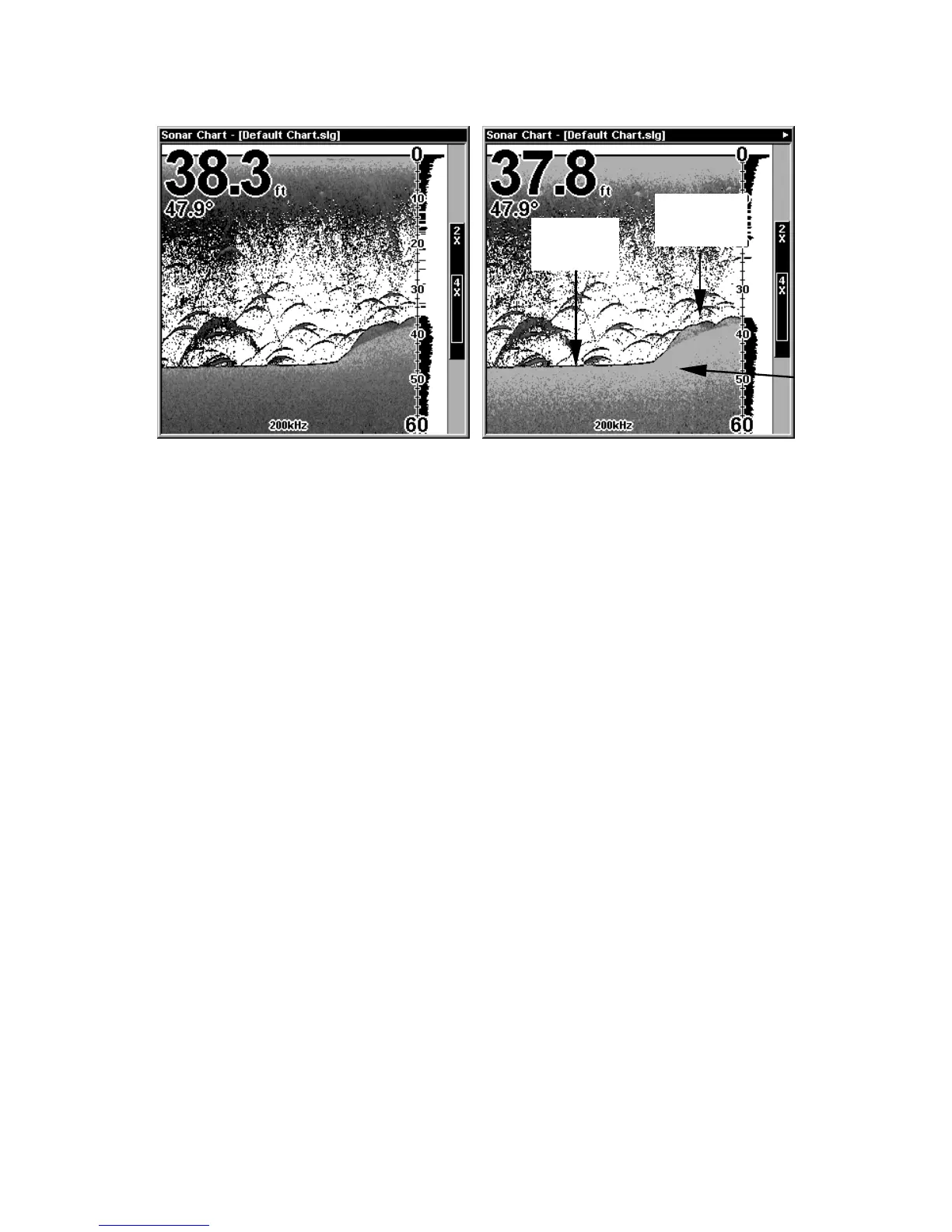
This series of figures shows how different Grayline settings can reveal
more information. The "A" figures to the left show locations with Gray-
line set at the factory level of 64 percent. At right, the "B" figures show
the same locations with Grayline increased to 84 percent. In Figure 1B,
no fish are near the left structure, but the right structure shows fish
holding next to the structure. Notice in figures 2B and 3B how Gray-
line displays a hard, rocky bottom (the drop-offs) with a wider gray
line. The muddier bottom below those drop-offs appears as a narrower
gray line.
HyperScroll
See the entry on Ping Speed, which controls the HyperScroll feature.
Noise Rejection
See the entry on Advanced Signal Processing in this section.
Overlay Data
To change the digital data shown on top of the sonar page:
1. Press
MENU
|↓ to
O
VERLAY
D
ATA
|
ENT
.
2. Press ↓ or ↑ to select Data Type|
ENT
.
When selected, the data type shifts to the top of the data list and a
check mark appears beside the data type. (If you wish, you may now
use ↓ or ↑ to select other Data Types for display.)
Grayline
Muddy
bottom
Hard
bottom
Fig. 3A
Fig. 3B


 To Next Page