13
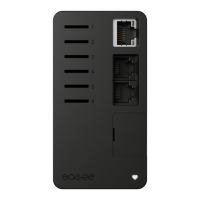
Backplate
Installing5
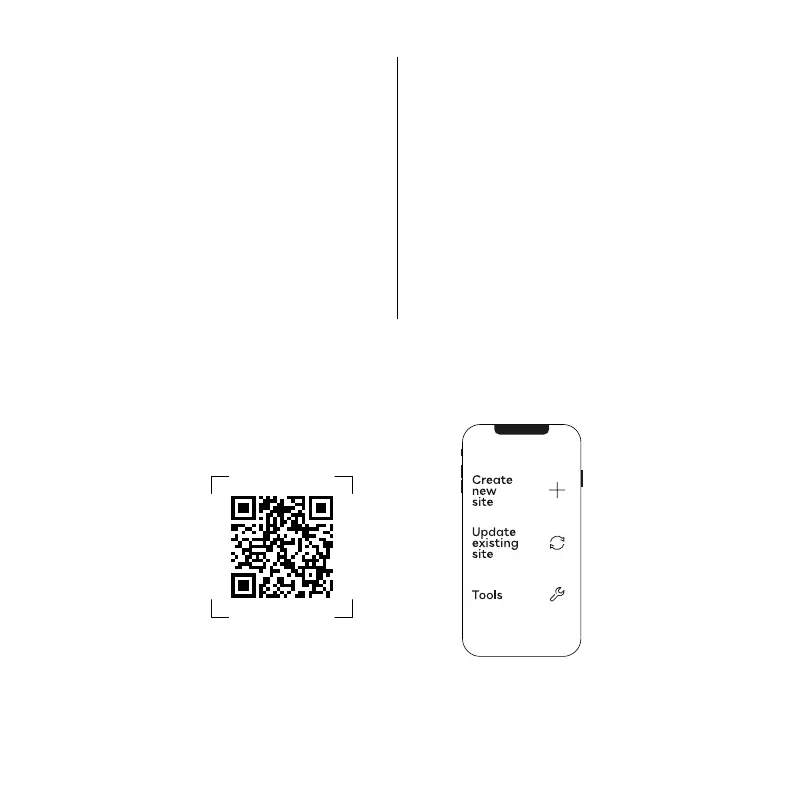
1. Scan the QR code to download the Easee Installer
App and create a free account.
NOTICE! Your phone needs to support NFC.
2. Select one of the two site setups in the Installer App:
Create new site: If this is a completely new charging site,
select "Create new site". Enter the installation details,
follow the on-screen instructions and return to this guide
afterwards.
Update existing site: If this site already has one or more
Charging Robots installed or if it has been created by an
operator, select "Update existing site" and search for the
site address. On "Site overview", select the circuit that
you want the backplate to be part of and select "Add
another backplate". Follow the on-screen instructions
and return to this guide afterwards.
NOTICE! If the charging circuits include more than one
Charging Robot, the backplate that is configured first
becomes the master unit of the charging infrastructure.
To achieve the best communication flow, the centre
backplate should be configured first.


 To Next Page