6
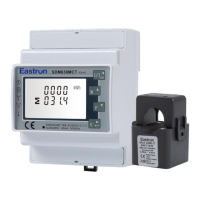
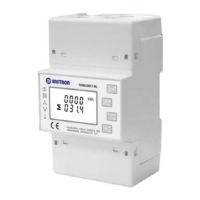
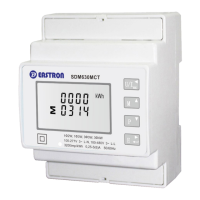
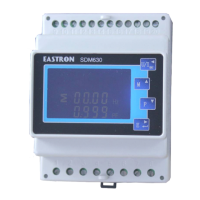
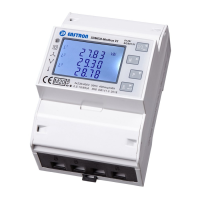
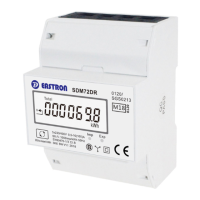
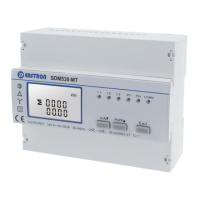
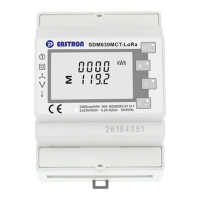
Configure Eastron Meter:
1. Press and hold E-button for 3 seconds.
2. Type in 1000 as password, press and hold
E-button for 3 seconds to confirm.
3. Scroll down to Set-CT1-0.1KA if using the 100A
CT kit variant or 0.5KA for 500A Rogowski
coil kit variant. Press and hold for 3 seconds
to select.
4. Press U/It-button to return to main menu. You
should now be able to see phase readings on
the display.
2 Configuring
Power meter
Download the Easee Installer App via App
store or Google play. To use the Easee Installer
App, you must have an Easee Cloud account.
If you already have an account, you can log in
immediately. Commission the site by following
the steps below in the Easee Installer App.
1. Pairing. Create new facility:
— Site information.
— Select Easee as the operator.
— Main fuse.
— Circuit fuse.
— Wi-Fi information.
— Scan the backplate and complete the site.
2. Equalizer. At Site Overview:
— Add Equalizer.
— WiFi information.
— Scan Equalizer with your phone’s NFC reader.
— Connect Equalizer to the metre reader.
— Update Equalizer to at least v.99 (takes up to
10 min).
— Set metre type -> Eastron SDM.
— Set main fuse limit -> 100%.
— Set circuits for load balancing -> Circuit (on).
— Restart the device.
3. Transfer ownership. At Site Overview:
— Upload to cloud.
— Invite new owner by phone number (you
remain the administrator).
— Ask the customer to download the Easee
app and create an Easee cloud account. If an
account already exists, the customer needs
to accept the ownership request which is
sent via email.
3 Setting up
Equalizer


 To Next Page
 Loading...