NAVIGATING THE MENUS
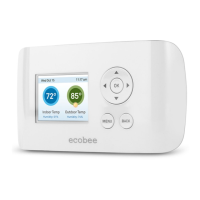
The Smart Si thermostat has an easy-to-read
color screen that displays all the information
you need to congure the thermostat. Use
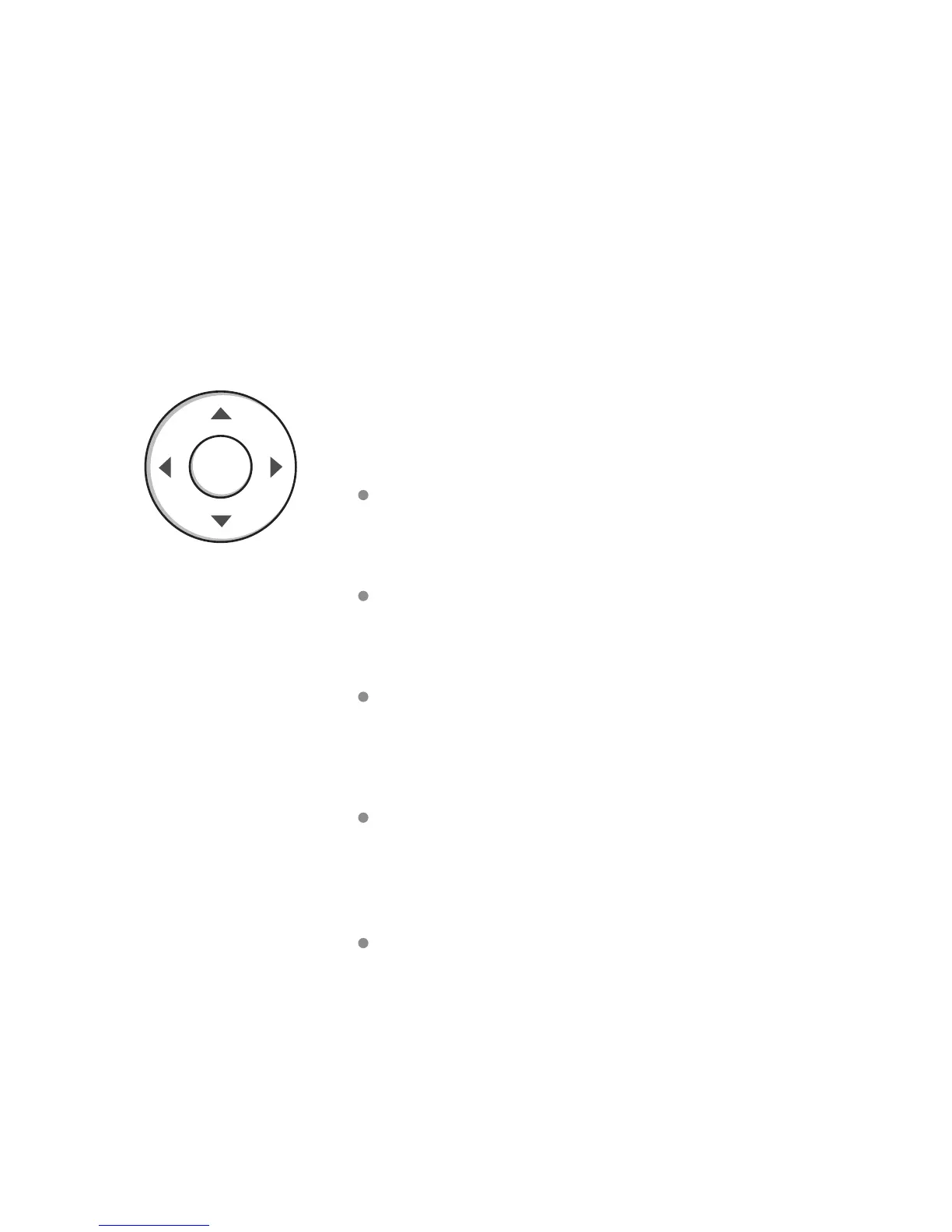
the navigation buttons on the right to quickly
change the temperature, access features, and
congure settings.
Using the Navigation Buttons
The navigation buttons located on the right of
the Smart Si thermostat let you select options
and control the Smart Si thermostat.
▲ (up) On the Home screen, press ▲ to
increase the temperature set point by 1°F
(0.5°C). For menus, press ▲ to move up.
▼ (down) On the Home screen, press ▼ to
decrease the temperature set point by 1°F
(0.5°C). For menus, press ▼ to move down.
◀ (left) On the Home screen, if Auto mode is
enabled, press ◀ to switch between heat and
cool set points. For menus, press ◀ to go back
to the previous screen.
▶ (right) On the Home screen, if Auto mode
is enabled, press ▶ to switch between heat
and cool set points. For menus, press ▶ to
choose the currently highlighted option.
OK On a menu screen, press OK to choose
the currently highlighted option. If a
conguration option is selected, pressing OK
will keep its new value and return back to the
previous screen.
OK
22





 To Next Page