11
EN
ECOVACS HOME App
To enjoy all available features, it is recommended to control your DEEBOT via
the ECOVACS HOME app.
Wi-Fi Indicator Light
Before you start, make sure that:
• Your mobile phone is connected to a Wi-Fi network.
• The 2.4GHz band wireless signal is enabled on your router.
• The Wi-Fi indicator light on DEEBOT is slowly ashing.
Slowly flashing
Disconnected to Wi-Fi or
waiting for Wi-Fi connection
Rapidly flashing Connecting to Wi-Fi
Solid Connected to Wi-Fi
Wi-Fi Connection
Before Wi-Fi setup, make sure DEEBOT, mobile phone, and Wi-Fi network
meet the following requirements.
DEEBOT and Mobile Phone Requirements
• DEEBOT is fully charged and the power switch of DEEBOT is turned on.
• Wi-Fi status light slowly ashes.
• Turn off mobile phone’s cellular data (you can turn it back on after setup).
Wi-Fi Network Requirements
• You are using a 2.4GHz or 2.4/5 GHz mixed network.
• Your router supports 802.11b/g/n and IPv4 protocol.
• Do not use a VPN (Virtual Private Network) or Proxy Server.
• Do not use a hidden network.
• WPA and WPA2 using TKIP, PSK, AES/CCMP encryption.
• WEP EAP (Enterprise Authentication Protocol) is not supported.
• Use Wi-Fi channels 1-11 in North America and channels 1-13 outside North
America (refer to local regulatory agency).
• If you are using a network extender/repeater, the network name (SSID) and
password are the same as your primary network.
1
Operating DEEBOT
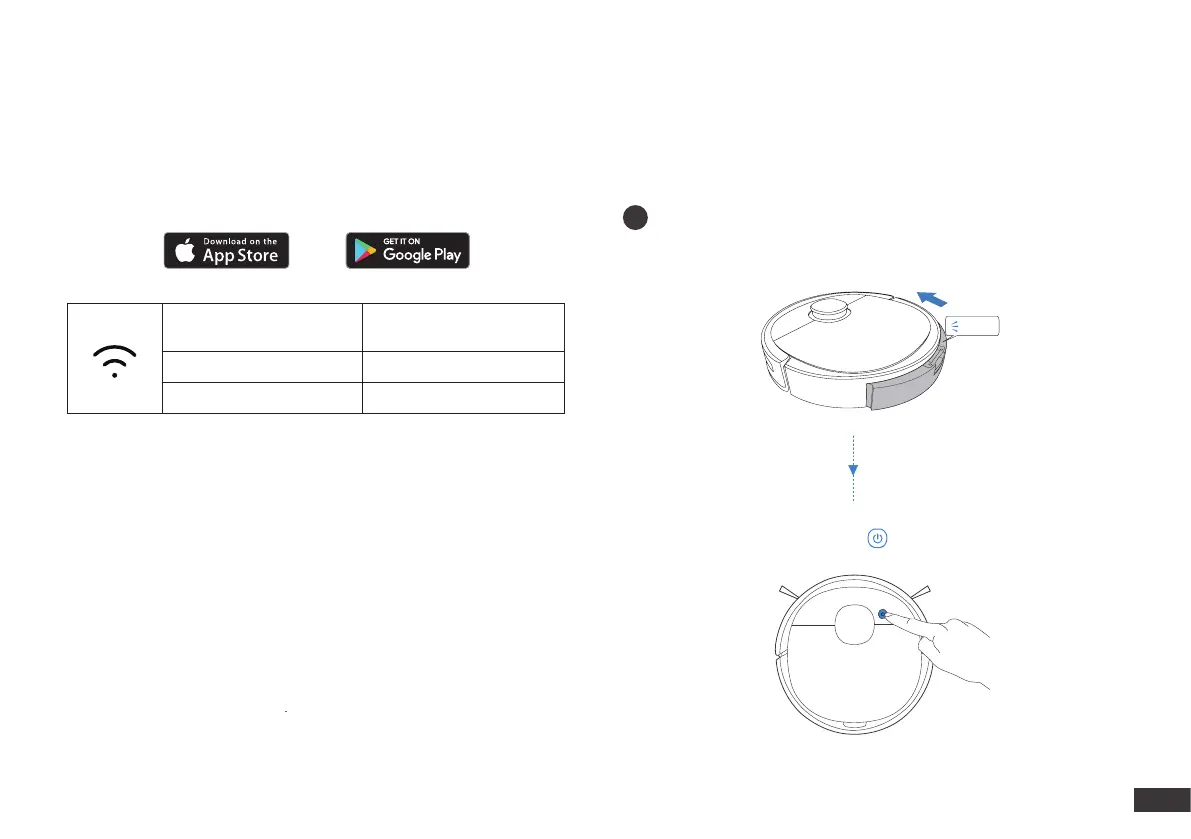
During the first cleaning:
1.Please make sure to install Air Freshener to create a home map in
ECOVACS HOME App.
2.Please supervise DEEBOT and assist it should there be a problem.
Start
Install Air Freshener
Press
Click


 To Next Page