19
CONNECTING TO REMOTE
When the conditioner/refiner’s electronic control is first
powered up, it is not yet in communication with the
r
emote. Do the following to establish a link between
the two:
1. This procedure involves pushing buttons on both the
conditioner/refiner and remote, so have the remote
near the conditioner/refiner for now. Make sure the
remote is powered up (See “Installing Batteries” on
Page 18).
2. From any of the rolling status screens, press the con-
ditioner/refiner’s SELECT (¡) button to display the
Main menu.
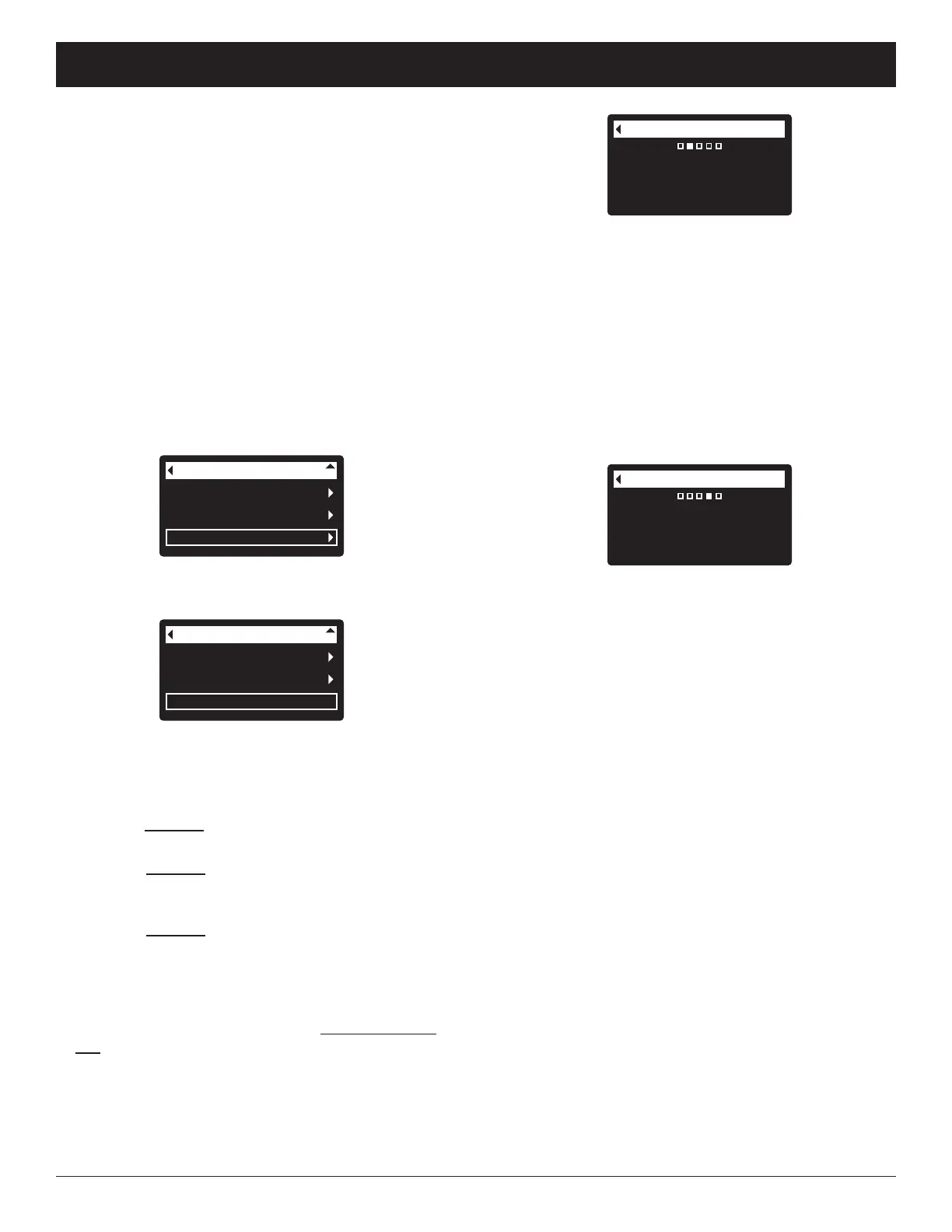
3. Press the conditioner/refiner’s DOWN (6) button to
scroll through the menu options until Advanced set-
tings is highlighted (See Figure 40).
4. Press the conditioner/refiner’s SELECT (¡) button to
display the Advanced settings menu (See Figure 41).
User preferences
System information
Advanced settings
Main menu
FIG. 40
Special features
Troubleshooting
Connect to remote
Advanced settings
FIG. 41
5. Press the conditioner/refiner’s DOWN (6) button to
scroll through the menu options until Connect to
remote is highlighted.
6. If the remote does not already show a menu screen,
press the remote’s SELECT (¡) button to display a
Menu screen. (See Figure 45 on the next page).
7. Press the remote’s
DOWN (6) button to scroll
through the menu options until Add new device is
highlighted in a box (See Figure 46).
8. Press the remote’s
SELECT (¡) button, and the
“Waiting for new device...” screen appears (See
Figure 47). The remote waits two minutes for the
conditioner/refiner to be activated (in the next step).
9. Make sure the conditioner/refiner’s display still shows
the screen in Figure 41. Press the conditioner/refin
-
er’s SELECT (¡) button to display the “Looking for
remote” screen (See Figure 42).
continued
Connect to remote
Looking for remote...
FIG. 42
10. Within a few seconds the screen should change to
show “Remote found” (See Figure 43). If, after
about one minute, the conditioner/refiner’s screen
instead reads “New remote not found,” press the
conditioner/refiner’s SELECT (¡) button to return to
the screen in Figure 41 and press the remote’s
LEFT (3) button to return to the screen in Figure
46. Then repeat this procedure from Step 8. If the
remote is not found after several tries, contact your
dealer for service. Take note of the message on the
remote’s screen after an unsuccessful attempt, as it
indicates the nature of the problem.
Connect to remote
Remote found
FIG. 43
11. Press the conditioner/refiner’s SELECT (¡) button.
The display will go back to the Advanced settings
menu (Figure 41).
12. Press the conditioner/refiner’s LEFT (3) button
twice to return to the rolling status screens.
ECOWATER
S Y S T E M S
Non-Wi-Fi Systems Only: Connecting the Remote



 To Next Page