30
ECOWATER
S Y S T E M S
Conditioner/Refiner Operation
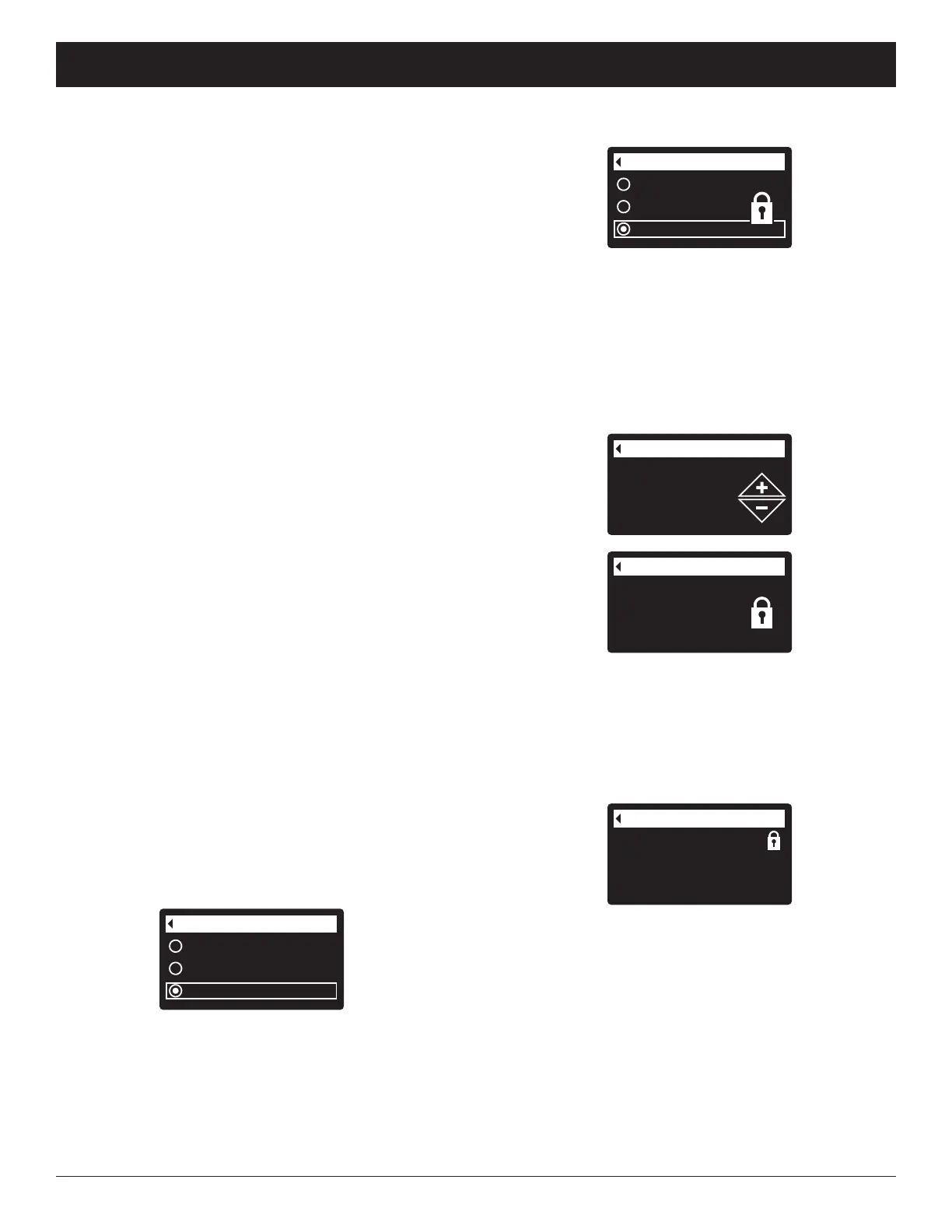
FIG. 89
FIG. 88
Model information
Model: HR20
Version: T2.1
FIG. 86
FIG. 87
Redo setup
Restore defaults
Cancel
Setup changes
FIG. 85
Redo setup
Restore defaults
Cancel
S
etup changes
Another indicator that the lockout feature is on is the
Model Information screen. This screen appears on
power-up, and can also be displayed from the System
Information menu (See Page 36). If the lockout feature
is on, there will be a non-flashing padlock icon in the
upper right corner (See Figure 89).
To turn off the lockout feature:
1-7. Go to the Setup changes screen (Figure 86) by
following Steps 1-7 at left.
8. Press the RIGHT (4) button. The flashing padlock
icon will disappear, as shown in Figure 85.
9. Press the SELECT (¡) button.
10. Press the LEFT (3) button three times to return to
the rolling status screens.
LOCKOUT FEATURE
A
“lockout” feature is available to prevent user modifica-
tion of parameters that affect conditioner/refiner per-
formance. The unit is shipped from the factory with the
lockout feature off. After programming is complete, the
lockout feature can be turned on to prevent changes to
the following:
=Hardness
=Iron level
=Backwash time
=Second backwash (On/Off)
=Second backwash time
=Fast rinse time
=Efficiency mode
=Max days between recharges
=Auxiliary control
=Chemical feed volume
=Chemical feed timer
=97% feature
=Water to drain sensor
=Service reminder
=Setup changes
=SLS calibration point 0
=SLS calibration point 1
To turn on the lockout feature:
1. From any of the rolling status screens, press the
SELECT (¡) button to display the Main menu.
2. Press the DOWN (6) button to scroll through the
menu options until Advanced settings is highlighted.
3. Press the SELECT (¡) button to display the
Advanced settings menu.
4. Press the DOWN (6) button to scroll through the
menu options until Troubleshooting is highlighted.
5. Press the SELECT (¡) button to display the
Troubleshooting menu.
6. Press the DOWN (6) button to scroll through the
menu options until Setup changes is highlighted.
7. Press the SELECT (¡) button to display the Setup
changes menu (See Figure 85).
9. Press the SELECT (¡) button.
10. Press the LEFT (3) button three times to return to
the rolling status screens.
When the lockout feature is on, the flashing padlock
icon will appear in any screen that would normally be
used to change a parameter in the list to the left. For
example, the Hardness screen will look like Figure 88,
instead of Figure 87.
8. Press the RIGHT (4) button. A flashing padlock icon
will appear, as shown in Figure 86.



 To Next Page