17
SYSTEM INFORMATION
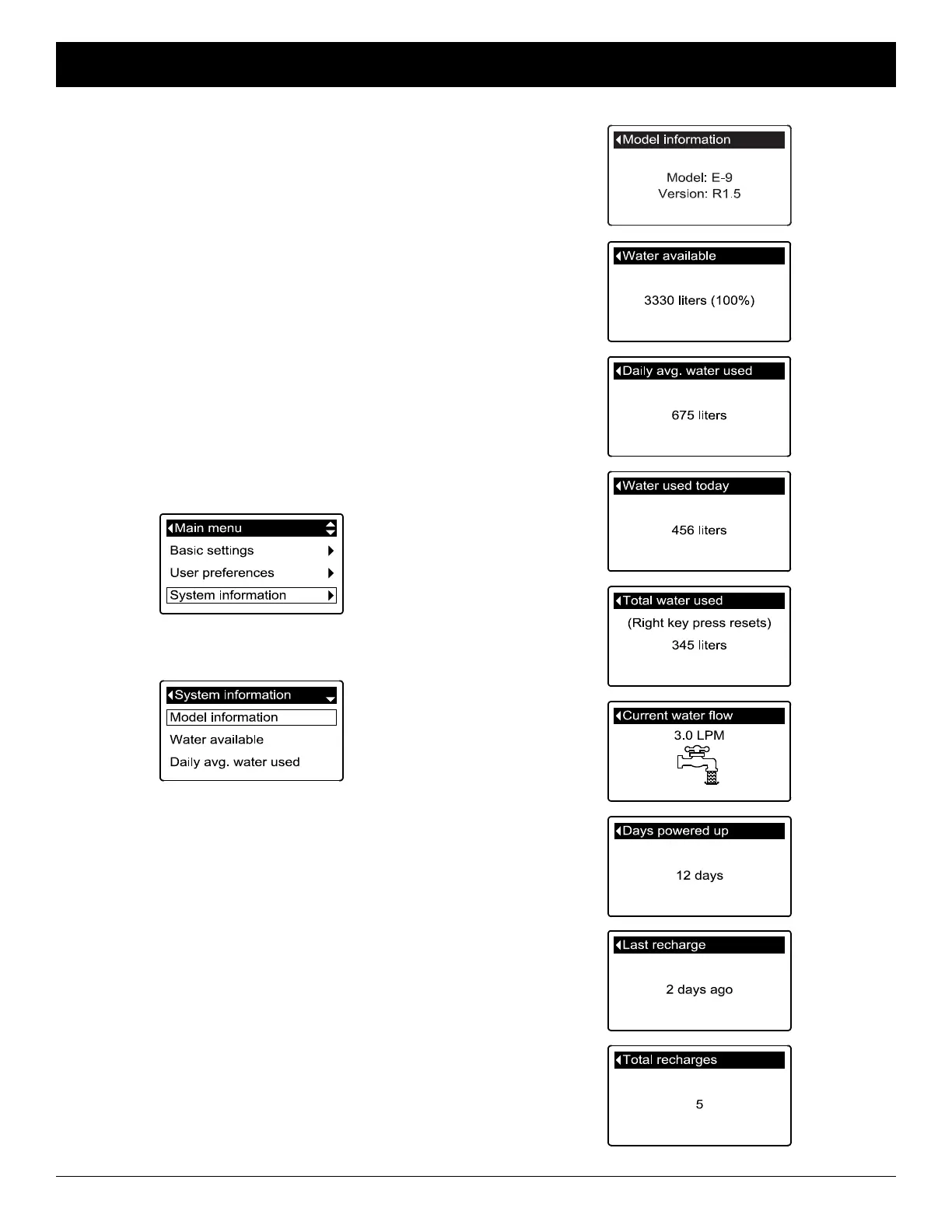
Use these features to look up the following information
about the conditioner/refiner and its operations:
=Model information (model number and software
version)
=Water available (softened water ready for use)
=Daily average water used
=Water used today
=Total water used (explained in Step 6, below)
=Current water flow
=Days powered up
=Last recharge
=Total recharges
To display one of these screens:
1. From any of the rolling status screens, press the
SELECT (¡) button to display the Main menu.
2. Press the DOWN (6) button to scroll through the
menu options until System information is highlight-
ed (See Figure 54).
FIG. 54
FIG. 55
3. Press the SELECT (¡) button to display the System
information menu (See Figure 55).
4. Press the DOWN (6) button to scroll through the
menu options until the desired option is highlighted
(See list at the top of this column).
5. Press the SELECT (¡) button to display the desired
information screen (See Figures 56-64).
6. The Total water used screen (See Figure 60) shows
the volume of water used since it was last reset (it
works like the trip odometer in a car). To reset the
value to 0, press the RIGHT (4) button while this
screen is displayed.
7. When finished viewing an information screen, press
the SELECT (¡) button. The display will go back to
the System information menu (Figure 55). It will also
exit automatically if no buttons are pressed for four
minutes.
8. Press the LEFT (3) button twice to return to the
rolling status screens.
FIG. 56
FIG. 57
FIG. 58
FIG. 59
FIG. 60
FIG. 61
FIG. 62
FIG. 63
FIG. 64
ECOWATER
S Y S T E M S
Conditioner/Refiner Operation



 To Next Page