22
DIAGNOSTICS
This feature allows a service technician to check the
operating state of individual components in the condi-
tioner/refiner (e.g. valve position) to troubleshoot prob-
lems. If an error code is displayed in place of the
rolling status screens, call your dealer for service.
To view the Diagnostics screen:
1. If an error code is displayed, skip Steps 2-7 and go
directly to Step 8.
2. To display the Diagnostics screen from any of the
rolling status screens (when an error code is not dis-
played), press the SELECT (¡) button to display the
Main menu.
3. Press the DOWN (6) button to scroll through the
menu options until Advanced settings is highlighted.
4. Press the SELECT (¡) button to display the
Advanced settings menu.
5. Press the DOWN (6) button to scroll through the
menu options until Troubleshooting is highlighted.
6. Press the SELECT (¡) button to display the
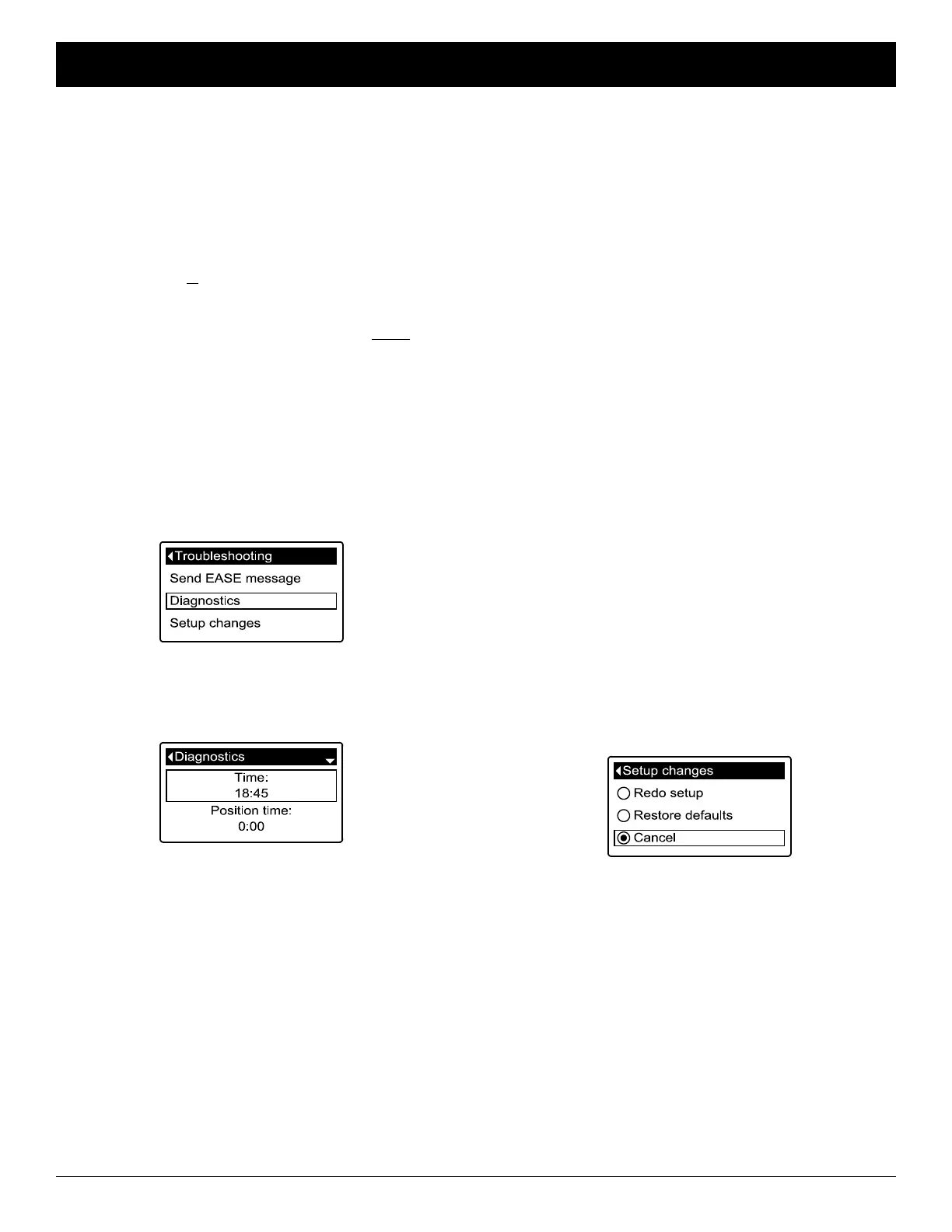
Troubleshooting menu (See Figure 88).
SETUP CHANGES
This feature allows a service technician to repeat the
setup procedure (See Page 8) or restore the condition-
er/refiner’s default operating values.
1. From any of the rolling status screens, press the
SELECT (¡) button to display the Main menu.
2. Press the DOWN (6) button to scroll through the
menu options until Advanced settings is highlighted.
3. Press the SELECT (¡) button to display the
Advanced settings menu.
4. Press the DOWN (6) button to scroll through the
menu options until Troubleshooting is highlighted.
5. Press the SELECT (¡) button to display the
Troubleshooting menu (See Figure 88).
6. Press the DOWN (6) button to scroll through the
menu options until Setup changes is highlighted.
7. Press the SELECT (¡) button to display the Setup
changes menu (See Figure 90).
FIG. 88
7. Press the DOWN (6) button to scroll through the
menu options until Diagnostics is highlighted.
8. Press the SELECT (¡) button to display the
Diagnostics screen (See Figure 89).
FIG. 89
9. Press the DOWN (6) or UP (5) buttons to scroll
through the list. The following items are displayed:
=Time (current)
=Position time (counts down the time remaining in
the current valve position)
=Current position (of the valve: service, fill, brine,
backwash, fast rinse or moving)
=Requested position (of the valve)
=Motor state (on or off)
=Valve position switch (open or closed)
=Turbine count (if changing, indicates water flow)
=Tank light switch (open or closed)
=RF module (detected or not)
=Error code (call for service if a number is dis-
played)
continued
10. When finished viewing the Diagnostics screen,
press the SELECT (¡) button. The display will go
back to the Troubleshooting menu.
11. Press the LEFT (3) button three times to return to
the rolling status screens (or error code screen if an
error condition exists).
FIG. 90
8. If the desired option already has a black dot next to it
(See Figure 90), go to Step 9. Otherwise, press the
DOWN (6) or UP (5) buttons to scroll to the desired
option, then press SELECT (¡) to choose it.
=Redo setup allows you to select a different model
code (intended to be used for upgrades or retrofits
of existing conditioner/refiner). Model codes are
listed on Page 39.
=Restore defaults will reset all customizable set-
tings to their default values and take you through
the “wizard” screen setup procedure (See Page 8).
=Cancel will return to the Troubleshooting menu
(Figure 88).
9. Press the SELECT (¡) button.
ECOWATER
S Y S T E M S
Conditioner/Refiner Operation



 To Next Page