22
Before you begin using the FA-66 with your Macintosh (Mac OS X users)
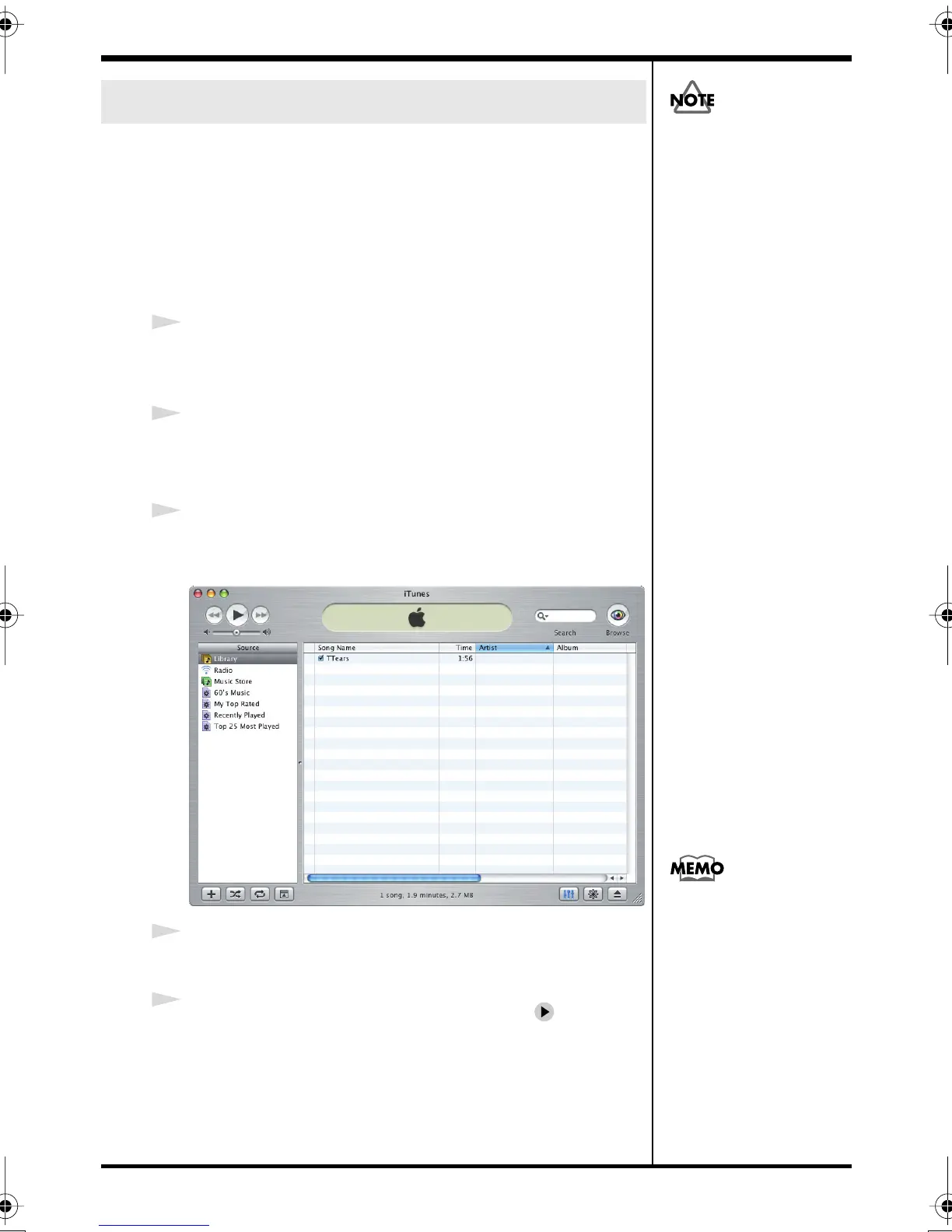
Now, let’s play back the sample data to verify that the
connections and settings are correct. We will use iTunes to
play back the sample data provided on the included CD-
ROM.
Before you continue, connect headphones or monitor
speakers to the FA-66 as described in
“Basic
connections”
(p. 35).
1
Set the FA-66’s sample rate select switch to 48 kHz. You’ll
need to cycle the power to the FA-66 after changing the
sampling rate.
2
Start up
iTunes
(included with Mac OS).
iTunes
is normally located in the
Applications
folder on
the hard disk.
3
Insert the included CD-ROM into the CD-ROM drive of
your Macintosh.
fig.itune.eps
4
From the
SampleSong
folder of the CD-ROM, drag
TTears(.mp3)
into the iTunes window.
5
Select
TTears(.mp3)
in the song list, and click .
Alternatively, you can start playback by pressing the space
bar on your computer keyboard.
If the sample data plays correctly, the FA-66 is correctly
connected to your Macintosh.
Checking that you hear sound
Use of the song data supplied
with this product for any
purpose other than private,
personal enjoyment without
the permission of the
copyright holder is prohibited
y law. Additionally, this data
must not be copied, nor used
in a secondary copyrighted
work without the permission
of the copyright holder.
If the volume is too low, or if
you don’t hear sound at all, try
turning the FA-66’s direct
monitor volume knob (p. 12)
so it’s positioned to the left of
the MIX (center) position.
FA-66_e.book 22 ページ 2006年1月12日 木曜日 午前11時32分


 To Next Page