Electronic device DMU2000 - DMU3000 - DMU3000 PLUS
36
Electronic device DMU2000 - DMU3000 - DMU3000 PLUS
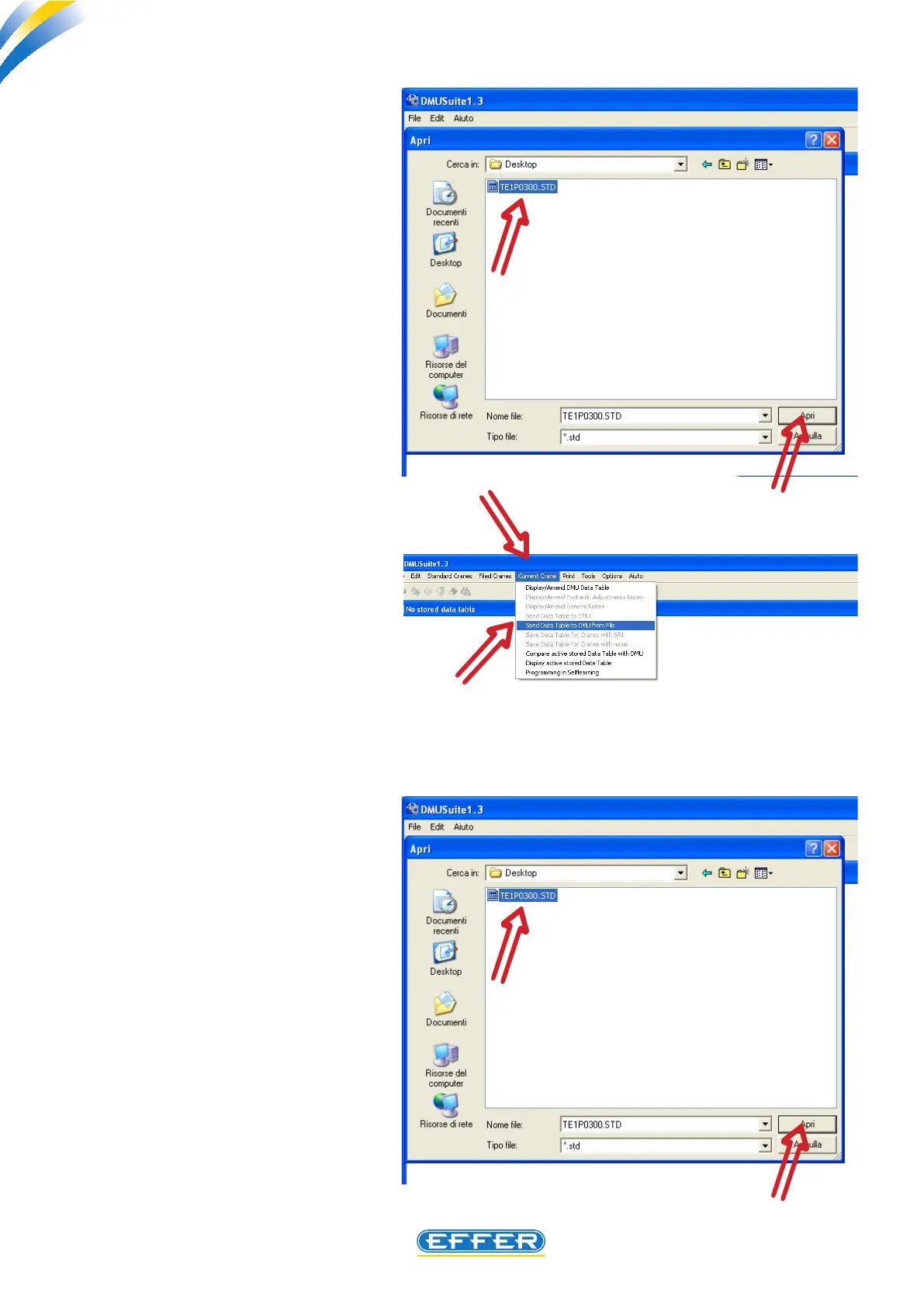
to DMU” . The screen “Open” is displayed.
u In the “Find in” box., select the item
Desktop. The le (extension.std) previous-
ly positioned on your desktop is displayed.
u Highlight the le to be loaded in this
screen.
u Click on the key “Open”
The software automatically runs the load-
ing and the replacement of the new set-
ting data inside the DMU.
b) LOADING DATA TO CHANGE THE
DMU
In addition to the DMU spare device it is
necessary to have the le (delivered by
Sol.Ge. preferably by e-mail or on CD), also
containing the crane identication data.
u Save the le on PC desktop.
u Fit the new DMU device to the crane.
Follow instructions in chapt. 4 and 5 for
loading and starting up.
u Click on the icon “Current Crane”
u Click on the icon “Send Data Sheet
to DMU”
u In the “Find in” box, set the item
“Desktop”. The le (extension.std) previ-
ously positioned on your desktop is dis-
played.
u Select the le to load present in this
screen.
u Click on the key “Open”
The software automatically runs the load-
ing of the setting data.


 To Next Page