Electronic device DMU2000 - DMU3000 - DMU3000 PLUS
Electronic device DMU2000 - DMU3000 - DMU3000 PLUS
5
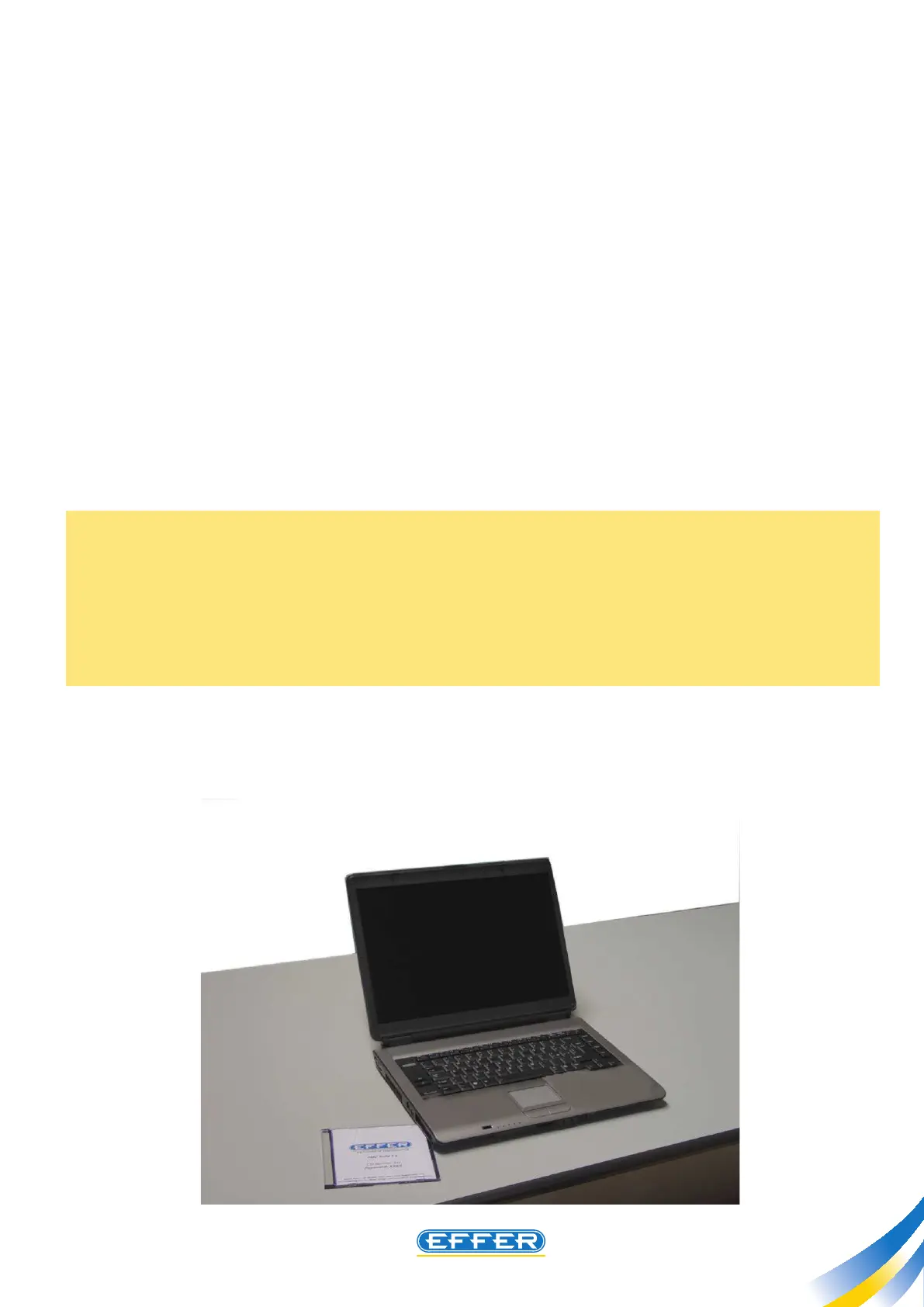
3. Installing the software in the computer
Please nd below the various steps required for software installation:
A - Insert the CD in the computer.
B - Click: “DMU INSTALL......”
C - Installation on the PC is automatically run by clicking “Next” every time it is requested, and
nally click “End”.
D - To start the program, just double-click the icon that automatically appears on computer
desktop.
Software startup requires 5-10 sec. according to the features of your computer.
E- On a dialog box, select a language with which you wish to dialogue with the software
(see section 5.)
F - After setting the language, an identical dialog box will ask for the password to access the
software.
NOTE: After installing the software on your computer, you can edit the setting parameters, or pro-
ceed to troubleshooting steps.
In order to complete software installation, we recommend you create a folder on your hard disk C of
your computer, inside the software folder, called - necessarily - “DMU2000Library” and dedicated to
the archive of the setting files that can be sent to you if you need to carry out updates to the crane:
in this specific case, the crane DMU will automatically connect to that folder, and from there you can
select the correct file to be sent to DMU.


 To Next Page