EasyManua.ls Logo

Eizo ColorEdge CG2420 - User Manual

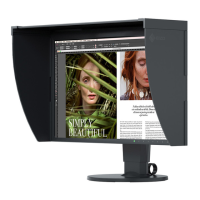
Eizo ColorEdge CG2420
58 pages
Print Icon
To Next Page IconTo Next Page
Loading...
Important
Please read PRECAUTIONS, this User’s Manual, and the Setup Guide (separate volume) carefully to familiarize yourself
with safe and e󰀨ective usage.
Please refer to the Setup Guide for basic information ranging from connection of the monitor to a PC or external
device to using the monitor.
The latest User’s Manual is available for download from our web site:
www.eizoglobal.com
Color Management LCD Monitor
Users Manual

Other manuals for Eizo ColorEdge CG2420

Questions and Answers

  • D
    david89Aug 20, 2025
    What to do if my Eizo ColorEdge CG2420 says no signal?
    • R
      rcantuAug 20, 2025
      If your Eizo Monitor displays a message indicating no signal input or that the input signal is out of the specified frequency range, try the following: * Ensure that your PC is turned on. * Check that the signal cable is properly connected. * Try switching the input signal. * Turn off the main power on the rear side of the monitor, and then turn it on again. * Verify that your PC's resolution and vertical scan frequency meet the monitor's requirements. * Reboot your PC. * Adjust settings using your graphics board's utility.
  • K
    kmatthewsAug 21, 2025
    How to adjust brightness on Eizo Monitor?
    • J
      James ChanAug 22, 2025
      If your Eizo Monitor screen appears too bright or too dark, use the “Brightness” setting located in the Setting menu to adjust it to your desired level.
  • J
    Jacob StephensAug 25, 2025
    Why can't I open the menu on my Eizo ColorEdge CG2420 Monitor?
    • R
      Rebekah SpenceAug 25, 2025
      If you cannot display the Setting menu or Mode menu on your Eizo Monitor, check whether the operation switch lock function is enabled. Also, note that operation switches are locked when the main window of ColorNavigator 7 is displayed.
  • T
    Thomas GeorgeAug 26, 2025
    How to troubleshoot no picture on my Eizo ColorEdge CG2420 Monitor?
    • T
      Timothy HallAug 26, 2025
      If your Eizo Monitor displays no picture and the power indicator doesn't light up, or if it's showing a white or orange light (steady or flashing), try these steps: * Ensure the power cord is properly connected. * Turn on the main power switch located on the rear of the monitor. * Touch the power button. * Turn off the main power switch, wait a few minutes, and then turn it back on. * Increase the “Brightness” and/or “Gain” in the Setting menu. * Try switching the input signal. * Move the mouse or press any key on the keyboard. * Verify that your PC is turned on. * If connected via DisplayPort, use the EIZO-specified signal cable and try power cycling the monitor. * Turn off the main power on the rear side of the monitor, and then turn it on again.
  • M
    Mr. Edward LinAug 28, 2025
    Why is my Eizo ColorEdge CG2420 Monitor USB not working?
    • S
      Susan YuAug 28, 2025
      If the monitor connected with the USB cable is not detected or a USB device connected to the monitor does not work, here are some troubleshooting steps: * Make sure the USB cable is correctly connected. * If a device is connected to the “CHARGE” port, check the “USB CHARGE Port” setting. * Try a different USB port on your PC and on the monitor. * Reboot your PC. * Check if your PC and OS are USB compliant. * Check the PC’s BIOS setting for USB when using Windows. Note: Depending on the USB 3.0 host controller, connected USB devices might not be recognized correctly. If devices work when connected directly to the PC, contact your local EIZO representative.
  • P
    Paul LopezAug 29, 2025
    How to fix wrong colors on Eizo ColorEdge CG2420?
    • A
      Austin MartinAug 30, 2025
      If the color shown on your Eizo Monitor is not correct when using DisplayPort or HDMI input, try changing the “Input Color Format” in the Setting menu. For HDMI input, also try changing the “Signal Format” in the Setting menu.
  • J
    Jesse OrozcoSep 1, 2025
    What to do if calibration sensor on Eizo ColorEdge CG2420 doesn't work?
    • W
      willismaureenSep 1, 2025
      If the built-in calibration sensor on your Eizo Monitor does not come out or stays out, first check if there is a protective sticker affixed to the sensor and peel it off. If that doesn't work, turn off the main power, wait a few minutes, turn it back on, and then execute SelfCalibration again.
  • D
    Dana OrtizSep 3, 2025
    Why do windows shift on my Eizo Monitor with DisplayPort?
    • T
      Thomas CookeSep 3, 2025
      If, after switching the power back on or returning from power save mode with DisplayPort signal input, windows or icons have shifted position on your Eizo Monitor, navigate to the Setting menu and set “DP Power Save” to “Off.”
  • S
    Samantha FergusonSep 5, 2025
    How to prevent afterimages on Eizo ColorEdge CG2420?
    • A
      Andrea BradfordSep 5, 2025
      To address afterimages appearing on your Eizo Monitor, avoid displaying the same image for extended periods. Utilize the screen saver or power-saving function to prevent static images from being shown continuously.
  • M
    Matthew PattonSep 6, 2025
    How to fix image not displaying fully on Eizo ColorEdge CG2420?
    • K
      Keith ClarkSep 6, 2025
      If the image does not display on the entire screen of your Eizo Monitor, try changing the “Picture Expansion” setting in the Setting menu. For HDMI signal input, verify that “Signal Format” is set to “PC” in the Setting menu.

Summary

Chapter 2 Basic Adjustments;Settings

2-2. Switching Input Signals

Describes how to change the active input source for the monitor.

2-3. Switching Display Mode (Color Mode)

Details how to select different display modes for various applications.

Chapter 3 Advanced Adjustments;Settings

3-2. Setting Menu Functions

Covers detailed settings like Color, Gamma, Brightness, and Color Gamut for precise calibration.

SelfCalibration

Explains the automatic calibration feature using the built-in sensor for maintaining color accuracy.

Chapter 4 Administrator Settings

Chapter 5 Troubleshooting

5-1. No Picture Issues

Addresses issues related to the monitor not displaying an image or power indicators.

5-2. Imaging Problems

Provides solutions for common display issues like afterimages, noise, and incorrect colors.

5-3. Other Problems

Covers troubleshooting for issues not related to picture display, such as USB detection and audio.

5-4. Calibration Sensor & SelfCalibration Issues

Helps resolve problems with the built-in calibration sensor and the SelfCalibration function.

Chapter 6 Reference

6-6. Specifications

Provides comprehensive technical specifications for the monitor's hardware and performance.

Eizo ColorEdge CG2420 Specifications

General IconGeneral
3DNo
HD typeWUXGA
Color gamut99 %
Pixel pitch0.27 x 0.27 mm
Screen shapeFlat
Pixel density94 ppi
Response time10 ms
Display diagonal24.1 \
Display resolution1920 x 1200 pixels
Native aspect ratio16:10
Vertical scan range24 - 61 Hz
Maximum refresh rate60 Hz
Horizontal scan range15 - 78 kHz
Viewable size, vertical324 mm
Contrast ratio (typical)1500:1
Display number of colors1.073 billion colors
Viewable size, horizontal518.4 mm
Display brightness (typical)400 cd/m²
Supported graphics resolutions1920 x 1200 (WUXGA)
Power managementYes
USB hub version3.2 Gen 1 (3.1 Gen 1)
DVI-D ports quantity1
VGA (D-Sub) ports quantity0
USB Type-A downstream ports quantity3
AC input voltage100 - 240 V
AC input frequency50 - 60 Hz
Energy efficiency scaleA to G
Power consumption (max)79 W
Power consumption (standby)0.5 W
Power consumption (typical)21.2 W
Pivot angle0 - 90 °
Tilt angle range-5 - 35 °
Number of OSD languages9
Panel mounting interface100 x 100 mm
Operating temperature (T-T)0 - 35 °C
Operating relative humidity (H-H)20 - 80 %
CertificationCB, CE, TUV/GS, cTUVus, FCC-B, Canadian ICES-003-B, VCCI-B, TUV/Ergonomics, TUV/Color Accuracy (Quick Stability), RCM, WEEE, EAC
Product colorBlack
Market positioningGraphics design
Compliance industry standardsRoHS
Cables includedAC, DVI, Mini DisplayPort, USB
Harmonized System (HS) code85285210
Weight and Dimensions IconWeight and Dimensions
Depth (with stand)245 mm
Height (with stand)551 mm
Weight (with stand)7800 g
Depth (without stand)64 mm
Width (without stand)554.4 mm
Height (without stand)362 mm
Weight (without stand)5000 g

Related product manuals