EasyManua.ls Logo

Eizo ColorEdge CG276 - User Manual

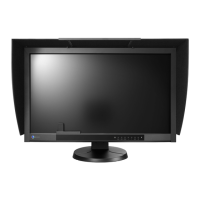
Eizo ColorEdge CG276
75 pages
Print Icon
To Next Page IconTo Next Page
Loading...
Important
Please read PRECAUTIONS, this Users Manual, and the Setup Guide
(separate volume) carefully to familiarize yourself with safe and
effective usage.
Please refer to the Setup Guide for basic information ranging from
connection of the monitor to a PC to using the monitor.
The latest Users Manual is available for download from our web site:
http://www.eizo.com
Cover

Table of Contents

Questions and Answers

  • J
    Jacob JenkinsSep 10, 2025
    Why does my Eizo ColorEdge CG276 Monitor not display an image on the entire screen?
    • L
      Lawrence EllisSep 10, 2025
      If your Eizo monitor does not display an image on the entire screen, the screen may be set to a size other than “Full”. Change the setting to “Full”.
  • A
    Alexandra AndersonAug 22, 2025
    Why is my Eizo ColorEdge CG276 Monitor screen too bright or too dark?
    • R
      reyesaaronAug 23, 2025
      If your Eizo monitor screen is too bright or too dark, adjust the brightness using the “Brightness” setting in the Adjustment menu. Keep in mind that the LCD monitor backlight has a limited lifespan. If the screen becomes dark or begins to flicker, it is recommended to contact your local EIZO representative.
  • A
    alexishallAug 25, 2025
    What to do if the Eizo Monitor displays a message about no signal?
    • K
      Katie GeorgeAug 25, 2025
      If your Eizo monitor displays a message indicating no signal or that the input signal is out of the specified frequency range, first ensure that your PC is turned on. Check that the signal cable is properly connected. You might also need to switch the input signal using the appropriate button. Verify that your PC's resolution and vertical scan frequency meet the monitor's requirements. Rebooting the PC might also resolve the issue. Finally, check that you have selected an appropriate setting using the graphics board utility.
  • B
    bfosterAug 26, 2025
    Why does my Eizo Monitor connected with the USB cable is not detected?
    • S
      stacielawrenceAug 27, 2025
      If your Eizo monitor connected with the USB cable is not detected, check whether the USB cable is connected correctly. Also, check the “Tools” – “USB Selection” settings under the Setting menu. Try changing the USB port to another one. Reboot the PC. Check whether the PC and OS are USB compliant. Finally, check the PC’s BIOS setting for USB when using Windows.
  • M
    Mark PierceAug 28, 2025
    What to do if SelfCalibration cannot be executed on Eizo Monitor?
    • K
      karenchungAug 28, 2025
      If SelfCalibration cannot be executed on your Eizo monitor, check whether the date and time are set correctly. Also, check whether the mode is set. Then, check whether the calibration targets are set correctly. You can also set the SelfCalibration target using ColorNavigator.
  • C
    Cheryl LopezAug 29, 2025
    Why are the characters blurred on my Eizo Monitor?
    • A
      Alicia WrightAug 29, 2025
      If the characters on your Eizo monitor appear blurred, check that your PC is configured to meet the resolution and vertical scan frequency requirements of the monitor. You can also try using the “Outline Enhancer” in the Adjustment menu to improve the clarity of the characters.
  • M
    murphypattySep 18, 2025
    Why is there no audio output from my Eizo Monitor?
    • S
      sharonroseSep 18, 2025
      This Eizo monitor does not support HDMI/DisplayPort audio signals.
  • K
    Kevin UnderwoodSep 12, 2025
    Why does my Eizo ColorEdge CG276 Monitor adjustment menu not appear?
    • F
      fjonesSep 12, 2025
      If the adjustment menu does not appear on your Eizo monitor, check whether the operation lock function is enabled.
  • T
    Timothy CallahanSep 8, 2025
    What to do if Eizo ColorEdge CG276 Monitor SelfCalibration fails?
    • J
      Jeff MooreSep 8, 2025
      If SelfCalibration fails on your Eizo monitor, refer to the error code table. The built-in calibration sensor may not have come out during calibration, or light may have entered the sensor during measurement, so try turning off the main power, waiting a few minutes before turning the power back on, and then execute SelfCalibration again. You can also just try to execute SelfCalibration again. Check whether there is any foreign object near the built-in calibration sensor.
  • A
    Amy TranSep 5, 2025
    What to do if Eizo ColorEdge CG276 built-in calibration sensor does not come out or stays out?
    • L
      Leslie MorganSep 5, 2025
      If the built-in calibration sensor on your Eizo monitor does not come out or stays out, turn off the main power, and then turn it on again a few minutes later.

Summary

Chapter 1 Introduction

Basic Operations and Menu Navigation

Guide to displaying, adjusting, and exiting the monitor's adjustment menu for basic operations.

Chapter 2 Adjusting Screens

Setting Display Resolution

Step-by-step guide for setting screen resolution on Windows and Mac OS operating systems.

Adjusting Display Color Modes

Explains how to select display modes and perform advanced color adjustments like brightness and gamma.

Specifying Input Color Space

Allows manual selection of color space (RGB, YUV) for correct color reproduction.

Chapter 3 Setting Monitor Features

Resetting Settings to Default

Resets color adjustments or all settings to their factory default values.

Chapter 4 SelfCalibration Procedures

Setting Calibration Details

Configures monitor date/time and calibration schedule for automated calibration.

Executing SelfCalibration

Initiates the built-in calibration sensor to perform an automatic calibration process.

Checking Calibration Results

View the results of the last SelfCalibration, including date, time, and usage.

Chapter 5 Power Saving Functions

Chapter 6 Troubleshooting Common Issues

Troubleshooting: No Picture or Signal Errors

Solutions for issues where the screen is blank, or error messages related to signal input appear.

Troubleshooting: Image Quality Issues

Addresses problems like incorrect brightness, blurred characters, afterimages, noise, and screen size.

Troubleshooting: Calibration Sensor Issues

Resolves issues with the built-in calibration sensor not working or SelfCalibration failures.

Limited Warranty Information

Eizo ColorEdge CG276 Specifications

General IconGeneral
3DNo
Pixel pitch0.2331 x 0.2331 mm
Aspect ratio16:9
Product typePC monitor
Response time6 ms
Display diagonal27 \
Display technologyLED
Viewable size diagonal684 mm
Viewable size, vertical335.6 mm
Contrast ratio (dynamic)-
Contrast ratio (typical)1000:1
Display number of colors1.073 billion colors
Viewable size, horizontal596.7 mm
Display brightness (typical)320 cd/m²
Supported graphics resolutions2560 x 1440, 1920 x 1080 (HD 1080)
HDCPYes
USB hub version2.0
VGA (D-Sub) ports quantity0
USB Type-A downstream ports quantity4
Pivot angle0 - 90 °
Tilt angle range0 - 25 °
Number of OSD languages9
Panel mounting interface100 x 100 mm
On Screen Display (OSD) languagesCHI (SIMPL), CHI (TR), DEU, ENG, ESP, FRE, ITA, JPN, SWE
AC input voltage100 - 240 V
AC input frequency50 - 60 Hz
Power consumption (max)154 W
Power consumption (standby)0.5 W
Power consumption (typical)72 W
Power consumption (PowerSave)0.7 W
CertificationCUDO, TUV/Ergonomics, TUV/GS, cTUVus, CE, c-Tick, CB, VCCI-B, FCC-B, ICES-003-B, RoHS, WEEE, GOST-R
Product colorBlack
Market positioningGraphics design
Cables includedAC, DisplayPort, DVI, USB
Operating temperature (T-T)0 - 35 °C
Operating relative humidity (H-H)20 - 80 %
Weight and Dimensions IconWeight and Dimensions
Depth (with stand)281.5 mm
Height (with stand)576.5 mm
Weight (with stand)13600 g
Depth (without stand)92 mm
Width (without stand)646 mm
Height (without stand)402 mm
Weight (without stand)9700 g

Related product manuals