9
Chapter1Introduction
1-2. Controls and Functions
1
16
17
10 11 12
13
14
15
7
8 92 4
5
3
6
Adjustmentmenu
*1
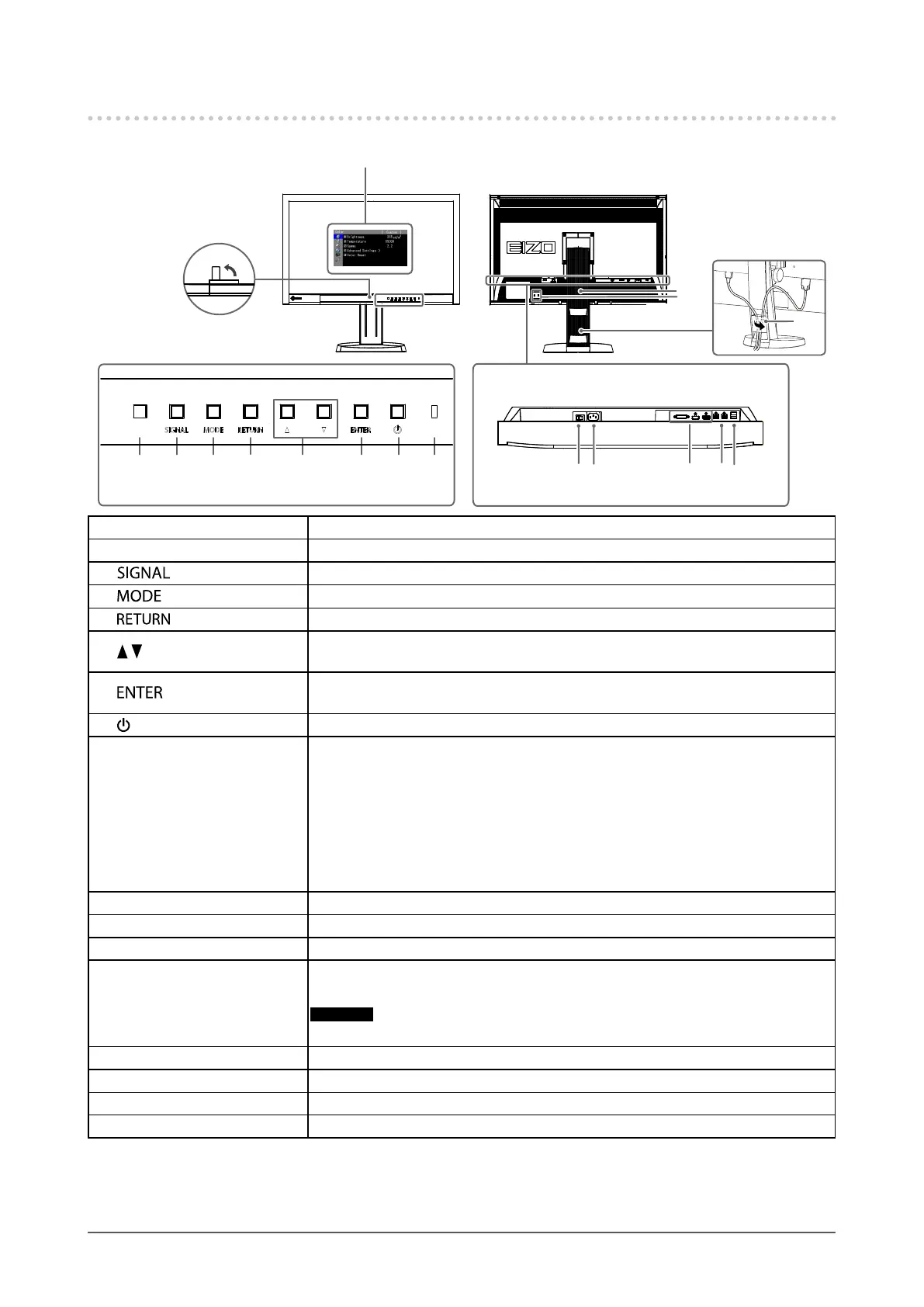
1. Built-in calibration sensor Executescalibrationforanindependentmonitor.SelfCalibrationfunction(page36)
2. Ambient Light Sensor Measuresambientlight.
3.
button Switchesinputsignalsfordisplay(“Toswitchamonginputsignals”(page49)).
4.
button ChangesColorMode(page17).
5.
button Cancelsthesetting/adjustmentandexitstheAdjustmentmenu.
6.
buttons
• Providesthemenuselectionaswellastheadjustmentandsettingofafunction.
• DisplaystheBrightnessmenu(“AdjustingBrightness”(page19)).
7.
button
DisplaystheAdjustmentmenu,determinesanitemonthemenuscreen,andsaves
valuesadjusted(page11).
8.
button Turnsthepoweronoroff.
9. Power Indicator
Indicatesthemonitor’soperationstatus.
Blue: Operating
Flashingblue
(2timesforeach):
Inthefollowingcases,thisnotiesthatdisplayre-correction
isrequired.
• WhenthetimerissetinColorNavigator(CALmode)
Orange: Powersavingmode
OFF: Mainpower/Poweroff
10. Main power switch Turnsthemainpoweronoroff.
11. Power connector Connectsthepowercord.
12. Input signal connectors Left:DVI-Dconnector/Center:HDMIconnector/Right:DisplayPortconnector
13. USB upstream port
ConnectstheUSBcabletousethesoftwarethatneedsUSBconnection,ortouse
USBhubfunction(“7-3.MakingUseofUSB(UniversalSerialBus)”(page50)).
Attention
• By default, USB upstream port 1 is enabled. Connect the cable to USB upstream port 1 rst.
14. USB downstream port ConnectsaperipheralUSBdevice.
15. Stand
*2
Usedtoadjusttheheightandangleofthemonitorscreen.
16. Security lock slot ComplieswithKensington’sMicroSaversecuritysystem.
17. Cable holder Coversthemonitorcables.
*1 See “1-4. Basic Operations and Functions” (page 11) for how to use.
*2 An optional arm (or an optional stand) can be attached by removing the stand section (see “7-1. Attaching the Optional Arm”
(page 47)).






 To Next Page