EasyManua.ls Logo

Eizo ColorEdge CS240 - User Manual

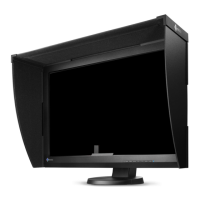
Eizo ColorEdge CS240
77 pages
Print Icon
To Next Page IconTo Next Page
Loading...
Important
Please read PRECAUTIONS, this User’s Manual, and the Setup Guide
(separate volume) carefully to familiarize yourself with safe and
effective usage.
Please refer to the Setup Guide for basic information ranging from
connection of the monitor to a PC or external device to using the
monitor.
The latest software and User’s Manual are available for download
from our web site:
http://www.eizo.com
Cover

Table of Contents

Questions and Answers

  • S
    sherri14Sep 2, 2025
    What to do if interference patterns or pressure marks remain on the screen of my Eizo Lcd monitor?
    • T
      Tyler JacksonSep 2, 2025
      If you notice interference patterns or pressure marks on your Eizo Lcd monitor, leave the monitor displaying a white or black screen, this symptom may disappear.
  • P
    pgonzalezAug 31, 2025
    Why is there noise appearing on the screen of my Eizo ColorEdge CS240?
    • J
      Jason WilliamsAug 31, 2025
      To address noise on the screen of your Eizo Lcd monitor: * In the Adjustment menu, set “Overdrive” to “Off”. * Be aware that when entering HDCP signals, normal images may not be displayed immediately.
  • C
    carrlanceAug 29, 2025
    What should I do if afterimages appear on my Eizo ColorEdge CS240 Lcd monitor?
    • J
      Joy PottsAug 29, 2025
      To prevent afterimages on your Eizo Lcd monitor: * Avoid displaying the same image for a long time. * Use a screen saver or power-saving function to prevent prolonged display of the same image.
  • M
    Marissa ElliottAug 28, 2025
    How do I fix characters that are blurred on my Eizo Lcd monitor?
    • M
      Michael FernandezAug 28, 2025
      To fix blurred characters on your Eizo Lcd monitor, check whether the PC is configured to meet the resolution and vertical scan frequency requirements of the monitor.
  • J
    John NguyenAug 26, 2025
    How to fix a screen that is too bright or too dark on my Eizo ColorEdge CS240 Lcd monitor?
    • C
      Christina OrtegaAug 26, 2025
      To adjust the brightness of your Eizo Lcd monitor, use the “Brightness” setting in the Adjustment menu.
  • M
    Michael WarrenAug 25, 2025
    What to do if my Eizo ColorEdge CS240 connected with USB cable is not detected or USB devices connected to the monitor don't work?
    • T
      Thomas OdomAug 25, 2025
      If your Eizo Lcd monitor is not detected via USB, or USB devices connected to it aren't working, try these steps: * Ensure the USB cable is correctly connected. * Check the “USB Selection” settings under the Setting menu. * Try a different USB port. * Reboot the PC. * Check whether the PC and OS are USB compliant. * Check the PC’s BIOS setting for USB when using Windows.
  • S
    stephenwilliamsAug 22, 2025
    Why does my Eizo ColorEdge CS240 display a message about no signal or incorrect frequency?
    • S
      Stephanie SmithAug 22, 2025
      This message appears when the signal is not input correctly. To resolve this: * Ensure the PC is turned on. * Check that the signal cable is properly connected. * Switch the input signal. * Verify the PC's resolution and vertical scan frequency meet the monitor's requirements. * Reboot the PC.

Summary

Chapter 1 Introduction

1-1. Features

Key specifications and capabilities of the monitor, including size, resolution, and panel type.

1-2. Controls and Functions

Identifies front and rear controls, power indicator, and their functions for operating the monitor.

1-4. Basic Operations and Functions

Explains fundamental operations like displaying and adjusting the menu, and using button guides.

Chapter 2 Adjusting Screens

2-1. Setting Resolution

Lists compatible resolutions and formats for PC and video signals, and how to set them.

2-2. Adjusting Screens

Covers digital and analog signal adjustments, including auto adjustment for analog signals.

2-4. Adjusting Color

Details how to adjust brightness, temperature, gamma, and color gamut for optimal color reproduction.

Chapter 4 Connecting Multiple External Devices

4-2. To set input signal selection

Configures automatic or manual selection of input signals based on connected devices.

Chapter 6 Troubleshooting

6-1. No picture

Addresses issues where the screen remains blank or displays a "No Signal" message.

6-2. Imaging problems (for both digital and analog)

Covers common image quality issues like brightness, blurriness, afterimages, and dots.

6-3. Imaging problems (for digital only)

Addresses digital-specific image problems like incorrect colors or display position changes.

6-4. Imaging problems (for analog only)

Covers analog-specific issues like incorrect display position, vertical bars, or flickering.

Chapter 7 Reference

7-6. Specifications

Comprehensive technical specifications of the monitor, including panel, video, power, and physical dimensions.

Eizo ColorEdge CS240 Specifications

General IconGeneral
3DNo
Color gamut99 %
Pixel pitch0.27 x 0.27 mm
Aspect ratio16:10
Response time7.7 ms
Backlight typeW-LED
Display diagonal24.1 \
Display resolution1920 x 1200 pixels
Display technologyLED
Viewable size, vertical324 mm
Contrast ratio (dynamic)-
Contrast ratio (typical)1000:1
Display number of colors1.073 billion colors
Viewable size, horizontal518.4 mm
Digital vertical frequency23.75 - 63 Hz
Digital horizontal frequency15 - 78 kHz
Display brightness (typical)350 cd/m²
Supported graphics resolutions1920 x 1200 (WUXGA)
On/off switchYes
USB hub version2.0
DVI-I ports quantity1
VGA (D-Sub) ports quantity0
USB Type-A downstream ports quantity4
CertificationCB, CE, TUV/GS, cTUVus, FCC-B, ICES-003-B, VCCI-B, RCM, RoHS, WEEE, GOST-R
Product colorBlack
Market positioningGraphics design
Pivot angle0 - 90 °
Tilt angle range-5 - 35 °
Number of OSD languages9
Panel mounting interface100 x 100 mm
On Screen Display (OSD) languagesCHI (SIMPL), CHI (TR), DEU, ENG, ESP, FRE, ITA, JPN, SWE
AC input voltage100 - 240 V
AC input frequency50 - 60 Hz
Power consumption (max)68 W
Power consumption (standby)0.5 W
Power consumption (typical)27 W
Operating temperature (T-T)0 - 35 °C
Operating relative humidity (H-H)20 - 80 %
Weight and Dimensions IconWeight and Dimensions
Depth (with stand)245 mm
Height (with stand)553 mm
Weight (with stand)8700 g
Depth (without stand)71 mm
Width (without stand)575 mm
Height (without stand)398 mm
Weight (without stand)6000 g

Related product manuals