EasyManua.ls Logo

Eizo ColorEdge PROMINENCE CG3146 - User Manual

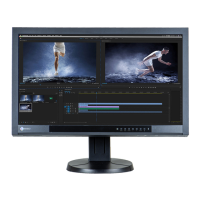
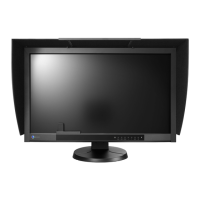
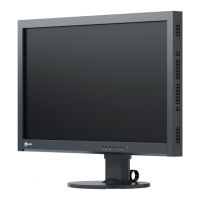
Eizo ColorEdge PROMINENCE CG3146
70 pages
Print Icon
To Next Page IconTo Next Page
Loading...
Important
Please read this “Users Manual, and “PRECAUTIONS” (separate
volume) carefully to familiarize yourself with safe and e󰀨ective
usage.
Refer to the “Setup Guide” for information on the installation /
connection of the monitor.
For the latest product information including the “User’s Manual”,
refer to our web site :
www.eizoglobal.com
HDR Reference Monitor
Users Manual
Thank you for purchasing our HDR reference monitor.

Table of Contents

Other manuals for Eizo ColorEdge PROMINENCE CG3146

Questions and Answers

  • M
    Madison CardenasAug 18, 2025
    What to do if my Eizo Monitor shows 'no signal' message?
    • S
      Stephanie JonesAug 18, 2025
      If your Eizo Monitor displays a message indicating no signal input or that the input signal is out of the frequency specification range, begin by checking that the external device is turned on and that the signal cable is properly connected. Try switching the input signal and turning the main power switch off and then on again. You may also want to try changing the Signal Format in the Administrator Settings menu. Ensure that the external device is configured to meet the resolution and vertical scan frequency requirements of the monitor. Rebooting the external device might also resolve the issue. If using a graphics board, adjust the settings using its utility. For SDI signal input, try changing the Input Color Format.
  • H
    hunterdanielleAug 20, 2025
    Why is my Eizo Monitor screen too bright or dark?
    • Q
      qmorganAug 21, 2025
      If the screen of your Eizo Monitor appears too bright or too dark, you can adjust the brightness using the Brightness setting in the Setting menu. However, if the screen becomes dark or begins to flicker, it is recommended to contact your local EIZO representative.
  • D
    Daniel PierceAug 23, 2025
    What to do if built-in calibration sensor doesn't come out on Eizo ColorEdge PROMINENCE CG3146 Monitor?
    • A
      angela78Aug 23, 2025
      If the built-in calibration sensor on your Eizo Monitor does not come out or stays out, turn off the main power, wait a few minutes, and then turn it back on.
  • D
    david98Aug 26, 2025
    Why can't I display the Setting menu on my Eizo ColorEdge PROMINENCE CG3146?
    • K
      Kristi HurstAug 26, 2025
      If the Setting menu or Mode menu cannot be displayed on your Eizo Monitor, check whether the control button lock function is enabled. Also, note that control buttons are locked when the main window of ColorNavigator 7 is displayed; exit the software to unlock the buttons.
  • J
    Jacqueline KingAug 28, 2025
    Why is my Eizo ColorEdge PROMINENCE CG3146 Monitor not detected via USB?
    • D
      Diana MillerAug 28, 2025
      If your Eizo Monitor connected with the USB cable is not detected, or if the peripheral USB device connected to the monitor does not work, first check whether the USB cable is connected correctly. If a peripheral device is connected to the port, check the USB CHARGE Port setting; if it is set to Charging Only, the peripheral device will not work. Try changing to a different USB port on both the external device and the monitor. Reboot the external device. Check whether the external device and OS are USB compliant. Update to the latest USB 3.1 Gen 1 driver provided by each manufacturer, or connect the monitor to the USB 2.0 port. Check the external device’s BIOS setting for USB when using Windows.
  • B
    Bradley EnglishAug 30, 2025
    How to fix no picture on my Eizo Monitor?
    • H
      harrisshawnAug 30, 2025
      If your Eizo Monitor displays no picture, several things could be happening. The power indicator might be off, white, orange, or flashing orange and white. First, ensure the power cord is properly connected. Then, turn on the main power switch located on the rear of the monitor. Try pressing the power button. If that doesn't work, turn off the main power switch, wait a few minutes, and turn it back on. Also, increase the Brightness and/or Gain in the Setting menu. Make sure to switch the input signal and check that the external device is turned on. Additionally, try moving the mouse or pressing a key on the keyboard. Finally, if connected via DisplayPort, use the signal cable specified by EIZO, turn off the monitor, and then turn it on again.
  • E
    Emily PerrySep 2, 2025
    How to prevent afterimages on my Eizo ColorEdge PROMINENCE CG3146 Monitor?
    • S
      Shannon RuizSep 2, 2025
      To prevent afterimages on your Eizo Monitor, avoid displaying the same image for extended periods. Utilize the screen saver or power saving function to vary the display and prevent static images from remaining on the screen for too long.
  • G
    Garrett GordonSep 4, 2025
    Why do windows shift on my Eizo Monitor after power saving mode?
    • C
      Caitlin MitchellSep 4, 2025
      If windows or icons on your Eizo Monitor shift position when you switch the power back on or return from power saving mode, try setting Compatibility Mode to On in the Administrator Settings menu.
  • B
    byrdmeganSep 7, 2025
    Why do the screen colors look strange on my Eizo ColorEdge PROMINENCE CG3146?
    • C
      Charles HallSep 7, 2025
      If the screen colors on your Eizo Monitor look strange, try changing the Input Color Format in the Setting menu. If you are using an HDMI signal input, you can also try changing the Signal Format in the Administrator Settings menu.
  • K
    Kathy DavisSep 9, 2025
    How to fix image not displaying on the entire screen of Eizo ColorEdge PROMINENCE CG3146 Monitor?
    • T
      Troy FieldsSep 9, 2025
      If the image does not display on the entire screen of your Eizo Monitor, try changing the Picture Expansion setting in the Setting menu.

Summary

Notice for This Monitor

About the Usage of This Product

Provides information on the intended use and product suitability for video production.

About the LCD Panel

Details characteristics of the LCD panel, including pixel performance and stabilization time.

About the Installation

Offers guidance on installing the monitor, including precautions against dew condensation.

About the Maintenance

Recommends periodic cleaning and software updates for optimal performance.

Cleaning

Provides instructions and precautions for cleaning the monitor's cabinet and screen surface.

To Use the Monitor Comfortably

Offers advice on adjusting brightness and taking breaks to prevent eye strain.

Chapter 1 Introduction

1-1. Features

Describes the key features of the monitor, including 4K resolution, HDR support, and SDI connectivity.

1-2. Controls and Functions

Details the front and rear controls and their functions for monitor operation.

Chapter 2 Basic Adjustments;Settings

2-1. Switching Input Signals

Explains how to select and switch between different input sources connected to the monitor.

2-2. Switching the Display Mode (color mode)

Guides users on selecting appropriate display modes or color modes for various applications.

2-3. Using the Quick Check Function

Describes how to temporarily adjust HLG System Gamma, Gamma, Brightness, and Black Level.

Chapter 3 Advanced Adjustments;Settings

3-1. Basic Operation of the Setting Menu

Explains how to navigate and use the monitor's advanced setting menu for adjustments.

3-2. Setting Menu Functions

Details various advanced settings available in the menu, including Signal, Color, Screen, and Preferences.

Preferences

Covers monitor settings for user experience, like power saving, timers, and custom keys.

Chapter 4 SelfCalibration

4-1. SelfCalibration functions

Explains how to set up and execute the monitor's automatic calibration sensor for color accuracy.

4-2. Setting targets

Describes how to set calibration targets for Advanced Mode using the monitor or software.

4-3. Executing

Details methods for manually executing SelfCalibration or setting up a schedule for automatic calibration.

Chapter 5 Custom Key Settings

5-1. Basic Operation of the Custom Keys

Explains how to execute functions assigned to the monitor's custom keys.

5-2. Assigning a Function to a Custom Key

Guides users on how to assign specific functions to the customizable front panel keys.

Functions that can be Assigned to Custom Keys

Lists all available functions that can be assigned to the monitor's custom keys for quick access.

Chapter 6 Administrator Settings

6-1. Basic Operation of the Administrator Settings Menu

Explains how to access and operate the administrator settings menu for monitor configuration.

6-2. Administrator Settings Menu Functions

Details the functions available within the administrator settings, such as logo display and key lock.

Chapter 7 SDR;HDR Settings

7-1. About Each Color Mode

Describes the applications and characteristics of different SDR and HDR color modes for image creation.

7-2. Setting Procedure

Provides step-by-step instructions to configure monitor settings for SDR and HDR image display.

7-3. Settings with ColorNavigator 7

Explains how to use ColorNavigator 7 software for advanced monitor configuration and calibration.

Chapter 8 Troubleshooting

8-1. No Picture

Addresses issues related to the monitor not displaying an image and power indicator status.

8-2. Imaging Problems

Covers common display issues like brightness, afterimages, noise, and color problems.

8-3. SelfCalibration Problems

Helps diagnose and resolve issues encountered during the SelfCalibration process, including error codes.

8-4. Other Problems

Provides solutions for miscellaneous issues like menu display, USB connectivity, and audio output.

Chapter 9 Reference

9-1. Attaching the Installation Fixture

Details the process of detaching the stand and attaching the monitor to an installation fixture or arm.

9-2. Connecting Multiple External Devices

Explains how to connect and switch between multiple external video sources like HDMI, DisplayPort, and SDI.

9-3. Making Use of the USB Hub Function

Describes how to use the monitor's built-in USB hub for connecting peripherals and quick charging.

9-4. Specifications

Lists the technical specifications of the monitor, including panel, video signals, USB, and power details.

Appendix

Trademark

Lists registered trademarks and logos associated with the product and its components.

Warning for Radio interference

Provides FCC compliance information and warnings regarding radio interference for different regions.

Eizo ColorEdge PROMINENCE CG3146 Specifications

General IconGeneral
Screen Size31.1 inches
Resolution4096 x 2160 (DCI 4K)
Panel TypeIPS
Color Gamut99% Adobe RGB, 98% DCI-P3
Brightness1000 cd/m²
Viewing Angles178° horizontal, 178° vertical
HDR SupportHDR10, HLG
Built-in Calibration SensorYes
Stand AdjustmentsTilt, Swivel, Height
Contrast Ratio1, 000, 000:1 (typical)
Input Ports2 x DisplayPort, 1 x HDMI

Related product manuals