EasyManua.ls Logo

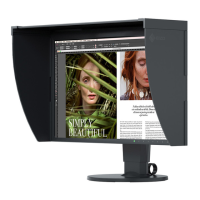
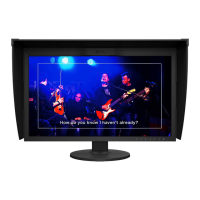
Eizo ColorEdge CG319X - User Manual

Eizo ColorEdge CG319X
57 pages
Print Icon
To Next Page IconTo Next Page
Loading...
Important
Please read this “Users Manual, and “PRECAUTIONS” (separate
volume) carefully to familiarize yourself with safe and effective usage.
Refer to the “Setup Guide” for information on the installation /
connection of the monitor.
For the latest product information including the “User’s Manual”,
refer to our web site :
http://www.eizoglobal.com
Color Management LCD Monitor
Users Manual
Thank you for purchasing our Color Management LCD Monitor.

Table of Contents

Other manuals for Eizo ColorEdge CG319X

Questions and Answers

  • C
    conleyscottAug 22, 2025
    What to do if the Eizo Monitor screen is too bright or too dark?
    • C
      Cassandra ClarkAug 22, 2025
      If your Eizo monitor screen appears too bright or too dark, use the "Brightness" setting in the Setting menu to adjust it. Keep in mind that LCD monitor backlights have a limited lifespan. If the screen becomes dark or begins to flicker, contact your local EIZO representative.
  • C
    Cynthia RomeroAug 25, 2025
    What does it mean when my Eizo ColorEdge CG319X displays a no signal message?
    • H
      Heather GomezAug 25, 2025
      If your Eizo monitor displays a message indicating no signal input or that the input signal is out of the frequency specification range, try the following: * Ensure the external device is turned on. * Verify the signal cable is properly connected. * Switch the input signal. * Turn the main power switch off and on again. * Reboot the external device. * Check if the external device is configured to meet the monitor's resolution and vertical scan frequency requirements. * Change to the appropriate setting using the graphics board's utility.
  • W
    Willie GriffinAug 26, 2025
    Why is my Eizo ColorEdge CG319X Monitor USB not detected?
    • J
      John RamseyAug 26, 2025
      If your Eizo monitor is not detected via USB, or a peripheral USB device connected to the monitor isn't working, try the following: * Check the USB cable connection. * If a peripheral device is connected, check the "USB CHARGE Port" setting; if it's set to "Charging Only", the peripheral device won't work. * Try different USB ports on the external device and the monitor. * Reboot the external device. * Update to the latest USB 3.0 driver or connect the monitor to the USB 2.0 port. * Check the external device's BIOS setting for USB.
  • C
    charlesrayAug 28, 2025
    Why can't I display the Setting menu on my Eizo ColorEdge CG319X?
    • B
      Brittany OdonnellAug 28, 2025
      If you cannot display the Setting or Mode menu on your Eizo monitor, check if the operation switch lock function is enabled. Also, control switches are locked when the main window of ColorNavigator 6 or ColorNavigator NX is displayed; exit the software.
  • J
    Jessica SosaAug 29, 2025
    How to fix strange screen colors on Eizo ColorEdge CG319X with DisplayPort / HDMI input?
    • S
      Stephanie GarciaAug 30, 2025
      If the screen colors look strange on your Eizo monitor when using DisplayPort or HDMI input, try changing the "Input Color Format" in the Setting menu. For HDMI signal input, you can also try changing the "Signal Format" in the "Administrator Settings" menu.
  • A
    Allison TateAug 31, 2025
    How to fix image not displaying on entire Eizo ColorEdge CG319X screen?
    • R
      ryansandersAug 31, 2025
      If the image doesn't display on the entire screen of your Eizo monitor, try these steps: * Change the "Picture Expansion" setting in the Setting menu. * Change the "Signal Format" in the settings menu. * Check if the resolution is set to the recommended resolution (4096 x 2160). * If the image is displayed on only half the screen, check whether "Dual" is not selected in “Picture Setup” in the "Administrator Settings" menu.
  • C
    Christopher ReevesSep 2, 2025
    What causes afterimages on my Eizo ColorEdge CG319X Monitor?
    • L
      Lisa TuckerSep 3, 2025
      Afterimages are a characteristic of LCD monitors. To minimize afterimages on your Eizo monitor, avoid displaying the same image for extended periods. Use a screen saver or the power-saving function.
  • E
    Erica MurphySep 4, 2025
    What to do if SelfCalibration is canceled on Eizo ColorEdge CG319X Monitor?
    • J
      Jennifer HudsonSep 4, 2025
      If SelfCalibration is canceled on your Eizo monitor while in progress, it may be due to a change in the video signal from the external device. Prevent any changes in the video signal during SelfCalibration. If a scheduled SelfCalibration is canceled, it will be executed again when the monitor transitions to the power saving mode after an hour or more, or when the monitor is turned off using the power button. SelfCalibration can also be executed regardless of the schedule.
  • D
    Danielle GrantSep 6, 2025
    How to fix Eizo built-in calibration sensor if it does not come out?
    • J
      Jimmy LucasSep 6, 2025
      If the built-in calibration sensor on your Eizo monitor does not come out or stays out, turn off the main power and then turn it back on after a few minutes.
  • C
    Christian ChoiSep 8, 2025
    Why can't SelfCalibration be executed on my Eizo ColorEdge CG319X?
    • S
      Shelly ThompsonSep 8, 2025
      To troubleshoot why SelfCalibration cannot be executed on your Eizo monitor: * Check whether a color mode for executing SelfCalibration has been set. * Verify the date and time are set correctly on the monitor. * Confirm the execution schedule has been set. * Ensure the calibration targets are set correctly. * Try calibrating the monitor using ColorNavigator 6 or ColorNavigator NX.

Summary

Caution Statements

Introduction

Features

Highlights key monitor features like 4K LCD, HDR support, and custom key functions.

SelfCalibration Function

Explains the built-in sensor for automatic monitor calibration.

Basic Adjustments and Settings

SelfCalibration Procedures

Setting Calibration Targets

Guides on setting calibration targets for Calibration Mode using the monitor or software.

Executing and Activating Calibration

Explains manual, scheduled execution, and activation in Standard/Calibration modes.

Custom Key Configuration

Advanced Settings

Signal and Color Settings

Configures input signal (color format, range) and color (brightness, gamma) settings.

Administrator Settings

Administrator Functions

Details functions for administrators, including input detection, logos, and compatibility.

Troubleshooting Common Issues

No Picture or Error Messages

Provides solutions for issues where the screen displays no image or error messages.

Imaging and Display Problems

Addresses common display issues like brightness, afterimages, dots, interference, and color.

Eizo ColorEdge CG319X Specifications

General IconGeneral
3D-
HD type4K DCI
Color gamut99 %
Pixel pitch0.17 x 0.17 mm
Screen shapeFlat
Pixel density149 ppi
Response time9 ms
Backlight typeW-LED
Display diagonal31.1 \
Display resolution4096 x 2160 pixels
Display technologyLED
Native aspect ratio17:9
Maximum refresh rate- Hz
Viewable size, vertical368.1 mm
Contrast ratio (typical)1500:1
Display number of colors1.073 billion colors
Viewable size, horizontal698 mm
Digital vertical frequency23 - 61 Hz
Digital horizontal frequency15 - 136 kHz
Display brightness (typical)350 cd/m²
HDCPYes
USB hub version3.2 Gen 1 (3.1 Gen 1)
USB upstream port typeUSB Type-B
Number of upstream ports1
USB Power Delivery up to10.5 W
USB Type-A downstream ports quantity3
AC input voltage100 - 240 V
AC input frequency50 - 60 Hz
Power consumption (max)140 W
Power consumption (standby)1.2 W
Power consumption (typical)52 W
Tilt angle range-5 - 35 °
Height adjustment154 mm
Panel mounting interface100 x 100 mm
Operating temperature (T-T)0 - 35 °C
Operating relative humidity (H-H)20 - 80 %
Cables includedAC, DisplayPort to Mini DisplayPort, HDMI, USB
Product colorBlack
Market positioningGraphics design
Harmonized System (HS) code85285210
Weight and Dimensions IconWeight and Dimensions
Depth (with stand)290 mm
Height (with stand)588 mm
Weight (with stand)12400 g
Depth (without stand)71.5 mm
Width (without stand)735 mm
Height (without stand)423 mm
Weight (without stand)8300 g

Related product manuals