EasyManua.ls Logo

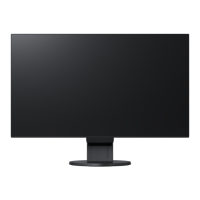
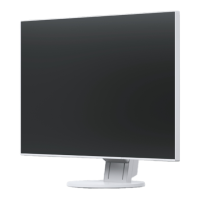
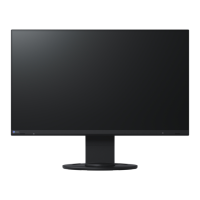
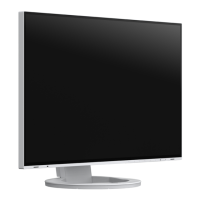
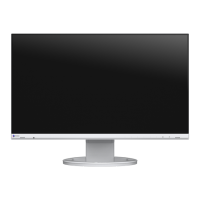
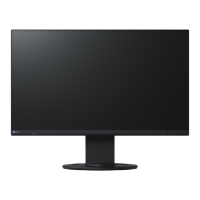
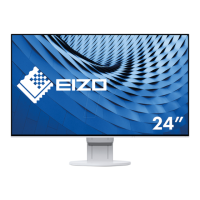
Eizo FlexScan EV2451-WT - User Manual

Eizo FlexScan EV2451-WT
49 pages
Print Icon
To Next Page IconTo Next Page
Loading...
Important
Please read PRECAUTIONS, this User’s Manual, and the Setup Guide
(separate volume) carefully to familiarize yourself with safe and
effective usage.
Please refer to the Setup Guide for basic information ranging from
connection of the monitor to a PC to using the monitor.
For the latest product information including the User’s Manual, refer
to our web site :
www.eizoglobal.com
Color LCD Monitor
Users Manual

Table of Contents

Questions and Answers

  • C
    Christopher RichardsonAug 30, 2025
    How to fix incorrect display position on Eizo Monitor?
    • N
      nmyersAug 30, 2025
      If the display position on your Eizo Monitor is incorrect, use the “Position” setting in the Setting menu to correct it. If the problem persists, use the graphics board’s utility, if available, to change the display position.
  • M
    Meredith ColemanAug 29, 2025
    How to fix the image not displaying on the entire screen of my Eizo Monitor?
    • S
      Shawn BrownAug 29, 2025
      If the image on your Eizo Monitor does not display on the entire screen, try changing the “Picture Expansion” setting in the Setting menu.
  • J
    josephmontgomeryAug 29, 2025
    What to do if Eizo FlexScan EV2451-WT Monitor says input signal is out of range?
    • T
      thompsonmistyAug 29, 2025
      If your Eizo Monitor displays the message that the input signal is out of the specified frequency range, check whether the PC is configured to meet the resolution and vertical scan frequency requirements of the monitor. You may also try rebooting the PC or selecting an appropriate setting using the graphics board’s utility.
  • M
    masonhuntSep 12, 2025
    Why can't I adjust the brightness on my Eizo FlexScan EV2451-WT?
    • T
      Tristan WilkinsSep 12, 2025
      If you cannot adjust the brightness on your Eizo monitor, it may be because Auto EcoView is set to On. Try setting Auto EcoView to Off. You can also change the maximum and minimum values for Brightness or Ambient Light in the Auto EcoView advanced settings.
  • P
    Patrick BartonSep 16, 2025
    How to remove noise from the screen of my Eizo Monitor?
    • J
      John WestSep 16, 2025
      To remove noise from the screen of your Eizo monitor, set Overdrive to Off in the Setting menu.
  • G
    Grace DavisSep 23, 2025
    How to fix noise on Eizo Monitor screen?
    • J
      Jennifer GomezSep 23, 2025
      If noise appears on the screen of your Eizo Monitor, set “Overdrive” to “Off” in the Setting menu. Also, when inputting HDCP system signals, normal images may not be displayed immediately.
  • G
    Gordon RobinsonAug 27, 2025
    What to do if my Eizo FlexScan EV2451-WT Monitor image does not display on the entire screen?
    • D
      David FloresAug 27, 2025
      If the image on your Eizo monitor does not display on the entire screen, try changing the “Picture Expansion” setting in the Setting menu.
  • K
    Kenneth ChapmanAug 26, 2025
    How to adjust brightness on Eizo Monitor?
    • E
      Eric BowmanAug 27, 2025
      If your Eizo Monitor screen is too bright or too dark, you can adjust it using the settings menu. Use the “Brightness” or “Contrast” options to fine-tune the display. If the screen is too bright, you might also want to try changing the Auto EcoView setting to “On.”
  • K
    Kelsey MillerAug 26, 2025
    How to adjust brightness on Eizo FlexScan EV2451-WT Monitor if the screen is too bright or dark?
    • C
      Cynthia FosterAug 26, 2025
      If your Eizo monitor screen is too bright or too dark, use the Brightness or Contrast settings in the Setting menu to adjust it. Alternatively, if the screen is too bright, try setting the Auto EcoView setting to On.
  • N
    ngardnerAug 25, 2025
    How to fix an Eizo Monitor when there is no picture and the power indicator is off?
    • C
      cookdanaAug 26, 2025
      If your Eizo monitor isn't displaying a picture and the power indicator isn't lit, try these steps: First, ensure the power cord is properly connected. Next, turn on the main power switch located on the rear of the monitor. If it still doesn't work, turn off the main power switch, wait a few minutes, and then turn it back on.

Eizo FlexScan EV2451-WT Specifications

General IconGeneral
Screen Size24.1 inches
Resolution1920 x 1200
Panel TypeIPS
Brightness250 cd/m²
Contrast Ratio1000:1
Response Time5 ms
USB HubYes
VESA Mount100 x 100 mm
Aspect Ratio16:10
SpeakersNo
Viewing Angles178° (H) / 178° (V)
ConnectivityHDMI, DisplayPort, DVI-D
USB Ports2 x USB 3.0
Color Depth8-bit
Color GamutsRGB

Related product manuals