EasyManua.ls Logo

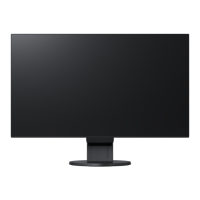
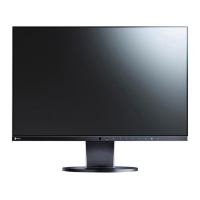
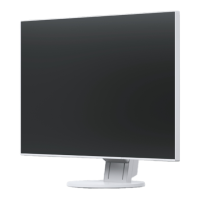
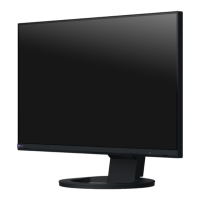
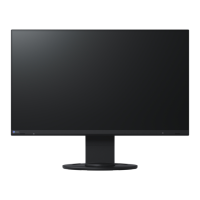
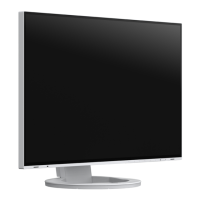
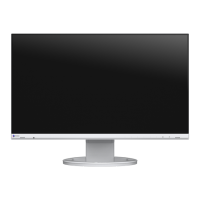
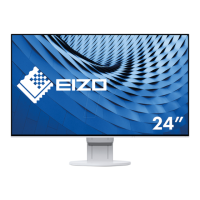
Eizo FlexScan EV2451-WT - User Manual

Eizo FlexScan EV2451-WT
49 pages
Print Icon
To Next Page IconTo Next Page
Loading...
Important
Please read PRECAUTIONS, this User’s Manual, and the Setup Guide
(separate volume) carefully to familiarize yourself with safe and
effective usage.
Please refer to the Setup Guide for basic information ranging from
connection of the monitor to a PC to using the monitor.
For the latest product information including the User’s Manual, refer
to our web site :
www.eizoglobal.com
Color LCD Monitor
Users Manual

Table of Contents

Questions and Answers

  • L
    lorihardinSep 6, 2025
    What to do if noise appears on the screen of my Eizo Monitor?
    • D
      Debra TurnerSep 6, 2025
      If noise appears on the screen of your Eizo monitor, set “Overdrive” to “Off” in the Setting menu. When inputting HDCP system signals, normal images may not be displayed immediately.
  • D
    Daniel FosterSep 6, 2025
    Why do green, red, blue, white, or dark dots remain on the screen of my Eizo Monitor?
    • S
      smithscottSep 6, 2025
      The appearance of green, red, blue, white, or dark dots on your Eizo monitor screen is due to the characteristics of the LCD panel and is not a malfunction.
  • J
    John ArnoldSep 7, 2025
    Why do interference patterns or pressure marks remain on the screen of my Eizo FlexScan EV2451-WT Monitor?
    • B
      breannaleonSep 7, 2025
      If you notice interference patterns or pressure marks on your Eizo monitor screen, leave the monitor displaying a white or black screen. This symptom may disappear over time.

Eizo FlexScan EV2451-WT Specifications

General IconGeneral
Screen Size24.1 inches
Resolution1920 x 1200
Panel TypeIPS
Brightness250 cd/m²
Contrast Ratio1000:1
Response Time5 ms
USB HubYes
VESA Mount100 x 100 mm
Aspect Ratio16:10
SpeakersNo
Viewing Angles178° (H) / 178° (V)
ConnectivityHDMI, DisplayPort, DVI-D
USB Ports2 x USB 3.0
Color Depth8-bit
Color GamutsRGB

Related product manuals