73
TROUBLESHOOTING GUIDE
SOFTWARE
In case of trouble with the unit, please look through problems and see if you can solve them
yourself before calling your dealer.
NO SOUND:
• If you are not geng any sound into the soware applicaon, go back to the preferences as
shown above and make sure you have selected the USB input for the recording device.
• Power Cycle: Close Audacity, turn off the turntable, unplug the USB Cable. Then plug in the
USB Cable, turn on the turntable, and reopen Audacity.
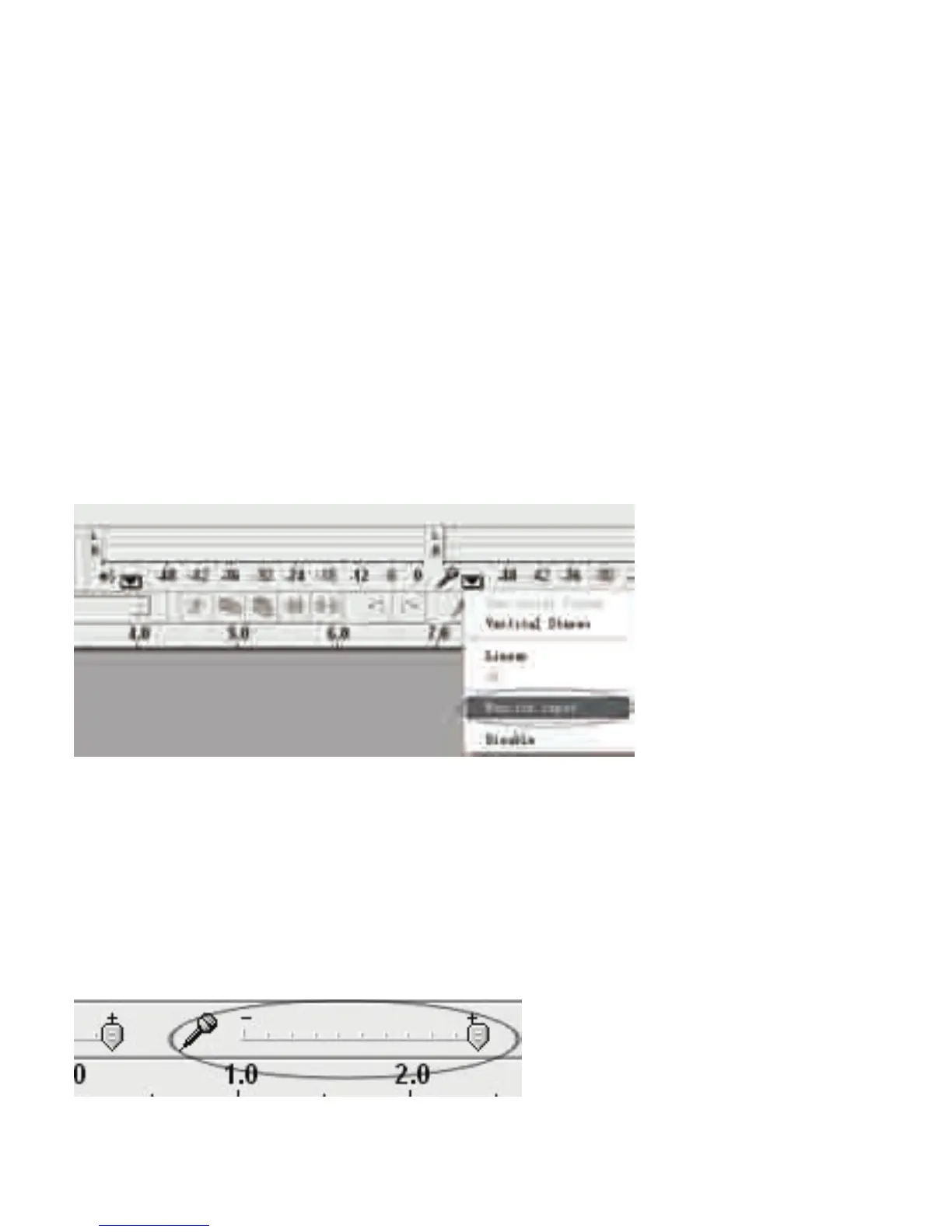
• If you are not able to hear any audio as you play the
record, please click on the microphone
drop-down arrow and select Monitor Input. This will enable you to hear the audio from the
turntable, even if you have not record-enabled the Audacity applicaon.
• If you are not seeing the microphone slider, please go to the Preferences menu in Audacity,
click on the Interface tab and make sure that the Enable Mixer Toolbar and Enable Meter
Toolbar opons are checked. If they are not, please check them and then press OK.
• Check the microphone slider to make sure that it is at full volume, all the way to the right as
shown below. If you find the recording sounds low or distorted, adjust the microphone slider.
If you are not seeing the microphone slider, please go to the Preferences menu in Audacity,
click
on the Interface tab and make sure that the Enable Mixer Toolbar and Enable Meter
Toolbar opons are checked. If they are not, please check them and then press OK.



 To Next Page