CONNECTIONS
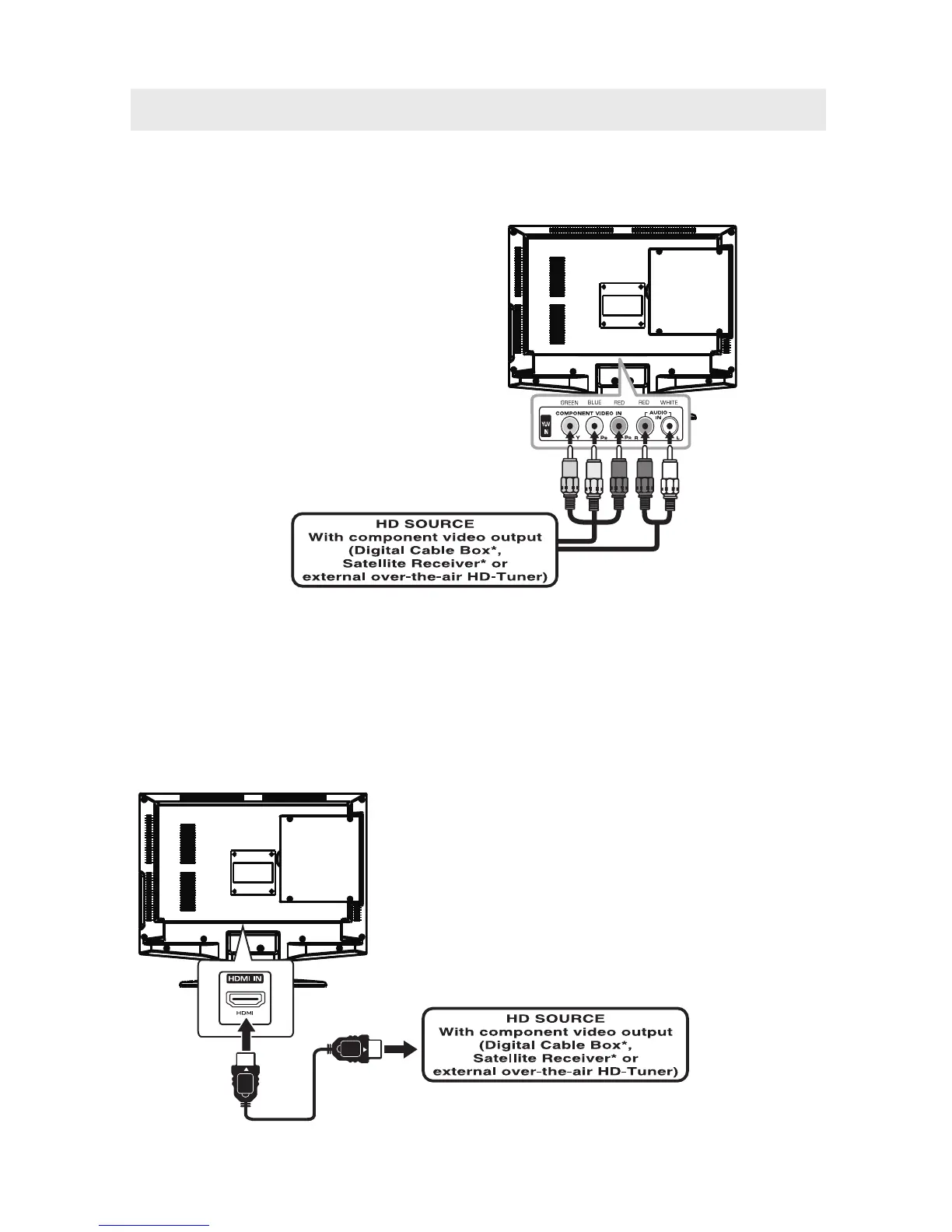
CONNECTING A HIGH-DEFINITION (HD) SOURCE USING Y Pb Pr CONNECTION
High-Definition (HD) Devices with component video output must be connected to the YPbPr input.
Connect the component video cable and audio cable (not included) as shown.
Make sure you connect the component video cable and audio cable from the other equipment
(Y Pb Pr OUT and AUDIO OUT) to this unit (Y Pb Pr IN and AUDIO IN).
NOTE
When connecting a DVD player to the television,
the picture resolution is solely dependent upon
the resolution supported by the DVD player attached.
DVD player resolutions vary from 480i to 1080i,
and this television can support DVD players up to
a maximum resolution of 1080i.
* May require a subscription
for receiving HD channels,
check with your cable/satellite
service provider for details.
To COMPONENT
VIDEO OUT jacks
CONNECTING A HIGH-DEFINITION (HD) SOURCE USING HDMI CONNECTION
HDMI (High Definition Multimedia Interface) supports both video and audio on a single digital connection
for use with DVD players, DTV, set-top boxes and other digital AV devices. HDMI was developed to provide
the technologies of High Bandwidth Digital Content Protection (HDCP) as well as Digital Visual Interface
(DVI) in one specification. HDCP is used to protect digital content transmitted and received by
DVI-compliant or HDMIcompliant displays.
HDMI has the capability to support standard, enhanced or high-definition video plus standard to
multi-channel surround-sound audio. HDMI features include uncompressed digital video, a bandwidth of
up to 2.2 gigabytes per second (with HDTV signals), one connector (instead of several cables and
connectors), and communication between the AV source and AV devices such as DTVs.
To HDMI
IN jack
To HDMI
OUT jack
To COMPONENT
VIDEO IN jacks
(YPbPr IN)
To AUDIO
IN jacks
(YPbPR IN)
To AUDIO
OUT jacks
Connect the HDMI cable (not included) as
shown:
Make sure you connect the cable from the
source equipment (HDMI OUT) to this unit
(HDMI IN).
HDMI CABLE
(NOT INCLUDED)
9



 To Next Page