Video Information
An LCD panels native resolution is its width and height measured in number of pixels.
In almost all cases, an image displayed on an LCD monitor will look best when your computers output resolution matches the LCD panels
native resolution. See the display specifications on the Elo website www.elotouch.com to find your IDS Displays native resolution. Operating in
other resolutions will degrade video performance and is not recommended.
For computer output resolutions at non-native resolutions, the monitor will scale the video to panel’s native resolution. For smaller input video
resolutions, this involves “stretching” the input image in the X- and Y-dimensions to fit the panel. For larger input video resolutions, this
involves “compressing” the input image in the X- and Y-dimensions to fit the panel. An unavoidable byproduct of the scaling algorithms is a
loss of fidelity when the computers output video image is scaled by the monitor to fit the display. This loss of fidelity is most apparent when
viewing feature-rich images at close distances (for example images containing small-font text).
Your IDS Display will likely not require any video adjustments.
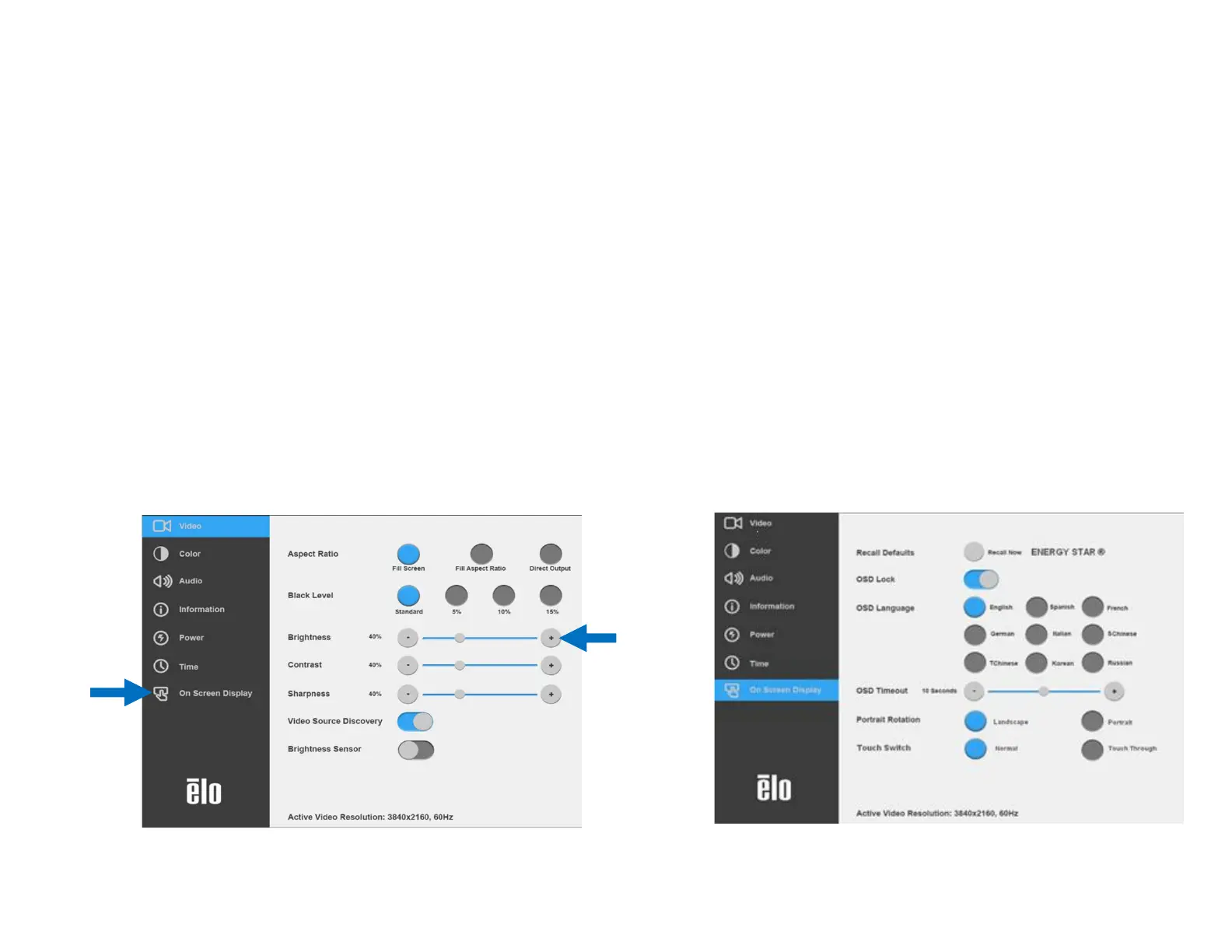
Touch On-Screen Display (OSD)
This monitor uses an easy-to-navigate Touch OSD interface. Use the settings menu in the sidebar to adjust the IDS Display settings
Example of the Popup OSD Menu:
All IDS Display adjustments made through the OSD are automatically stored as soon as they are entered. This feature saves you from having
to reset your choices every time the IDS Display is unplugged or powered off and on or if there is a power failure.


 To Next Page