Page 23
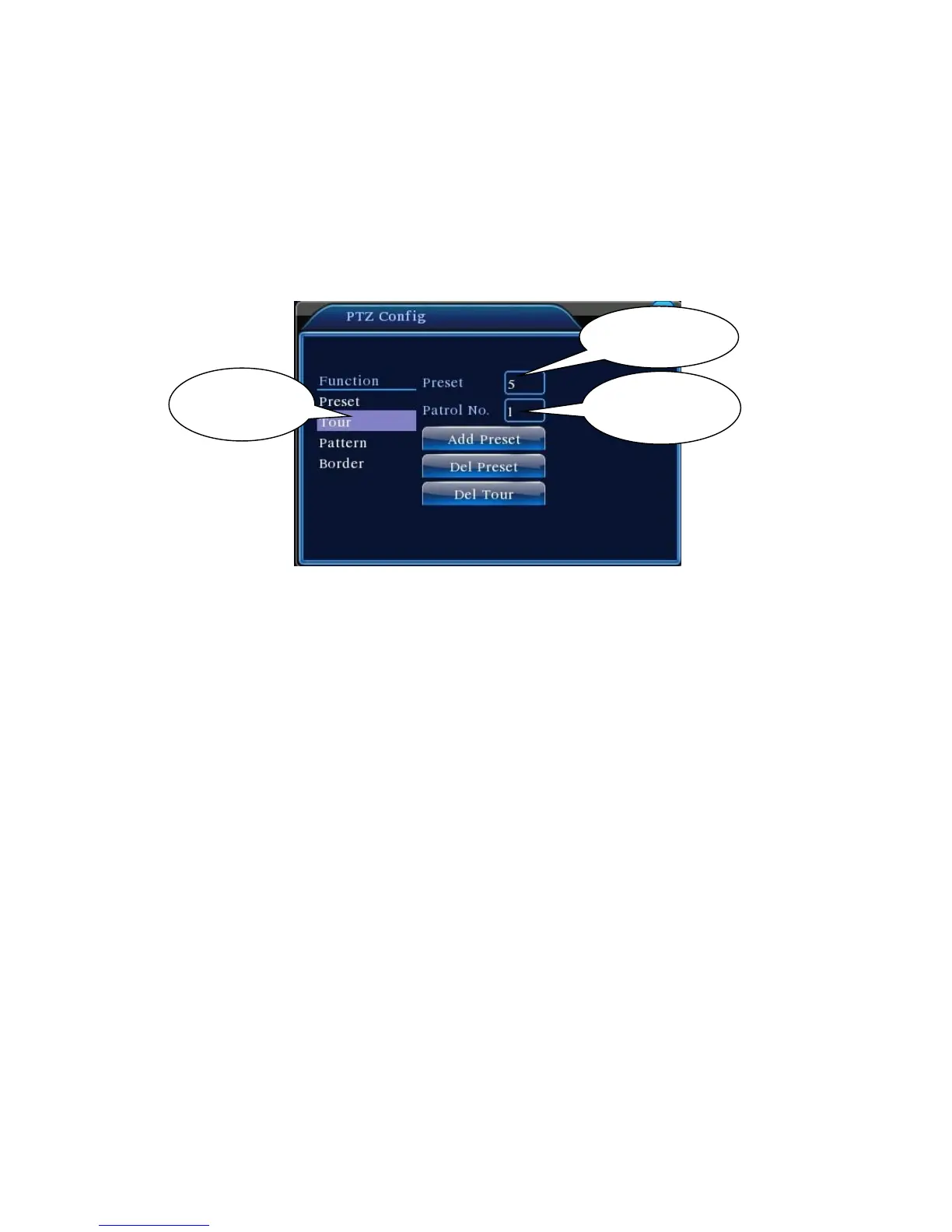
preset points selected for patrol;
(You may add or delete preset points after finishing the patrol route setup)
Step 3: Repeat Steps 1 and 2 until the desired patrol route includes all preset points.
Del Preset: Enter the preset value, click Del Preset button to clear the setting for preset points.
Clear Patrol Route: Enter the patrol route number, click Clear Patrol Route button to clear all
point settings along the patrol route.
Figure 3.13 Point-to-Point Patrol Setup
2) Point-to-Point Patrol Call-up
In Figure 3.10, click Page Switch button to enter PTZ control interface as shown in Figure 3.12.
Enter Point-to-Point Patrol number in Value Input box. Click Point-to-Point Patrol key to start PTZ
patrol repeatedly. Click Stop key to terminate the patrol.
3. Trace
Using PTZ control to setup a patrol trace. Call it up to have PTZ patrolling along the trace
repeatedly.
1) Setup Trace
To set up the trace, follow the steps below:
Step 1: In Figure 3.10, click Set key to open Figure 3.14;
Step 2: Click Trace key to enter trace number in the value input box;
Step 3: Click Start button to enter the page shown in Figure 3.10 and adjust Zoom, Focus,
Aperture, and Direction, etc. Click Set and return to Figure 3.14;
Step 4: Click End to complete the setup. Trace number now has its corresponding route. Right
click to exit Setting page.



 To Next Page