Operation
Page 52
4.6.10 Chart
The Chart feature is only enabled when this Class A AIS transceiver is
operating on a SOLAS vessel.
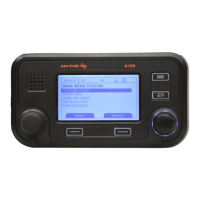
The AIS transceiver contains an application which will display AIS targets
received, along with its own vessel position on a chart style plot.
The chart can be scrolled up, down, left, and right using the ‘Function’ keys.
Zooming in and out is via the ‘Scroll’ wheel.
Targets can be selected by moving the cross hairs over a target and pressing
the ‘Select’ key.
The ‘Options’ menu is also available for more advanced features.
Within the ‘Options’ menu, the chart can be oriented to either North, Heading,
or Course Up. The chart can be set so that the own vessel position is always
in the centre of the screen.
The chart can be de-cluttered by hiding filtered targets, or vessel names from
the display.
SOG vectors can also be displayed on the screen if this item is selected from
the ‘Options’ menu.
Some of the layers displayed on the chart can be removed to provide more
clarity on the display. The ‘Chart Settings’ screen provides a way of modifying
these.
The chart feature is an aid for the display of information only and should not
be used for vessel navigation.
4.6.11 Help and support screen
This screen is available from the ‘Home’ > ‘System Settings’ menu and
provides contact information for the product manufacturer.
It also provides relevant information from the User Manual.
4.6.12 User settings screen
From this screen, it is possible to set the display brightness, set the display to
a day or night colour scheme, set the operating units to metric or nautical, and
configure the sounds emitted by the device. It is also possible from this screen
to set the UTC time offset, change the password, change the filter settings and
display the menus in a number of non-English languages.


 To Next Page