9
Make sure the image you want is displayed on the
screen. Press the Power Button and the Volume Down
button simultaneously. Or press the Screenshot icon
on the status bar to take a screenshot.
You can also display or hide the screenshot button on
the status bar in the settings menu.
The screenshot is automatically saved to your Gallery.
Adding Icons
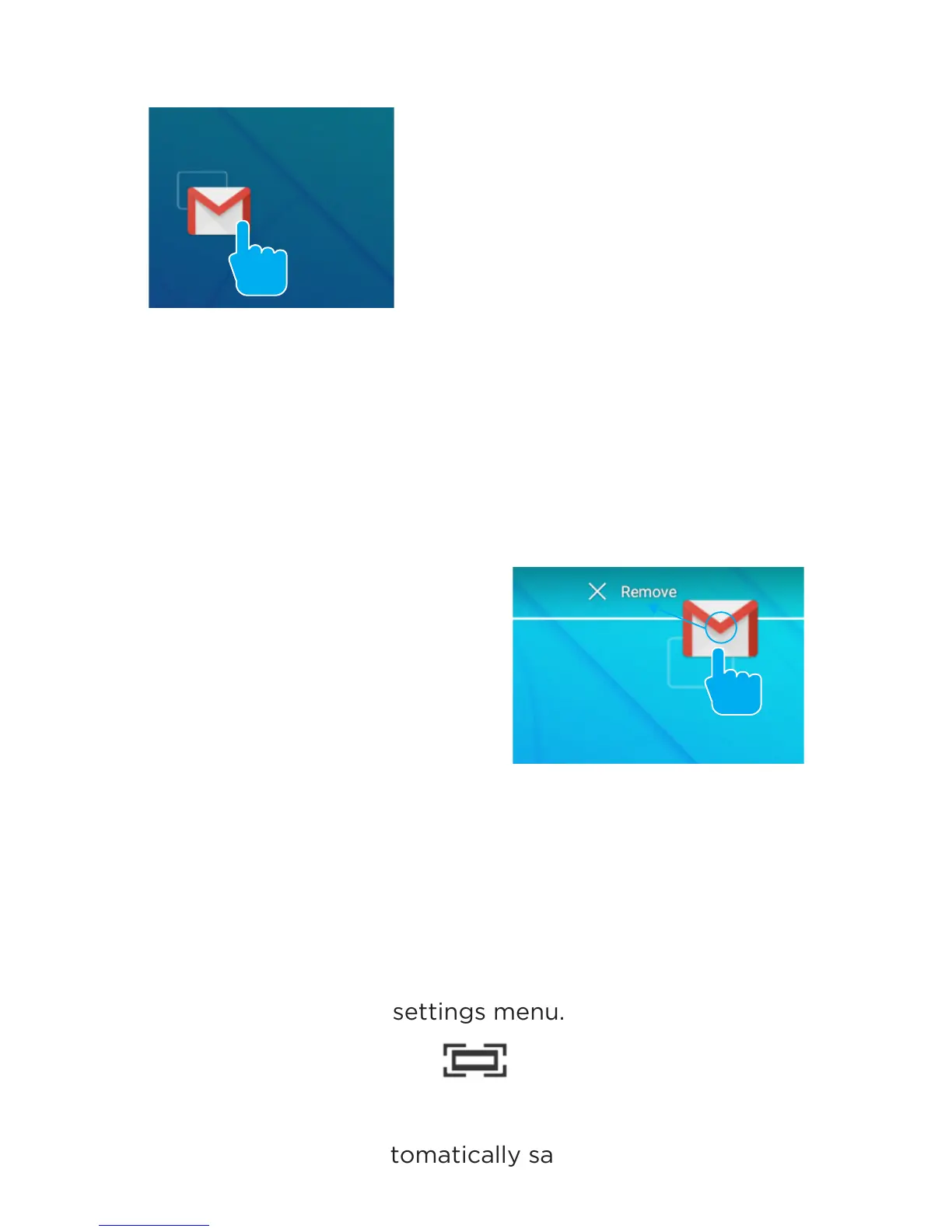
Moving Icons
Take a Screenshot
Removing Icons
Within the All Apps menu,
choose an app or swipe right to
choose a widget. Tap and hold
desired app or widget for about
2 seconds until the Home screen
appears. Slide it wherever you
want and let go.
Touch&holdtheicon.
Slideyourngertothenewposition.
(To move between Home screens, slide toward the
edge of the screen. To bump another icon out of the
way, slide slowly towards it.)
Liftyourngertodroptheiconintoitsnewposition.
Touch and hold the app or
widget and drag to the X icon
at the top of the screen.



 To Next Page