5
Zooming: Double tap quickly to zoom into a webpage,
picture, or map. Some apps allow you to zoom in
andoutbytouchingthescreenwithtwongers,and
pinching them together.
Search
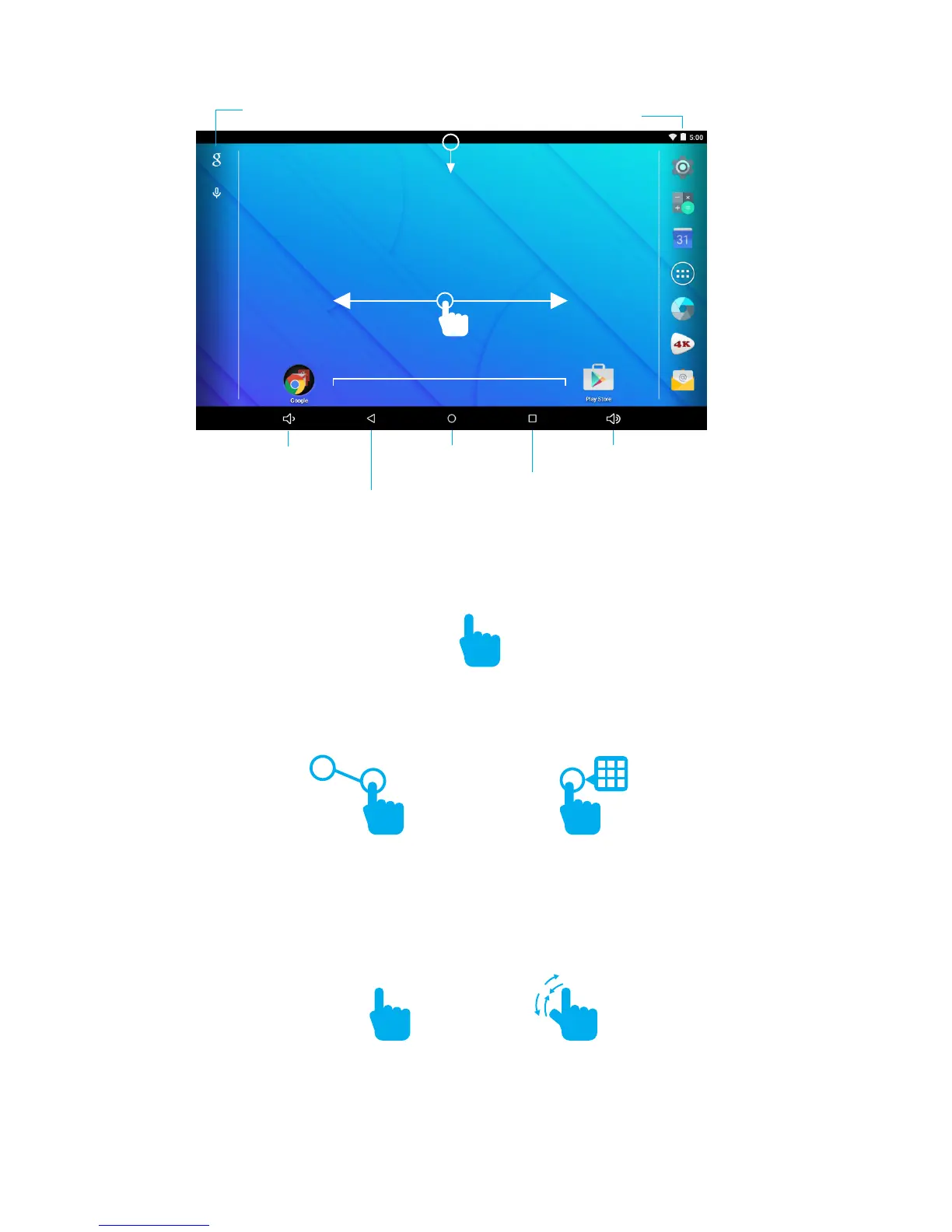
Tap the screen once to activate or open something.
Touch and hold to move an item by dragging.
*In many apps touch and hold can offer more options.
TIP:Youcanickthescreenwithyourngertoquickly
scroll through a long list, such as a library of music.
Tapaspeciclocationonthescreenwhereyouwould
like to enter text. The on-screen keyboard will pop up.
Screen Basics
Touch Screen Basics
Slide down to reveal
yournoticationsandsettings
Swipe left or right to switch
between home screens.
x2
Back
Volume UpHome
Volume Down
Recent apps
Battery
Dock



 To Next Page