19
7.
Exploring Apps
Open up some Apps to better familiarize yourself with
your new tablet.
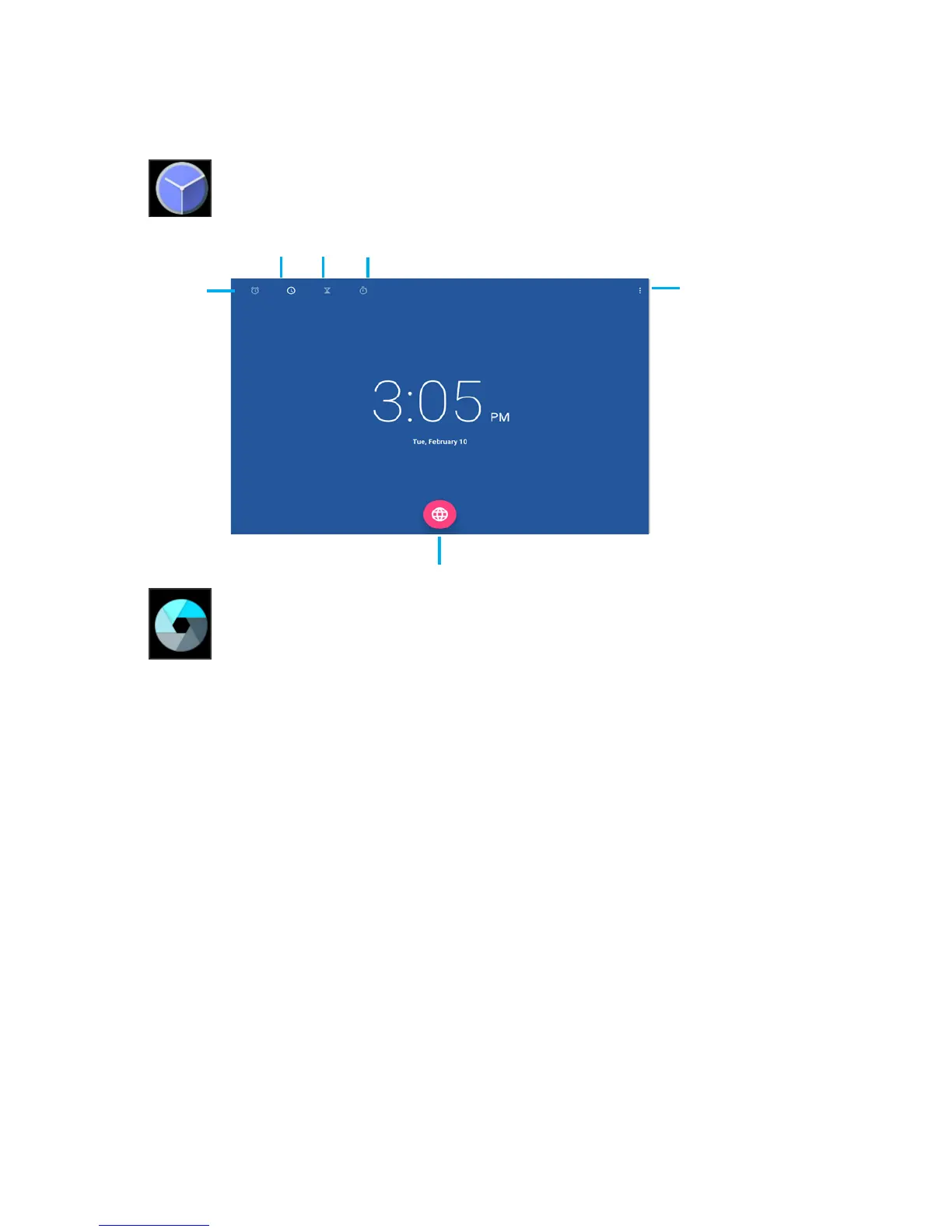
Tap the Clock app to access your alarm clock,
timer, or stopwatch.
Tap the camera app to take pictures and videos
to share with your friends and family.
Timer
Alarm
Clock
Tap to change Time Zone
Night Mode/
Settings
Clock
Stopwatch
Taking Photos:
•Makesuretheiconbarontheleftisthecameraicon
•Tapthecameraicontotakeaphoto
•Tozoompinchtwongerstogetheronthescreen.
•Tapthemenuiconinthetoprightcornerfor
camera settings
To switch to video record, swipe right from the left side
of the screen. Select the video icon. You can also change the
resolution settings and try advanced features.
Recording Video:
•Makesuretheiconbarontheleftisthevideoicon
•Tapthevideoicontostartrecording
•Tozoompinchtwongerstogetheronthescreen.
•Tapthevideoiconagaintostoprecording
•Whilerecordingyoucantapanywhereonthescreen
to take take a picture.
•Tapthemenuiconinthetoprightcornerfor
video settings



 To Next Page