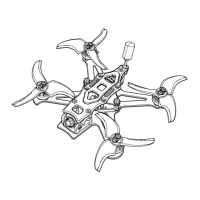
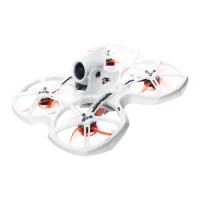
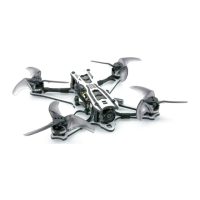
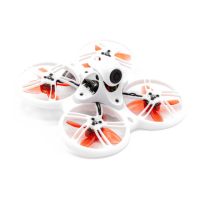
Tinyhawk III Plus
3. Adjust the desired parameters such as channel, frequency, power, and
low-power lock.
4. After making the desired changes, click "Save."
5. Once saved, restart the Tinyhawk III Plus to apply the new settings.
Note: The process for changing video transmission settings is the same for both
the HD and analog versions of the Tinyhawk III Plus.
Low Power Lock Functionality The "Low Power Lock" function ensures that the
video transmission operates at low power until it is unlocked. Once unlocked,
the transmission operates at the set power level.
4.6 Changing OSD Settings
The OSD (On-Screen Display) settings for the Tinyhawk III Plus come pre-
configured from the factory. However, if you wish to make changes, you can
follow these steps using the Betaflight Configurator software:
1. Open the Betaflight Configurator software.
2. Navigate to the OSD settings.
3. Adjust the OSD settings according to your preferences for the characters
and information you want to display on your video goggles.
4. After making the desired changes, click "Save."
5. Once saved, restart the Tinyhawk III Plus to apply the new OSD settings.
Note: The process for changing OSD settings is the same for both the HD and
analog versions of the Tinyhawk III Plus.





 To Next Page