Getting Started
Using the Lumity Logger app, you can configure the
device with your phone or tablet and then download
reports, which are saved on the device.
Follow these steps to begin using the loggers with
TempTrak and the Lumity Logger app.
1. Add Sensors in TempTrak server. Follow below
instruction to register sensors in TempTrak.
a) Login to TempTrak. Click on Configuration Tab.
b) Go to Sensor Registration.
c) Put Sensor ID and security ID from the sticker
(side of unit) on the transmitter.
d) Select Transmitter Type & Group. Click on Add
button.
e) e) Transmitter will default logging every 5 min.
2. Download the Lumity Logger app and log in.
a) Download Lumity Logger App to a phone or
tablet from the App Store® or Google Play™.
b) Open the app and enable Bluetooth in the
device settings if prompted.
c) Use credentials provided by Emerson Sales
Team to login to Mobile App
d) When logged in for the first time, a pop
message “Lumity Logger” Would like to Use
Bluetooth will show up. Please Click “OK”
3. Set up the logger. Insert the external temperature
probe.
4. Configure the logger
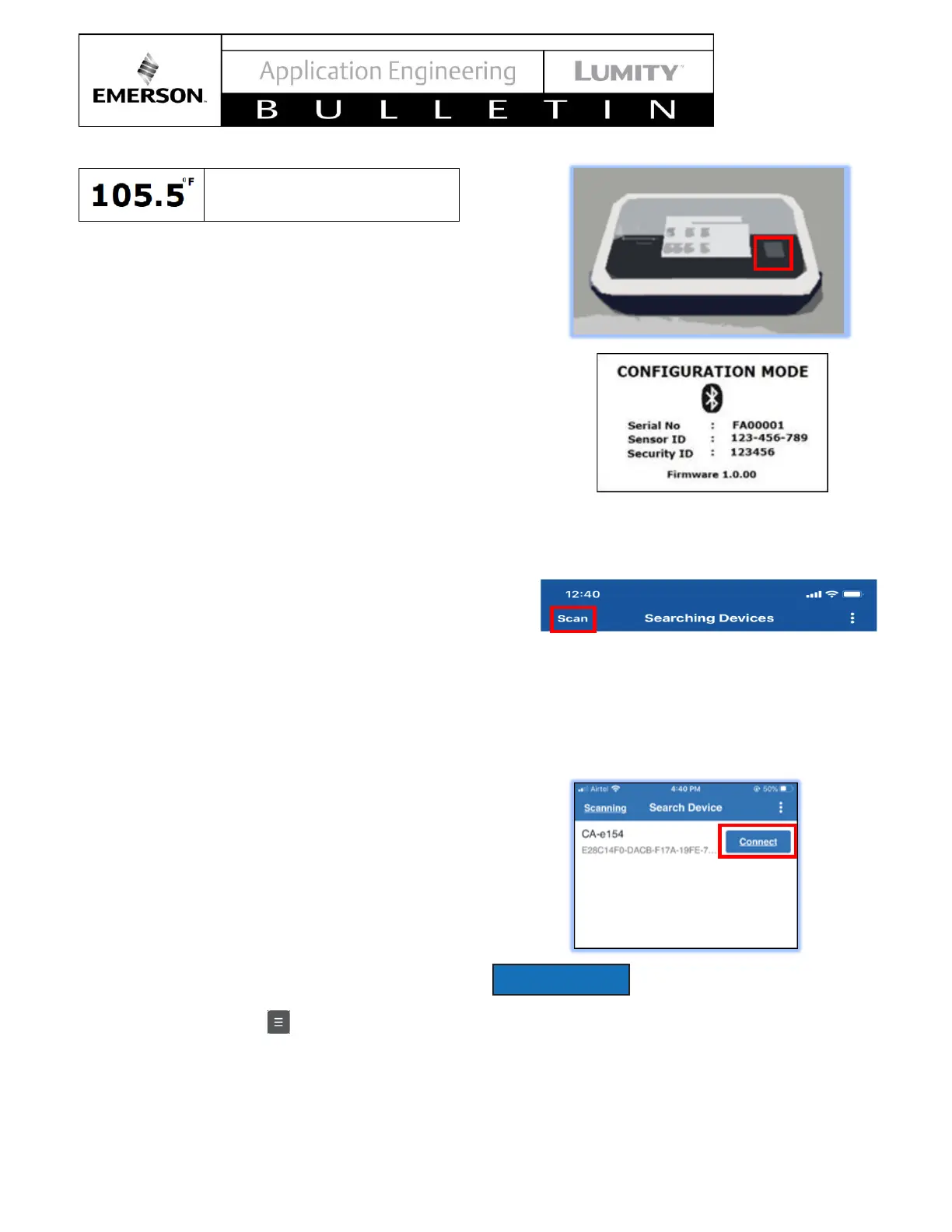
a) Press and hold the button on transmitter for
2-4 seconds. When the screen goes blank,
release the button to enter Configuration Mode.
b) In the mobile app, press Scan to initiate a
search for the transmitter with Bluetooth®
wireless technology.
c) Scanners are named FAXXXX (where XXXX is
the transmitter’s serial number). Connect to the
desired device to pair with mobile device.
If transmitter is not paired within
90 seconds, it will enter in to
default Operational Mode. Repeat the process to
resume the configuration.
5. Configure the logger continued
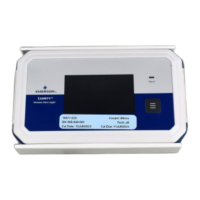
a. Once connected, the transmitter displays as
shown. If the transmitter becomes disconnected
repeat the process to re-connect it.



 To Next Page