Shuffle Loop: Shuffles the files. When ‘Shuffle Loop’ is selected and the ‘Next’
button is selected, the available audio files will be played
randomly.
10.10 Playing photos and other images
1. Use the navigation keys to select ‘Files Manager’ and press the ‘OK’ button.
2. Select the source where you want to play from and press the ‘OK’ button.
3. Browse to the file you want to play and press the ‘Play’ button after which the file
starts to play.
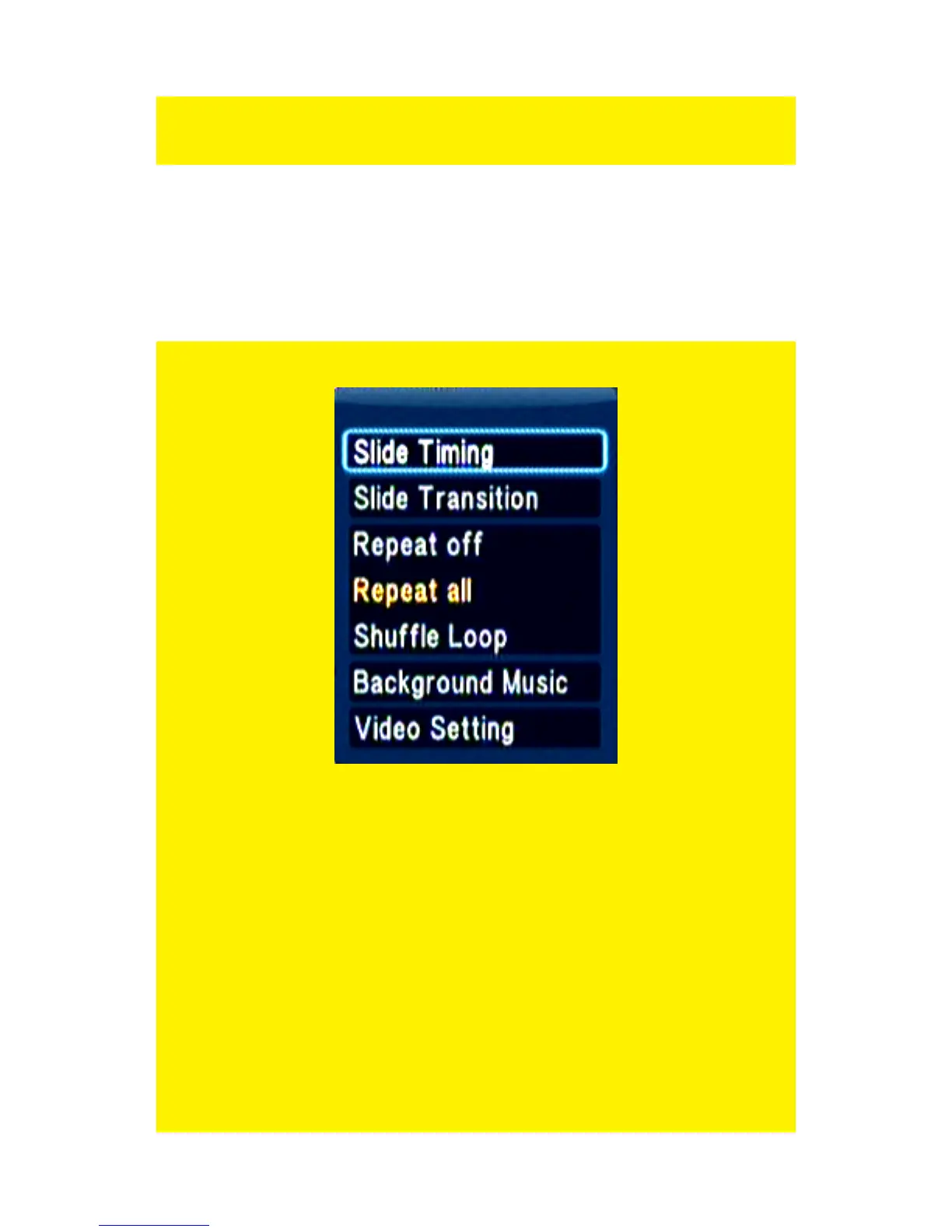
Hint: Press the ‘Menu’ button while playing an image file to acquire the options as
described in the following enumeration:
Slide Timing: Select ‘Slide Timing’ and press the ‘OK’ button. Select the amount
of time an image will be visible, for example: ‘2 Seconds’ and
press the ‘OK’ button.
Slide Transition: Select ‘Slide Transition’. Select the effect you want to use while
using the slide show. If want to use all possible effects, you can
choose ‘All Effect Shuffle’ and press the ‘OK’ button.
Repeat off: When ‘Repeat off’ is selected, the played file will not be repeated.
Repeat all: When ‘Repeat all’ is selected, all available image files will be
repeated.
Shuffle Loop: When ‘Shuffle Loop’ is selected, the available image files will be
played randomly.
Background Music: If you want to hear background music during the slide show,
select ‘Background Music’ and press the ‘OK’ button. If you want
to hear music which is located in a specific album, select ‘Select
Music’ and press the ‘OK’ button. Select the album and press the



 To Next Page