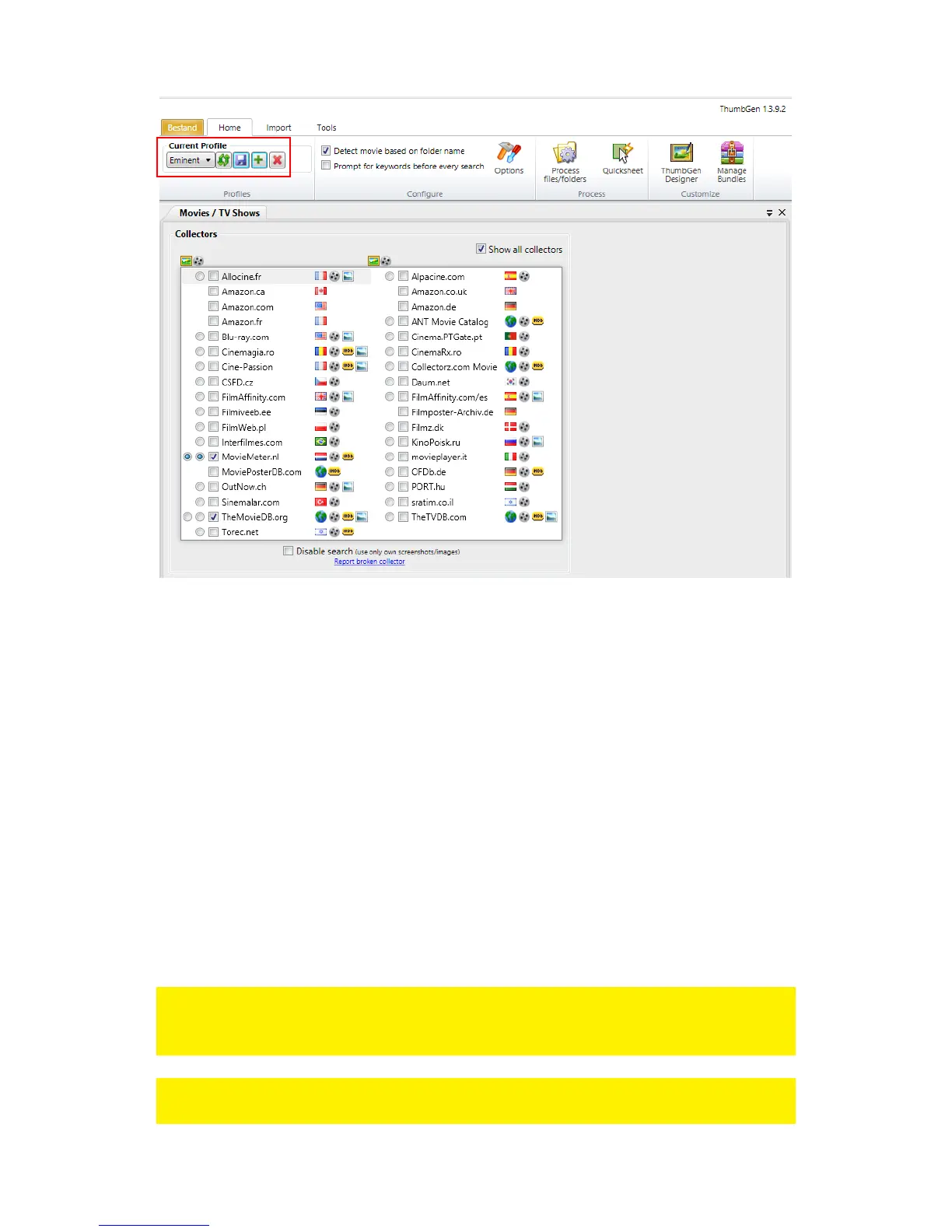
16. Now click ‘Process Files/folders’ after which a screen appears with the current
drives.
17. Select the correct drive and then the folder (with the subfolders) where the
movies are stored. Click the name of the folder. If correct, the subfolders are
selected automatically.
18. Now click the ‘Semi-Automatic Mode’ button after which the program starts to
process the movies. In the ‘Semi-Automatic Mode’, the program may ask you to
select a title if the program does not know for sure if the name of the movie(s)
correspond with the name(s) in de database.
19. A progress bar will be shown at the bottom of the screen. Once the program is
done, you can close the program.
20. Now disconnect the media player or external USB hard disk from your computer
by right-clicking the USB icon the taskbar and click ‘Safely remove hardware’.
You need to reconnect the USB hard disk to the media player again. You can
also choose to restart the media player.
21. Wait until the media player has been started or restart the media player manually.
Note: DVD movies with VIDEO_TS folders need an additional folder to get the files in
the correct folder. Example: ‘VIDEO_TS’ is stored in the folder
‘DVD_movie/DVD_movie/VIDEO_TS’.
Note: The Movie info and cover art (DVD_movie.JPG, DVD_movie1.fanart.JPG and
DVD_movie1.NFO ) in the DVD folders with VIDEO_TS folders are stored by



 To Next Page