20
Basic operation
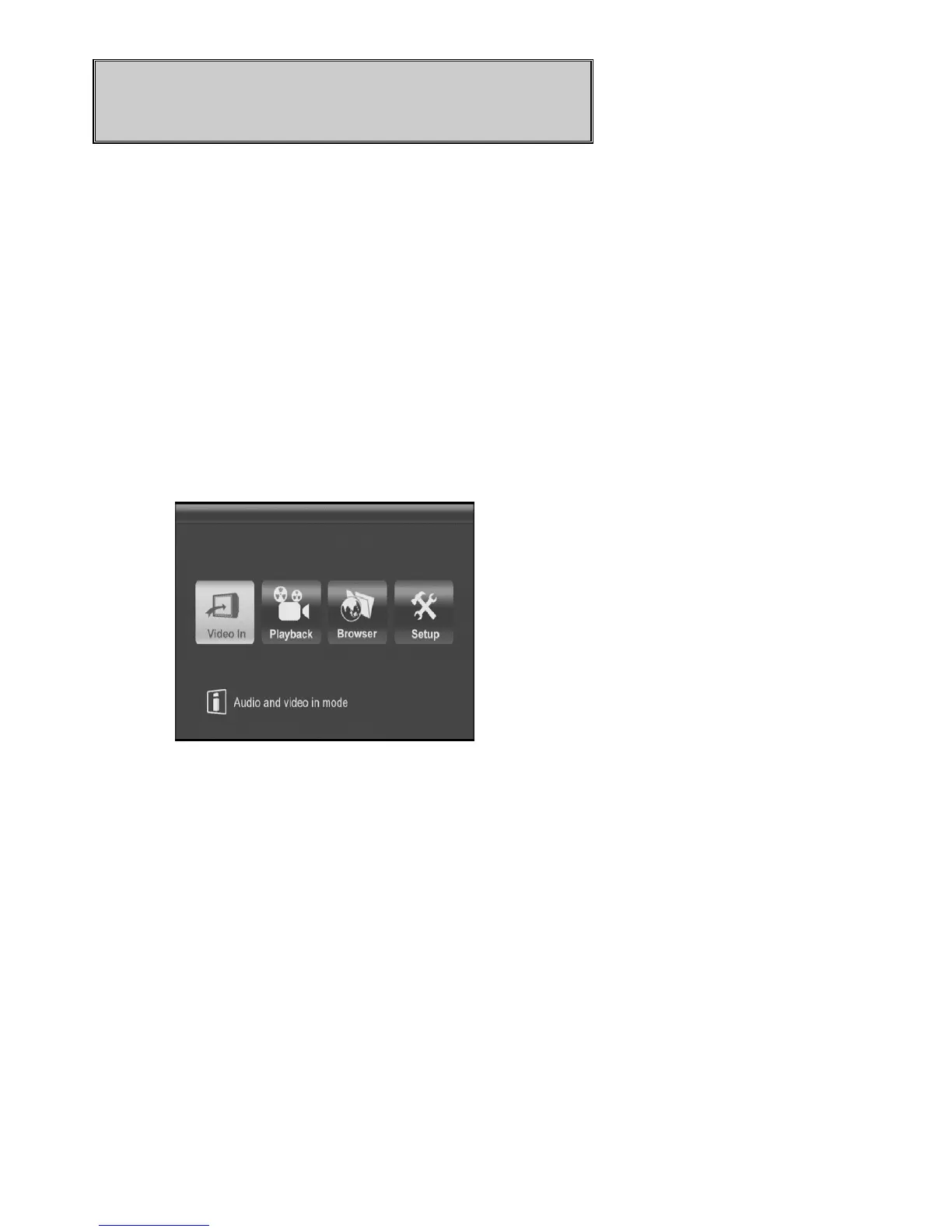
When you turn on the power of ME1, the top MENU will be shown. Whenever the
MENU
key is pressed, the top
MENU
will be shown on top of the previous screen.
Watching the input video
Make sure the
AV IN
connection is correct, then turn on the power of the
connected video device, like VCR, Set top box, Camcorder, or DVD player.
Select
Video In
icon on top
MENU
and press
ENTER
key to display the input
video from AV IN jack.
With input video playing, you can record and Time-shift the video.
Figure Video In icon
One Touch Recording
When input video is playing, you can press
REC
key to record the on-screen video
into HDD. You may tune the recording quality in Record setup menu. You may
press
STOP key to stop recording. You can press REC key again to select the
recording time.
ME1
will stop the recording when recording time is up. Recording
time will be changed sequentially, 30 min, 60 min, 90 min, 120min, 180 min, and
240 min, each time REC key is pressed. When 240 min is selected, press REC
key again will cancel the recording time setting.
You can play, edit, and manipulate the recorded video in Playback mode.



 To Next Page