14
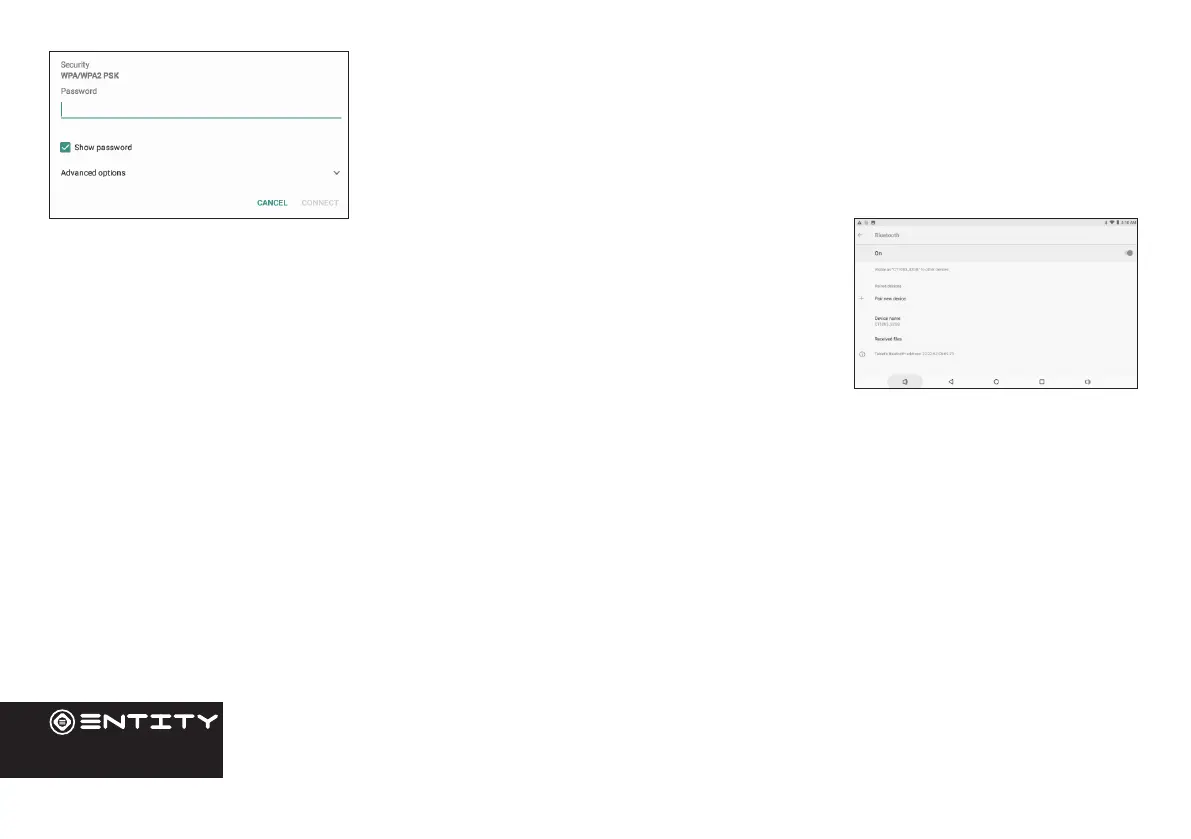
Touch the Wireless password box to show the on-screen keyboard and then use it to
enter the password. Touch Connect to conrm. When you have successfully connected
to a Wi-Fi network, the Nocaon bar in the upper right of the screen will show a
Wi-Fi signal indicator.
Bluetooth:
• Turn on Bluetooth - Go to Sengs > Bluetooth.
• Tap the device that you wish to connect to in the device list, then follow the onscreen
instrucons to connect to it. The tablet must be within about 30 feet (10 meters) of the
Bluetooth device.
Computer:
Connect the tablet to a computer to transfer les.
1. Connect your tablet to the computer. Plug the small end of a micro USB cable into the USB 2.0 high speed connector of
the tablet. Plug the large end of the cable into an available USB 2.0 high speed port on the computer.
2. When your tablet is connected, slide down the USB icon then touch icon USB connected.
3. Mount the storage. Touch buon Transfer les(MTP) to mount the tablet’s built-in storage. When it is mounted, you can
copy les to or from your tablet.


 To Next Page