36
Adding Content Using an SD Card
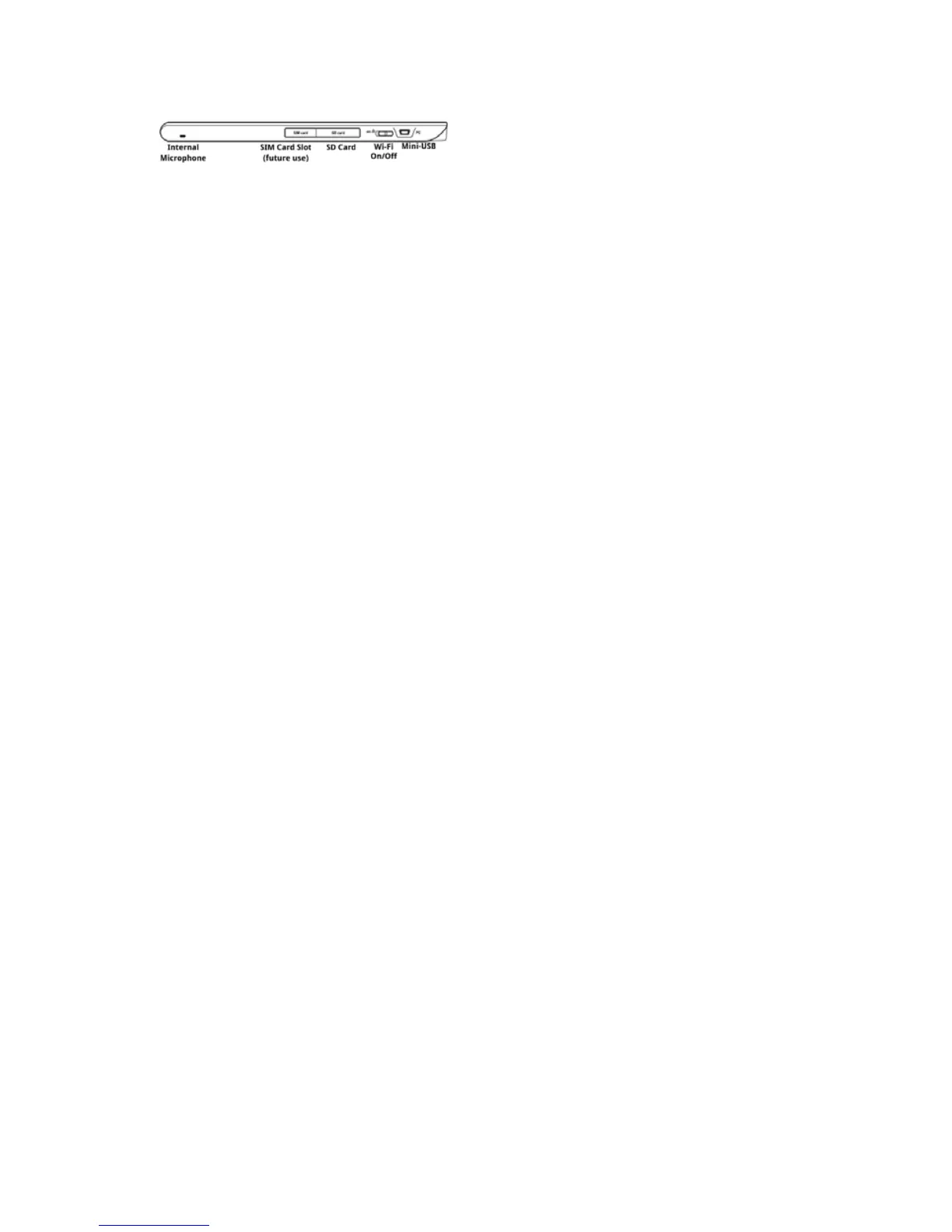
The enTourage eDGe can accept any type of SD card.
To add content using the SD card:
1.SavelesonyourSDcardusingyourlaptoporotherdevice.Besuretoun-
mount the SD card before moving it. In Microsoft Windows, locate the SD card in
the system tray and choose Safely Remove Hardware.
2. Push the SD card into the slot on the side of the enTourage eDGe with the
contacts facing down and the notched edge to the right, if the enTourage eDGe is
facing you as shown above. The card will snap in to place.
NOTE: BEFORE REMOVING AN SD CARD: Open your Library, then open
Storage, select the SD card and choose Unmount. See Safe Removal of SD
Cards and USB Flash Drives for details.
To remove the SD card push in on the card to release it.
SeeAddingContentfordetailsonndingandaddinglestoyourlibrary.
Return to Contents



 To Next Page