38
Moving Files to the enTourage eDGe using the Mini-USB Connector
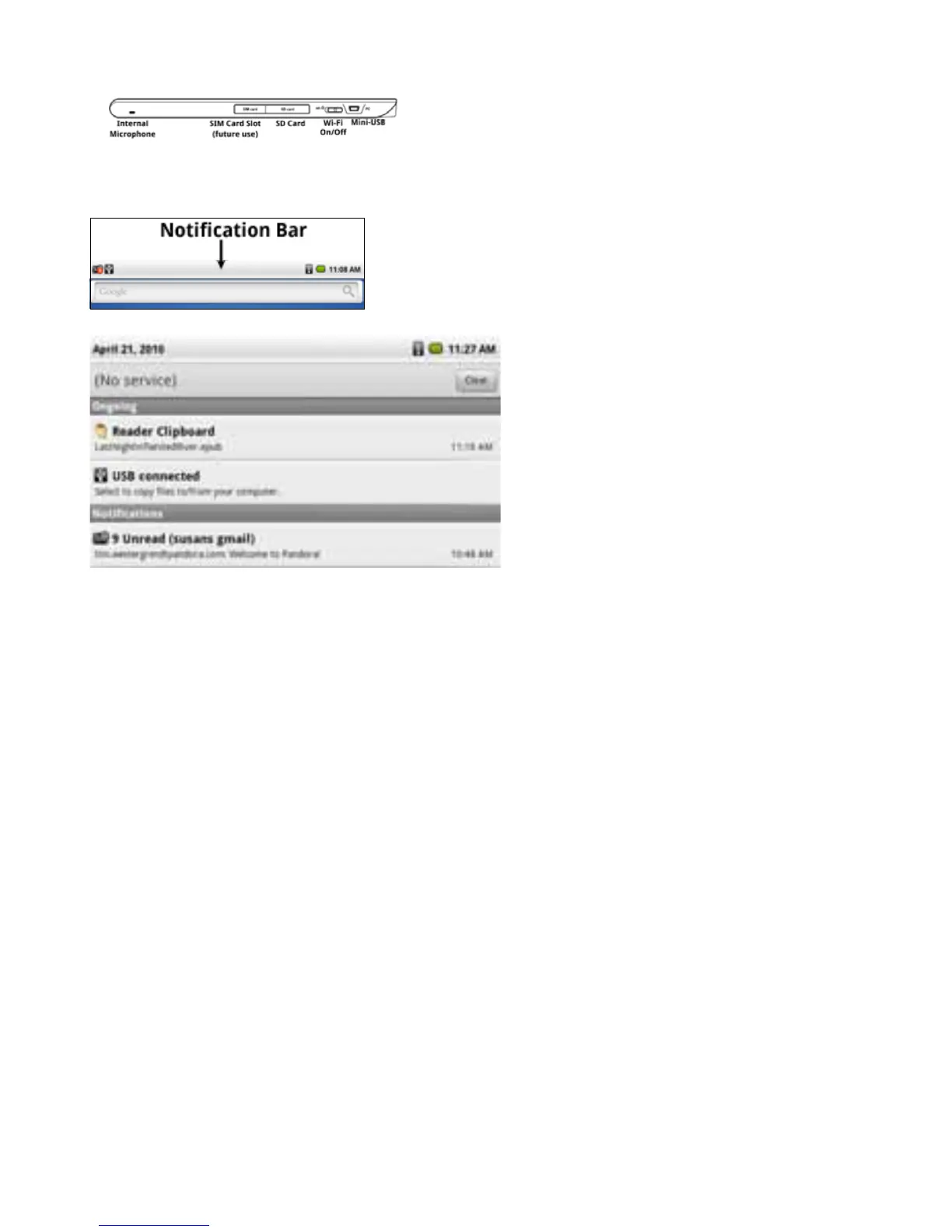
The mini-USB port is on the top of the reader side of the enTourage eDGe (with the device in the default position).
TocopylesontotheenTourageeDGe:
1. Connect the enTourage eDGe to a PC, MAC, or Linux-based PC using the mini-USB cable.
2.OncetheenTourageeDGeisconnectedtothePC,aUSBiconappearsinthenoticationbaratthetopofthetablet.
3.Pressandholdthenoticationbaranddragitdownasshown.
4. Select the USB connected message, then select Mount. Your computer should now recognize the enTourage eDGe as a
drive.
NOTE:WhileyouaremovinglesfromaPCtotheenTourageeDGe,youwillnotbeabletoperformanyotherfunctions
involving the Library.
5.SelectaleonyourPCandmoveittotheeDGe/publicfolder.
6.Onceyouhavemovedtheles,openthenoticationsbarontheenTourageeDGeagainbydraggingdowntheUSBicon.
Select the Turn off USB Storage message, then select Turn Off.
Return to Contents



 To Next Page