Navigation Setup
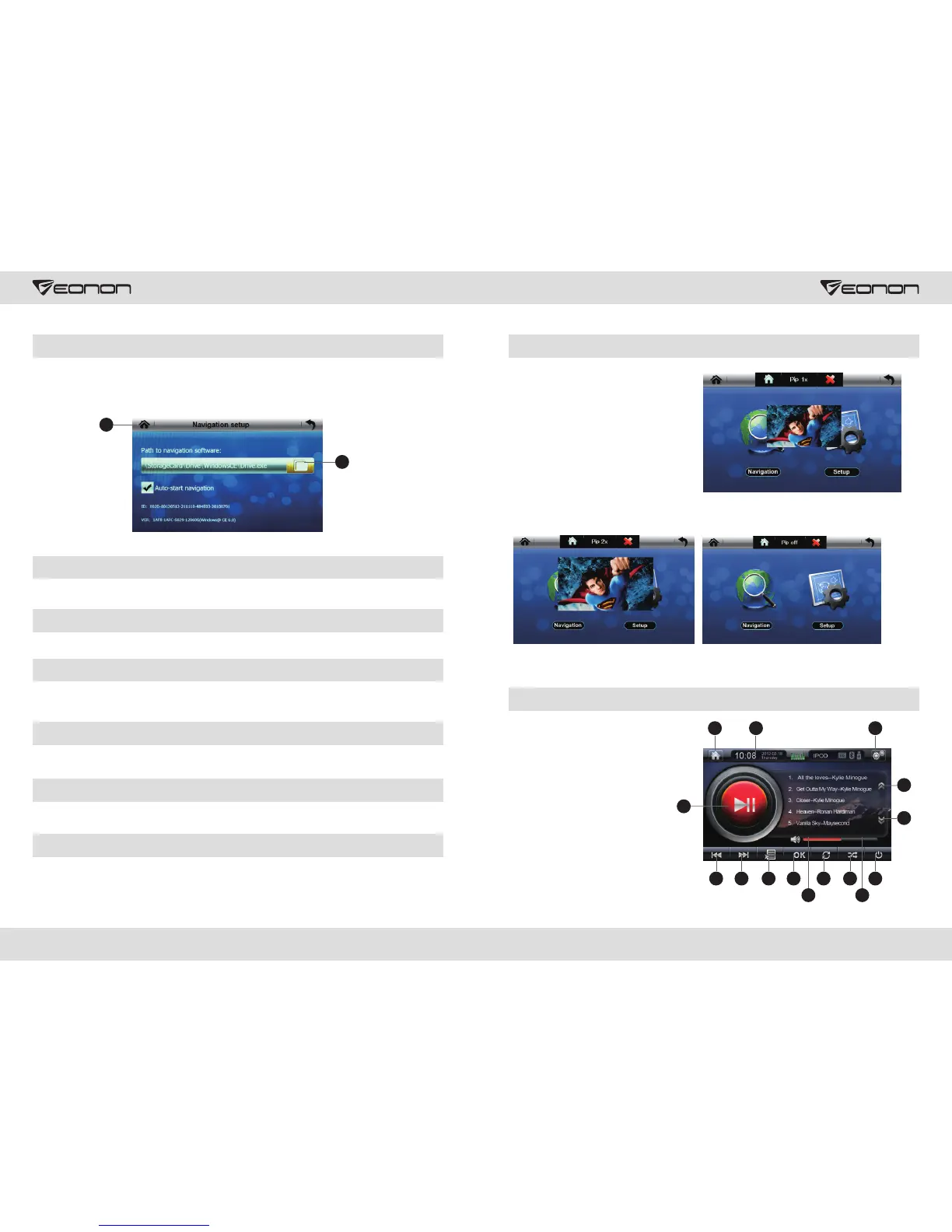
Press “Navigation Setup” to enter the interface of map path setting, press 1 to select the
map path; find the navigation map program (exe) and save, press 2 to go back to the
navigation main menu, press Navigation icon to enter navigation, and then start navigation
operation according to instructions shown in the figure.
General Setup
Press “General Setup” to enter setup interface, here the user could set language and
realize screen switch effect.
GPS Monitor
Press “GPS Monitor” to enter GPS monitor interface, the user could see signals about GPS
satellite radio.
Touch Calibration
Press “Calibration” to enter calibration interface, click 5 calibration points twice via a touch
pen, when calibration succeeds, an OK will display on the screen, and press OK to go back
to Set Menu.
Volume Setup
Press “Volume” to enter volume setup interface, here user could set system volume and
key tone.
Clock Setup
Click “Clock” to enter clock setup interface, here user could set clock and time zone.
System Setup
Press “System” to enter system setup interface, here user could carry out initial setup and
file restore.
17 18
GPS Picture–in-picture (PIP) Function
1. In GPS mode, the user could touch
1 as is shown in the figure to go back
to the main interface.
A
B
C
2. The user could realize free switch in
“Picture–in–picture_1x”,
“Picture–in–picture_2x” and
“Picture–in–picture_off” via touching
Figure 2, see Figure A, in
“Picture–in–picture_1x” status, this
picture will display 1/4 interface; in
“Picture–in–picture_2x” status, this
picture will display 1/2 interface (Figure
B), the user could move this screen freely via touching; in “Picture–in–picture_off”
status, this picture will close, (Figure C)
3. User could click Figure 3 when it is required to lock this picture.
IPOD Operation Mode (Optional)
6
11
798
10
1413
1. Increase
Volume
2. Decrease
Volume
3. Random
Button
4. Switch on/off
5. Repeat
6. OK
7. Song List
8. Previous
Audio
9. Next Audio
10. Next Page
11. Play / Pause
12. Previous page
13. Back to Main
Menu
14. General Set
Menu
15. Status and
Clock
5 3 4
2 1
12
15
2
1


 To Next Page