7 8
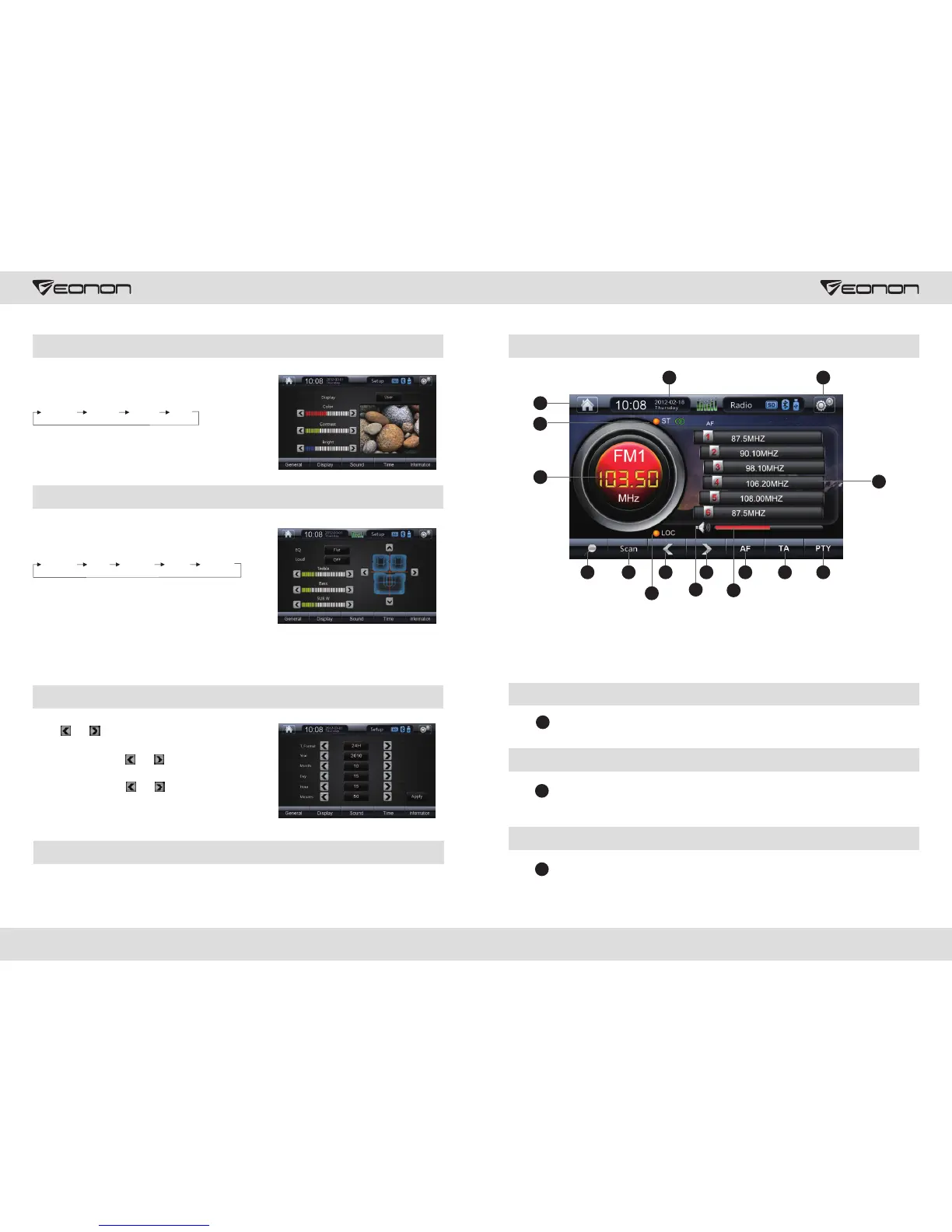
Display Setup
Click Display Setup icon, there're four
available modes for your selection:
Customi ze Standar d Bright Soft
Click displayed “color” “contrast” “brightness”, to
adjust color, contrast and brightness respectively
of the picture.
Sound Setup
Click “EQ” icon, there're 5 selective modes
for your selection:
Standar d Popular Jazz
Click “loudness” icon to select to turn on or off
sound equal loudness.
Classical
Rock
Click the arrow of “treble” or “bass" to adjust
treble or bass freely.
As is shown in the above picture, click four arrows on the right of the picture, to adjust
loudness of four speakers around the vehicle freely.
Time Setup
Click Or , to set “12H” or “24H”.
In Date Setup, click Or to adjust year, month
and day.
In Time Setup, click Or to set time.
When all settings are done, click 【Submission】
and exit the setup.
Version Information
Click Version Information icon, the version information of this software will display.
Radio Mode
13
16
6
10
11
21
4
12
5
7
9
14
15
1. Auto Search
Frequency
2. Scan
3. Filter
4. Mono / stereo
9. Volume
10. Manual Search
Frequency +
11. Manual Search
Frequency -
12. Frequency Band
Switch
13. Return to Main
Menu
14. General Setup
15. Status and Time
Display
16. Favorite Channel
5. TA(RDS)
Optional
6. AF(RDS)
Optional
7. PTY(RDS)
Optional
8. Mute
3
8
Auto Search Frequency
Click 【auto-scan radios】, to automatically search radio frequency bands, and to
save automatically; all bands searched are displayed as 1-6 bands.
1
Scan
Click 【browse】, the system will automatically go to 6-band region saved after auto
search, and the browse time for each band is 10 seconds.
2
LOC
Click 【LOC】 to set the remote or short-distance scan radio mode, if the short-distance
scan radio mode is selected, the system will receive local radio frequency with strong
signals. If the remote mode is selected, the system could only obtain local frequency.
3


 To Next Page