Remote Control Operation
24.AUDIO/ST
Under DVD mode, press this button repeatedly to select audio language.
Under VCD mode, press this button repeatedly to select channel mode.
Under radio mode, press this button to select stereo or mono channel.
25.RDM/TA
Tap and hold this button to turn on/off TA function. Under play mode, press this button to set random
play.
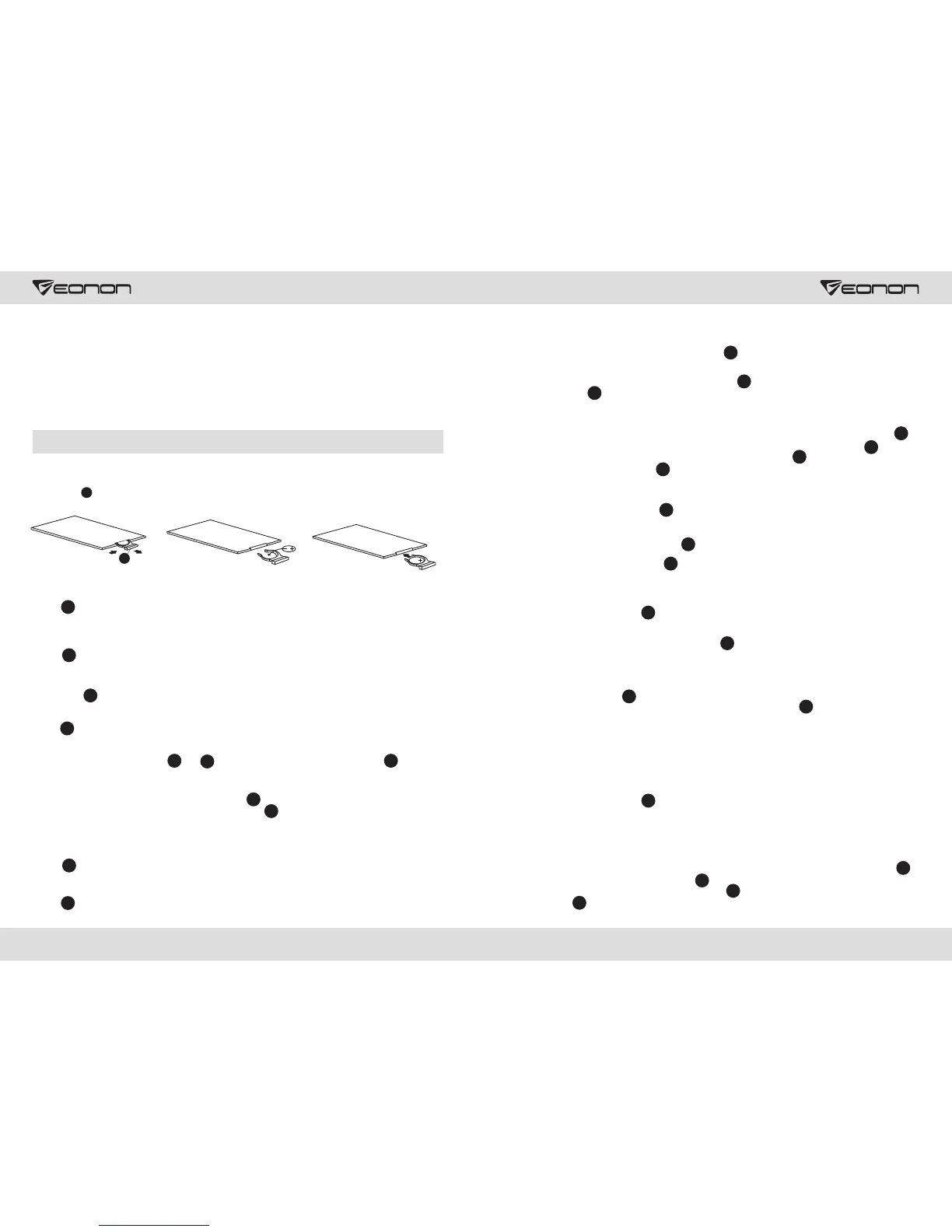
Change Battery
Power Switch
Press to switch on/off power, remote control only acts after clicking 【POW】 or reset button on
DVD panel for the first time.
TFT screen Angle Adjustment
Press to slide up/down TFT screen, which is divided into 5 angles, and one angle could be slid
up/down at each click.
15
1
Pause/Play
Click button to pause DVD, VCD, CD and MP3. Click it again to restore normal play.
2
Mute
Press to mute, click again to restore sound.
1
Menu Select/Confirm
According to requirements, press and 【ENTER】 to enter selected menu or click to
confirm.
4
6
2
Frequency Band/Format Switch
When searching radio channels, the user could press 【BAND/SYS】 to switch frequency band.
However, while listening to the radio, the user could press 【BAND/SYS】 to switch between Auto,
PAL and NTSC formats.
5
5
Volume Increase/Decrease
Press 【VOL+ or VOL-】 to increase or decrease the radio volume.
7
Equal Loudness Compensation
Press 【LOUD】 to turn on or off equal loudness compensation. This could improve bass effect.
16
23 24
1. Press Plug and pull out
battery box
1
1
2. Insert battery into box with
positive electrode upward.
3. Insert the battery box into the
remote control
Select Channels/Songs/Fast Forward/Rewind
During searching radio channels, the user could press to manually move forward or backward to
select channels. If this button is pressed more than 3 seconds, the system will search forward
automatically.
Under DVD, VCD, CD or MP3 mode, the user could press to move forward or backward to select
one song. If button is pressed more than 3 seconds, fast forward or rewind will be implemented,
till the selected song is searched, and then the user could press play button.
8
8
8
Program/Standard Time
In VCD or CD status, the user could set song play sequence via this function; in VCD status, press
【ST/PROG】 to display P00:00 on TFT screen or TV, the user could press Number Button 【0-10+】
to set song play sequence. After programming is done, user could press o play. During searching
radio channels, the user could press 【ST/PROG】 to switch between memo and stereo.
9
9
2
14
Play Time Display
Under DVD, VCD or CD status, press 【OSD】 to display song play time.
10
Repeat/Auto Search
Under DVD, VCD, CD or MP3 status, press [AMS/RPT] to play current songs, and press again to
cancel repeat.
When searching radio channels, press [AMS/RPT] to scan automatically and save between Number
Button 【1-6】 of this device.
12
12
Random Play/Local Remote Play
In VCD, MP3 or CD status, press 【LOC/RDM】 to enter random play, and press again to cancel
(according to the list play).
Notes: Under DVD mode, [LOC/RDM] does not work.
While searching radio channels, the user could press 【LOC/RDM】 to switch between local search
and remote search directly.
13
13
Number button
During searching channels, the user could select these 6 radio channels and save each frequency band,
via pressing Number Button 【1-6】.
Under DVD, VCD, CD or MP3 status, the user could press Number Button 【1-10+】 to select one
th
song directly, i.e.: If the 15 song is to be selected, the user could press 【10+】 and press 【5】to play
th
the 15 song.
Note: 1. When 【10+】 is pressed for the first time, it is 10. When pressed for the second time, it will turn
into 20, and will turn into 30 when pressed for the third time, etc. 2. When playing on PCB position, all
number buttons will not work.
14
14
Left Channel/Right Channel/Stereo
In DVD, VCD or CD status, press 【AUDIO】 to set left/right channel and stereo.
Note: When playing movies or Karaoke, this function will bring about a perfect sound effect. For
example, the user could select either Chinese or English.
15
PBC Play
When playing VCD2.0 TFT screen or displaying all programs, the user could play PBC via pressing
【PBC】. The user could press Number Button 【0-10+】 to select program directly. If it is expected
to stop and play another program, the user could press to go back to the main menu and reselect the
function. Press 【PBC】 again to cancel PBC play.
Note: PBC will not be impacted when playing DVD, C, MP3 or VCD1.1.
16
14
20
16


 To Next Page
 Loading...