If no RDS is set, or RDS is disabled, Button - will be invalid.
A. Click Button 【PTY】 your favorite program mode; press for two seconds to start auto
search
B. Click Button 【Ta】, the system will search RDS display automatically
C. At the time of restarting, AF function is set to open; click Button to close or reopen it.
If the current signal is relatively weak, within 50 seconds, the system will carry out auto
search, to display frequency of stronger signal
Stereo and Mono Switch
Click 【St】 button to set stereo and mono to receive radio mode.
4
RDS (Optional Function)
5 7
7
5
5
Volume Adjustment
Press 【+】 or 【-】 to control and adjust volume. The volume is divided into 40
grades, when the volume is set below 30, the power supply is switched off; when switched
on again, the volume will return to the previous setup; when volume is set above 30, if
power supply is switched on again, volume will return to default value 15.
8
9
Manual Search
Click and to select different radio channels. Tap and hold and , to search
channels forward and backward automatically, the system will stop when any channel is
searched.
10
11
10
11
Frequency brand switch
Click 【band】 to switch in the
following frequency brands:
12
FM1
FM2
FM3
AM1AM2
Favorite radio frequency brands
When the main machine receives a favorite channel, the user could click any one of Button
1-6 for 2 seconds to save, and click any button of them to play preset channels. As is shown
in .
16
Back to Main Menu
Click to go back to the main menu
13
9 10
General Setup
Press Button to display general Set Menu.
14
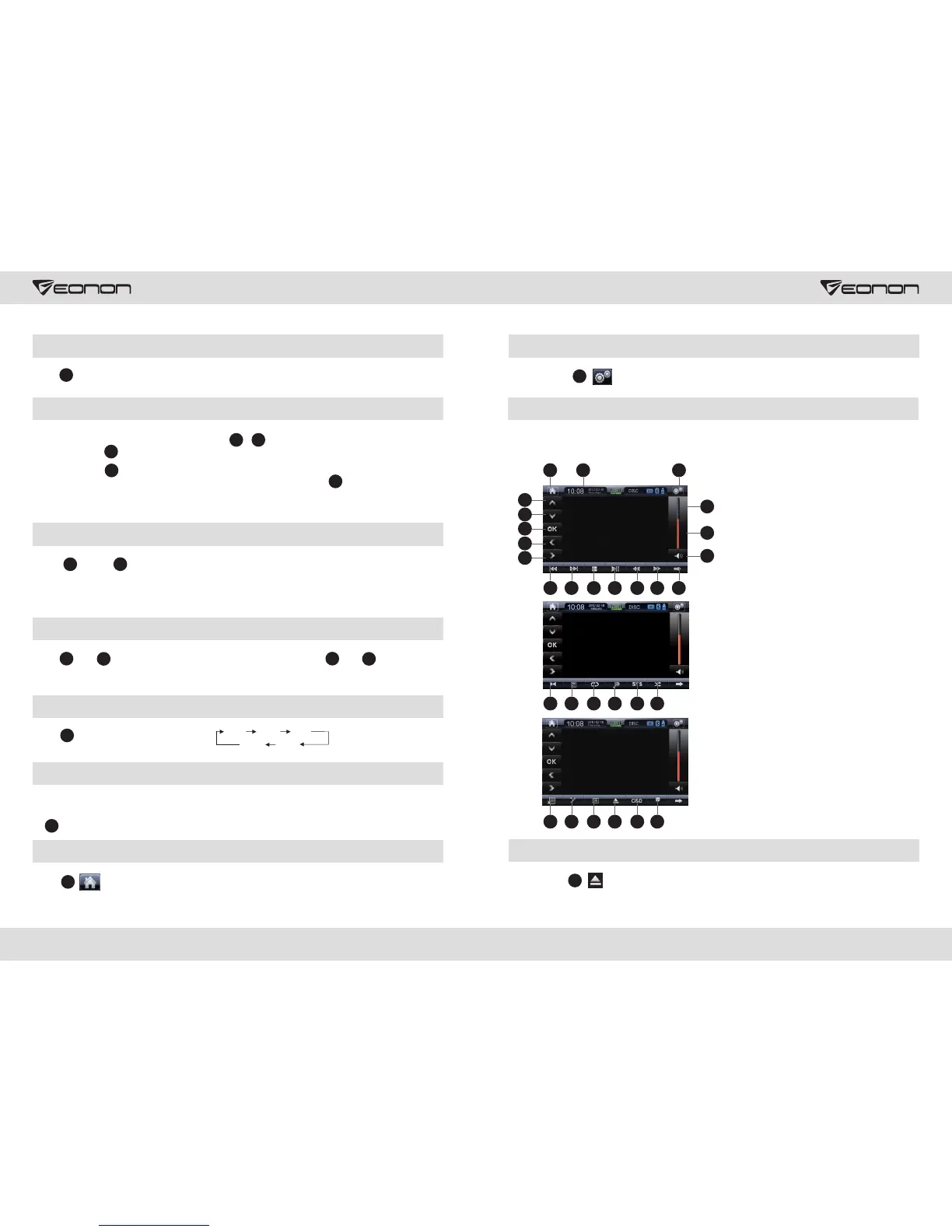
DVD/SD/MMC/USB operation
When the disc is inserted, it will enter DVD mode automatically; if there's a disc in the DVD,
the user could press DVD icon in the DVD main menu to enterthe DVD mode, and press
Enter/Eject Disc button.
Enter/Eject
Click Button to control the disc entry and ejection
1
1. Eject
2. Play/Pause
3. Stop
4. Arrow Button
5. Menu Display
6. Directory
Function
7. Audio
8. Zoom
9. Volume +/-
10. Volume
11. Replay
12. Fast Forward
13. Rewind
14. Previous Song
15. Next Song
16. Back to Main
Menu
17. General Set
Menu
18. Status/Clock
19. System
20. Random Play
21. DVD Set
Button
22. Theme Button
23. Play Button
24. Scan Button
25. OK
26. Up
27. Down
28. Left
29. Right
30. Mute
2
17
3
13
4
12 14 15
1816
30
26
27
25
28
29
10
9
811
7 22 19 20
16
5 21 23 24


 To Next Page