Title/Language Change
Under DVD status, the user could change title/language to Chinese/English via pressing 【SUB-T】.
Note: This button could only be used to copy DVD disc via title/language. Otherwise, this TV display title
will be canceled.
22
Set Disc Play Time
When playing discs, press 【GOTO】 to set disc play time. Press Number Button to set songs
and chapter or play time, and then press 【ENTER】 to start playing.
18
8
Mode Switch
The user could press 【MODE】 to switch play mode between radio search/radio/USB/SD/MMC/
AUX-IN/TV/BLUETOOTH/GPS/IPOD.
Note: If there's no disc, SD card or USB device, and no DVD or Ipod is selected, the user could not run
this function via pressing mode buttons.
19
GPS Mode Switch
First, press 【GPS】 to make this device enter GPS mode automatically, and then operate GPS via
touch screen. Press 【GPS】 again to carry out mode switch between GPS1 and GPS2.
Note: GPS1 is voice navigation, while GPS2 is a simple GPS navigation, and the default mode is GPS1.
26
26
GPS Picture Switch
Press 【SEL】 to switch picture between GPS and DVD.
When under GPS1 mode (voice navigation, GPS and other modes work together), press 【SEL】 to
switch between GPS and other modes.
Under GPS2 mode (only GPS works), press 【SEL】 to switch between GPS and the main menu of
this machine. If it is expected to switch from GPS to other modes, the user could press 【SEL】 to
switch the menu, and then, press icon enter attachment mode.
11
11
11
11
Stop play
When “Please press play button to continue” is displayed on DVD or TV, press for the first time to
carry out fast forward, and press for the second time to stop playing.
Note: When this button is pressed for the first time in VCD, MP3, CD or USB/SD/MMC card, this player
will stop.
20
25 26
Title Menu
In DVD or VCD status, the user could press 【TITLE】 to display all songs in this disc. The user
could also use Number Button 【0-10+】 to select programs directly, or press 4 to select menu or
press 【ENTER】 or to play.
Note: 1. When playing MP3 and CD, TITLE does not work.
2. When playing DVD disc or multimedia title/language, the user could press
【TITLE】 to select title/system language.
24
14
6
2
Zoom
When playing DVD or VCD, press 【ZOOM】 button to enlarge the screen according to the following
rules:
2-fold,3-fold,4-fold,1/2-fold,1/3-fold,1/4-fold,0-fold,
Note: Under CD/MP3 mode, ZOOM does not work.
25
System setup
1. When playing DVD, press 【SETUP】 to enter DVD Set Menu.
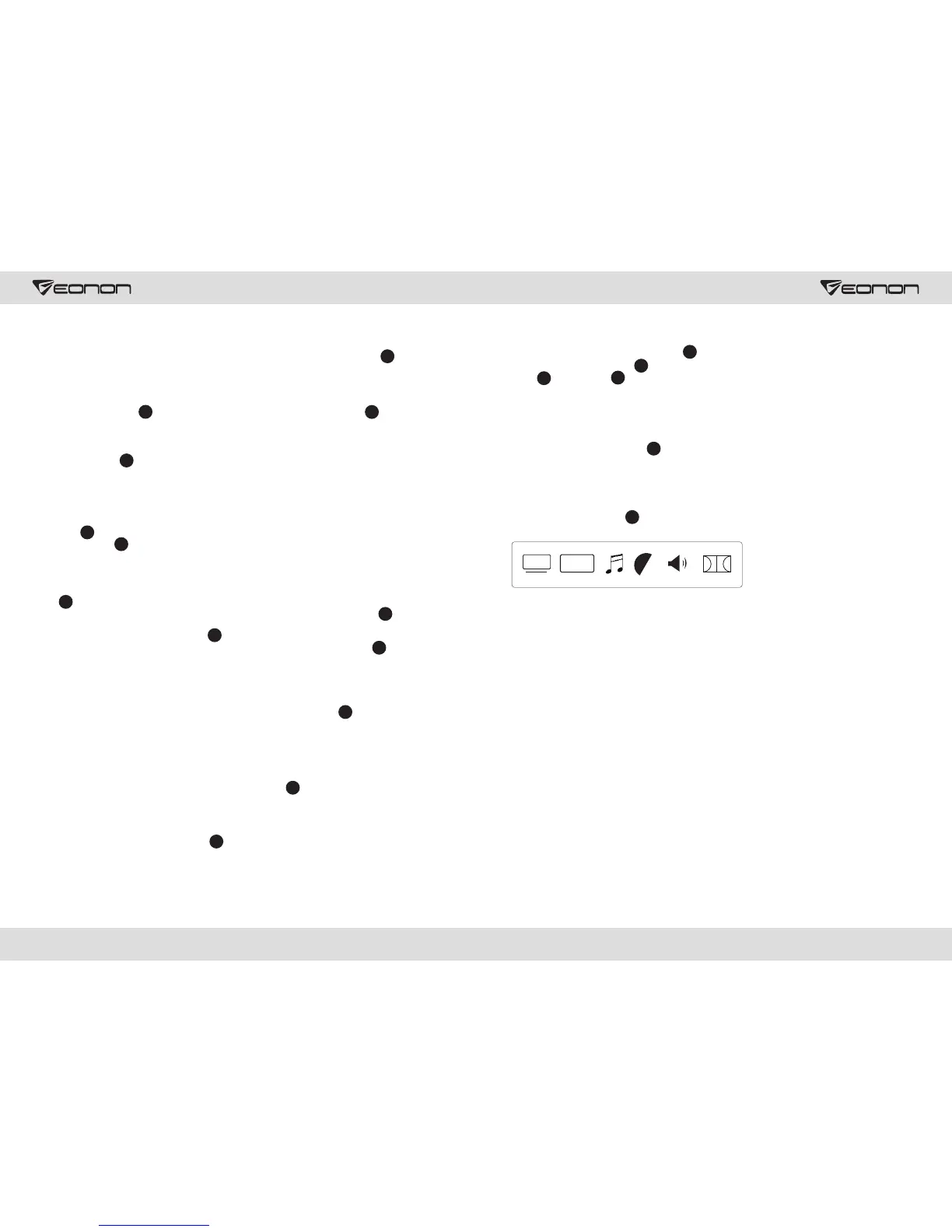
2. System Set Menu is displayed as follows:
23
System
Setup
Language
Setup
Audio
Setup
Video
Setup
System
Setup
Signal to
Noise Ratio
Digit Setup
3. Press 4 to select item to enter, and press 6 【ENTER】 to confirm.
A: System Setup
It includes TV system selection, auto play, video output, screen dimension, password, level and default
value select.
B: Language Setup
It includes OSD language, audio language and title language.
C: Audio Setup
It includes all audio setup selection.
D: Video Setup
It includes video brightness, contrast and color saturation.
E: Digital Audio Output Setup
It includes digital audio output mode setup, dynamic scope and tracks.
Angle
When watching DVD from different angles, the user could press 【ANGLE】 to adjust.
Note: 1. When playing VCD, MP3 and CD, this function does not exist.
2. Via pressing this button, the user could copy DVD content from multiple angles.
21
Enter/eject
If there's a disc in DVD, the user could press 【Enter/Eject】 to exit this disc, and press again to play
another disc.
Note: When input window is open, the user could put a disc into DVD directly.
3


 To Next Page
 Loading...