Organizing Your Print Jobs
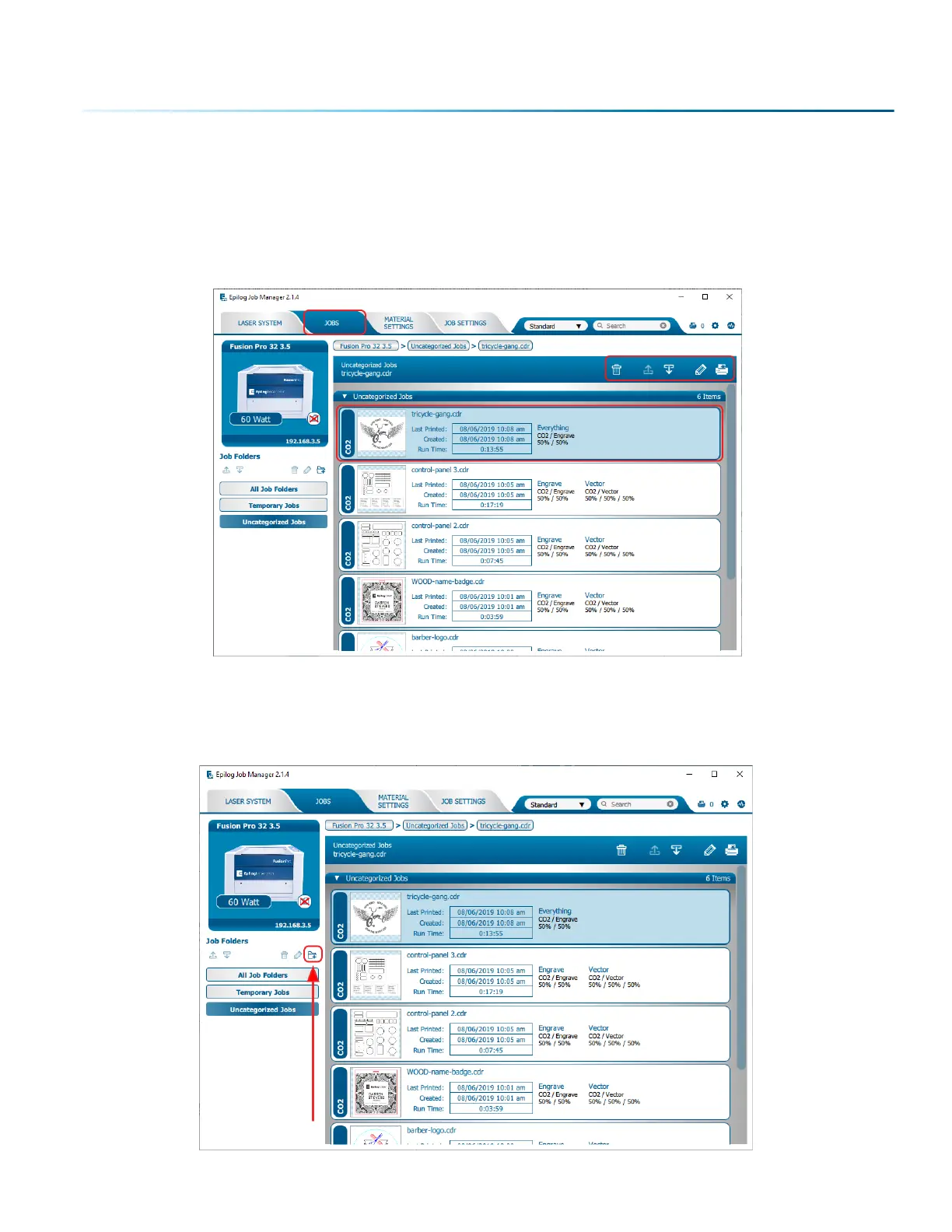
Once the Job Manager is open, click the Jobs tab. All print jobs sent to the Job Manager from the
Dashboard will be displayed in the Uncategorized Jobs folder by default. Printed jobs that are not sent
to the Job Manager can be found in the Temporary Jobs folder. Click on your job to highlight it. You can
now Print, Edit, Preview, Move or Delete this job using the available icons.
Create and Delete Job Folders
Click the “Add Folder” icon to add new folders. You can add as many folders as you’d like.
- 37 -
SECTION 4: THE JOB MANAGER


 To Next Page
 Loading...