72
Saving a User's Logo Image
logo.
f
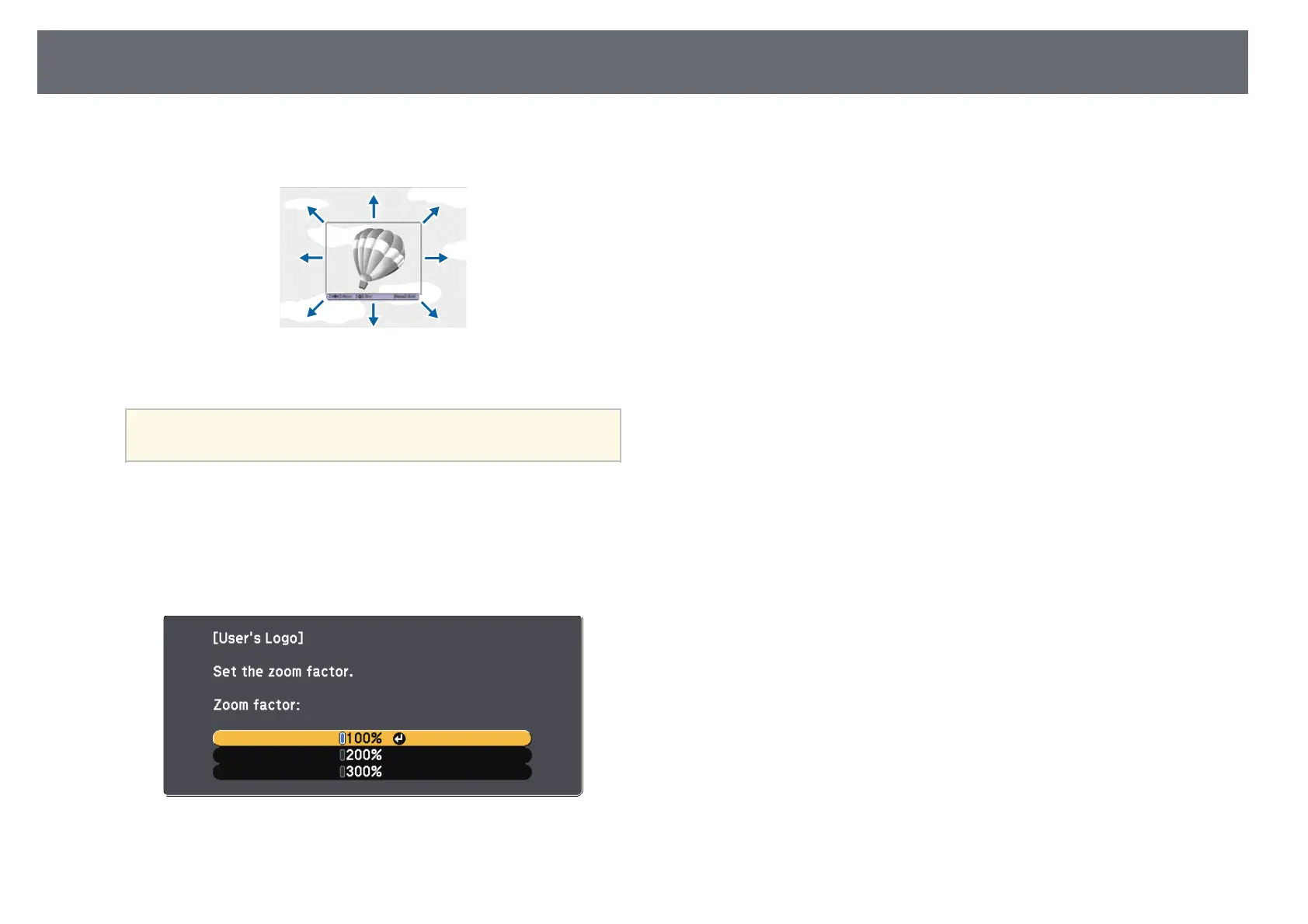
Use the arrow buttons to surround the image area you want to use as
i
Select Yes and press [Enter].
the user's logo and press [Enter].
The user's logo is overwritten and a completion message appears.
j
Press [Esc] to exit the message screen.
k
Select the Extended menu and press [Enter].
l
Select Display and press [Enter].
m
Select when you want to display the User's Logo screen:
• To display it whenever there is no input signal, select Display
Background and set it to Logo.
You see a prompt asking if you want to select this image area.
• To display it whenever you turn the projector on, select Startup
You cannot change the image area size (400 × 300 pixels).
Screen and set it to On.
a
• To display it whenever you press the [A/V Mute] button, select A/V
Mute and set it to Logo.
g
Select Yes and press [Enter]. (If you want to change the selected area,
select No, press [Enter], and repeat the last step.)
To prevent anyone from changing the User's Logo settings without first
entering a password, set the User's Logo Protection setting to On in the
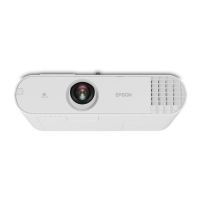
You see the User's Logo zoom factor menu.
Password Protection menu and set the password.
h
Select a zoom percentage and press [Enter].
gg Related Links
• "Shutting Off the Image and Sound Temporarily" p.65
• "Selecting Password Security Types" p.77
You see a prompt asking if you want to save the image as the user's


 To Next Page