The icon patterns are explained below.
No problem Problem
Procedure
A
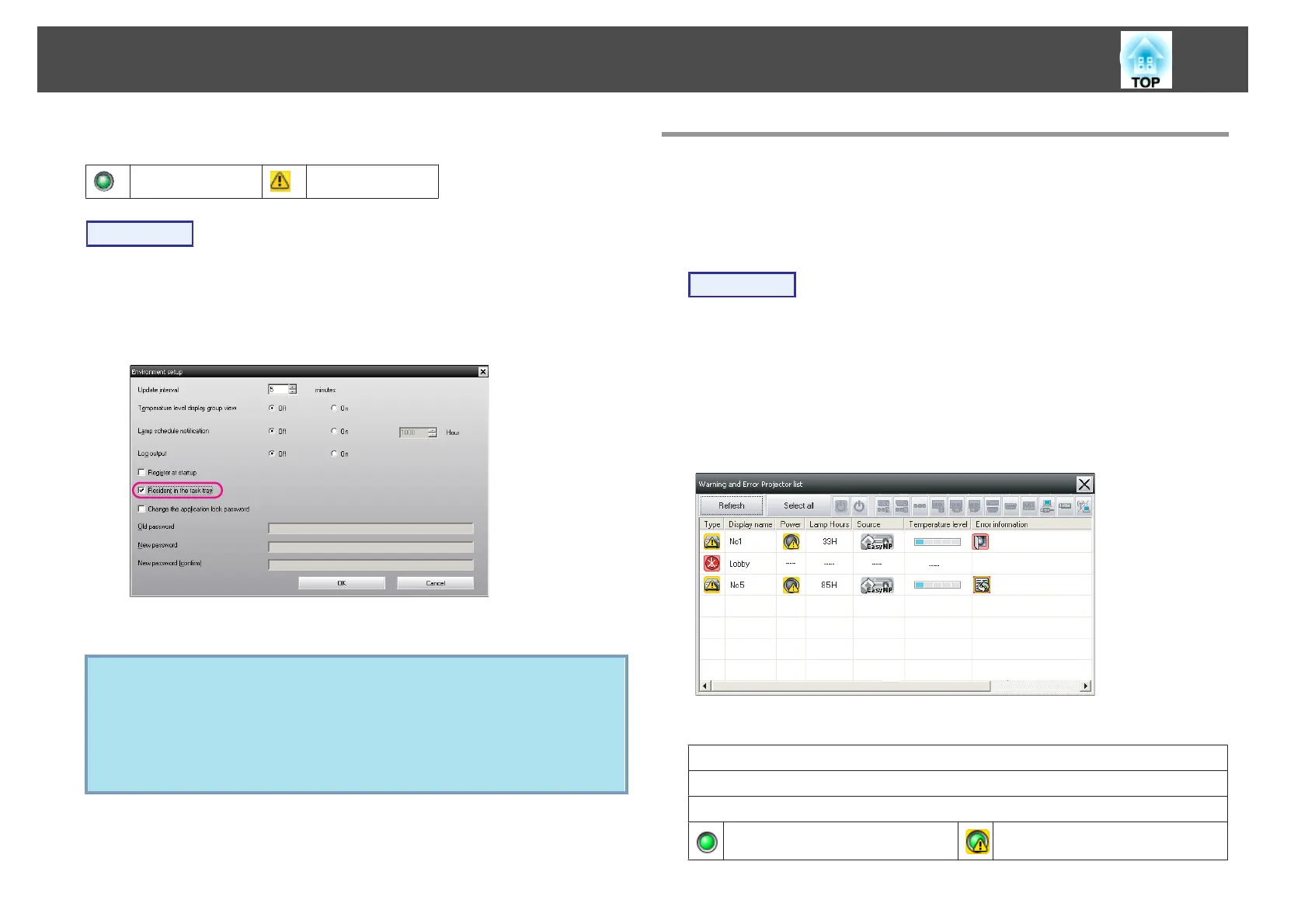
Select "Environment setup" from the Tool menu.
The Environment setup window will be displayed.
B
Select "Resident in the task tray".
C
Click "OK".
q
• Right-click the icon in the system tray to open a pop-up menu
to select the Open the main screen or Exit.
• If Register at startup in the Environment setup is selected, EMP
Monitor starts automatically when the computer's power is turned
on. When using EMP Monitor under Windows Vista, you must
have administrator authority in order to use this function.
Displaying projectors with problem or warning
statuses in a list
You can display a list of only the projectors which have a problem or
warning status.
Procedure
Select "Warning and Error Projector list" from the View menu.
The following Warning and Error Projector list window will be displayed.
If you move the mouse pointer over the icon of the Error information,
details of the error and the remedy will be displayed. If you
double-click in a line, the properties for that projector will be displayed.
s p.26
The icon patterns and their meanings are explained below.
Type: Shows the group or projector status.
Display name: Shows the display name.
Power: Shows the power on status for the projector.
Power on and normal status Power on and abnormal status
Monitoring window layout
24



 To Next Page